Modern laptops are designed to be portable, efficient, and convenient, but many users are still unsure what really happens when they close the lid or press the power button. Terms such as Sleep, Hibernate, and Shut Down may sound similar, yet they work in very different ways. Understanding these power modes can help you protect your work, extend battery life, and avoid unnecessary wear or frustration.
TLDR: Sleep keeps your laptop’s current session in memory and uses a small amount of power so you can resume quickly. Hibernate saves your session to storage and powers off almost completely, making it better for longer breaks or low battery situations. Sleep is faster, but Hibernate is safer when you will not use the laptop for several hours or days. For most users, both modes are useful, depending on how long the laptop will be idle.
What Is Laptop Hibernation?
Laptop hibernation is a power-saving state that saves everything you are currently doing to the laptop’s internal storage drive, then powers the system down almost completely. Your open apps, browser tabs, documents, and system state are written to a special file, often called a hibernation file. When you turn the laptop back on, the system reads that file and restores your session as it was.
In practical terms, Hibernate lets you “pause” your computer for an extended period without keeping it actively running. Unlike Sleep mode, which depends on power to maintain open data in memory, Hibernate does not need continuous battery power to preserve your session. This makes it especially useful when your battery is low or when you plan to put your laptop away for a long time.
Hibernate is commonly found on Windows laptops, though similar power-saving concepts exist on other systems. Some devices may hide the option by default, especially newer laptops that use modern standby features. However, the underlying purpose remains the same: save your work state while using as little power as possible.
How Sleep Mode Works
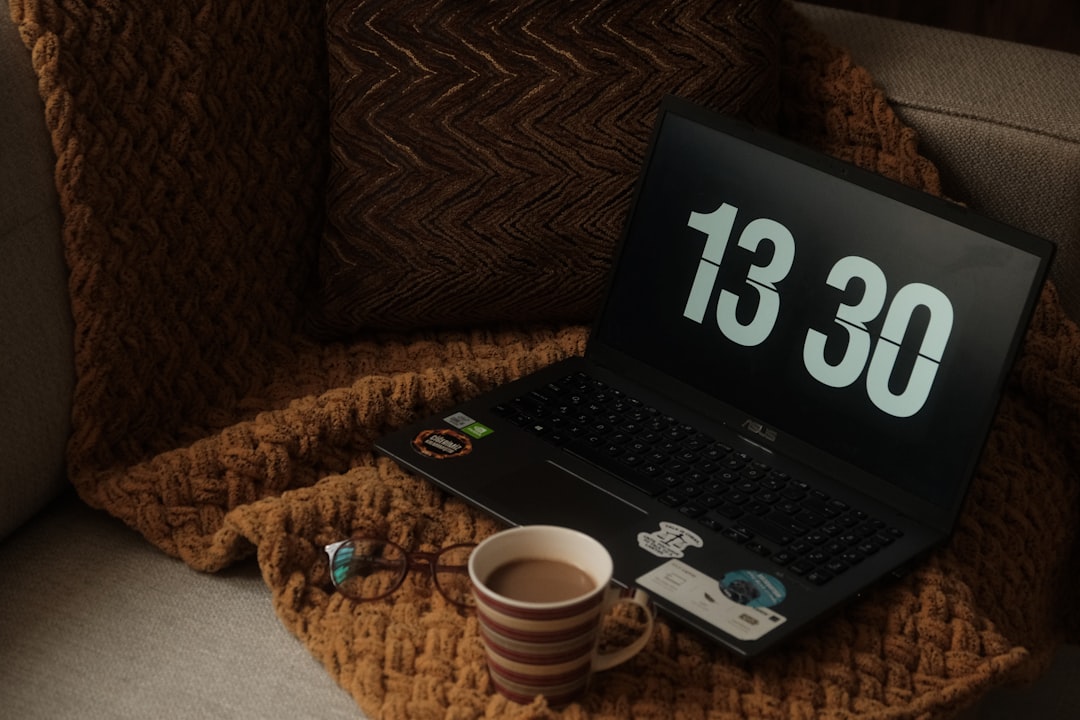
Sleep mode is intended for short breaks. When a laptop enters Sleep, it reduces power to most components, including the display, processor, and storage drive. However, it keeps the computer’s memory, or RAM, lightly powered so your active session remains instantly available.
This is why waking a laptop from Sleep usually takes only a few seconds. You open the lid, press a key, or tap the power button, and your apps appear almost immediately. Sleep is convenient if you are stepping away for lunch, moving between meetings, or pausing your work for a short period.
The drawback is that Sleep still consumes battery power. The amount is usually small, but it is not zero. If a laptop remains asleep for many hours or days, the battery can drain significantly. If the battery runs out completely while the laptop is asleep, unsaved work may be at risk unless the system automatically switches into Hibernate before power is lost.
Sleep vs Hibernate: The Core Difference
The simplest way to understand the difference is this: Sleep saves your session in RAM; Hibernate saves your session to storage.
RAM is fast but requires power to retain information. Storage, such as an SSD or hard drive, keeps data even when the laptop is fully powered off. Because of this, Sleep is faster to resume, while Hibernate is more power efficient and safer for longer idle periods.
- Sleep: Keeps your session in memory and uses a small amount of battery.
- Hibernate: Writes your session to the storage drive and shuts down almost completely.
- Sleep: Best for short breaks and rapid resume.
- Hibernate: Best for longer breaks, travel, or low battery conditions.
- Sleep: Wakes in seconds.
- Hibernate: Takes longer to resume, but preserves the session without ongoing power use.
When Should You Use Sleep?
Sleep is the right choice when you expect to return to your laptop soon. For example, if you are moving from one room to another, taking a short break, or temporarily closing the lid between tasks, Sleep is efficient and convenient.
Because Sleep allows the laptop to resume quickly, it supports a smooth workflow. You do not need to reopen programs or wait through a full startup process. For many people, this is the default behavior when closing the laptop lid.
Use Sleep when:
- You will use the laptop again within a few minutes or hours.
- The battery has enough charge.
- You want the fastest possible resume time.
- You are in a secure environment where quick access is acceptable.
- You are keeping the laptop nearby rather than packing it away for travel.
However, Sleep is not ideal if your laptop will be left unused overnight with a low battery, stored in a bag for a long commute, or set aside for several days. In those cases, Hibernate is generally safer.
When Should You Use Hibernate?
Hibernate is best when you want to preserve your session but do not need immediate resume. It is particularly useful before travel, before storing the laptop, or when the battery level is low. Since Hibernate does not rely on continuous power, it helps prevent battery drain while still allowing you to return to your open work later.
Use Hibernate when:
- You will not use the laptop for several hours or more.
- Your battery is low and you want to protect your open work.
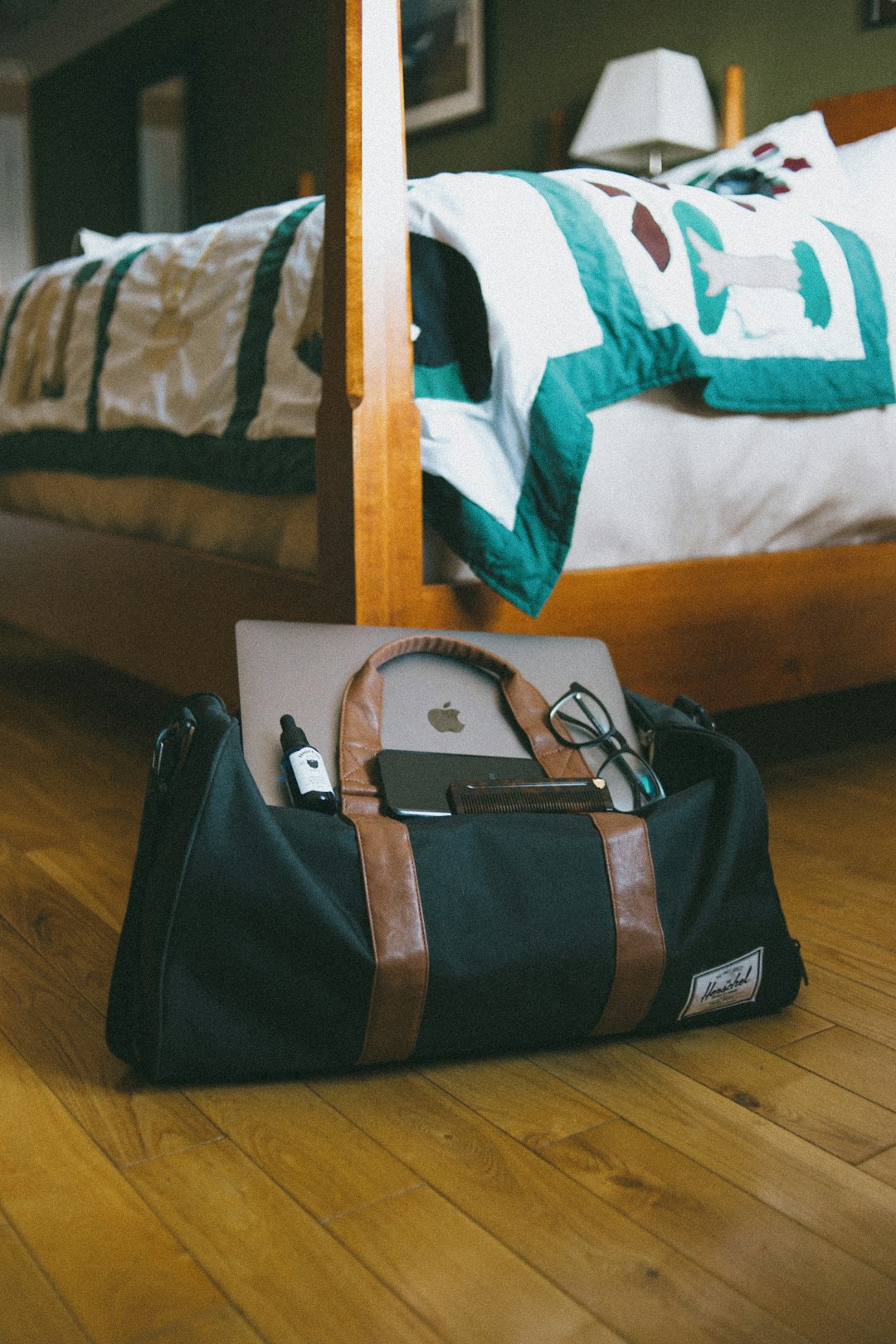
- You are putting the laptop into a backpack or case.
- You want to reduce power consumption as much as possible.
- You need to keep apps and documents open but do not need instant wake.
Hibernate can be especially important for business users, students, and anyone working with multiple documents or browser tabs. Instead of shutting down and reopening everything later, you can preserve the working environment while reducing the risk of battery depletion.
Is Hibernate the Same as Shut Down?
No. Hibernate and Shut Down both power off the laptop almost completely, but they do not behave the same way. A full Shut Down closes open applications, ends the operating system session, and starts fresh the next time the laptop powers on. Hibernate preserves the session and restores it later.
Think of Shut Down as ending the workday and clearing the desk. Think of Hibernate as placing everything on the desk into a secure drawer so you can continue later from the same point.
There are good reasons to shut down your laptop occasionally. Restarting or shutting down can clear temporary system issues, complete updates, and refresh system resources. Hibernate is convenient, but it should not be the only power action you ever use.
Does Hibernate Drain Battery?
Hibernate uses very little power. In most cases, the battery drain during hibernation is negligible compared with Sleep mode. Because the laptop’s session is stored on the drive rather than maintained in RAM, the system does not need to keep memory powered.
That said, no battery-powered device is perfectly immune to gradual battery loss. A laptop left unused for weeks or months may still lose charge due to natural battery self-discharge or background hardware behavior. But compared with Sleep, Hibernate is clearly the better option for preserving battery life over longer periods.
Is Hibernate Bad for Your Laptop?
For normal users, Hibernate is not bad for a laptop. It is a standard power-management feature designed to be used safely. Modern SSDs and operating systems handle hibernation reliably in most circumstances.
Some people worry that Hibernate increases wear on an SSD because it writes the contents of RAM to storage. While this is technically true, the practical impact is usually small for typical daily use. Modern SSDs are built to handle large amounts of written data. For most users, battery preservation and work protection are more important than the minimal additional write activity caused by hibernation.
However, Hibernate may occasionally cause problems if a system has outdated drivers, firmware bugs, or unstable hardware. If your laptop regularly fails to resume properly from Hibernate, freezes, or shows errors, you should update the operating system, device drivers, and BIOS or firmware where appropriate. Persistent issues may indicate a deeper configuration or hardware problem.
Why Some Laptops Do Not Show Hibernate
On some laptops, the Hibernate option is hidden or disabled by default. This is common on systems designed around Modern Standby, a low-power sleep technology that allows certain background tasks to continue while the laptop appears asleep. Manufacturers may prefer Sleep or Modern Standby because it provides faster wake times and a smartphone-like experience.
In Windows, Hibernate can often be re-enabled through power settings or administrative commands, depending on the device configuration. Corporate laptops may also have power options controlled by IT policies. If you use a work laptop, it is wise to follow your organization’s guidance rather than changing power settings without approval.
Security Considerations
Both Sleep and Hibernate can preserve sensitive information because they keep your session available. If someone opens your laptop, they may see your lock screen and attempt to access your account. For that reason, your laptop should always require a password, PIN, fingerprint, or other authentication method when waking from Sleep or Hibernate.
Hibernate can offer a small advantage when traveling because the laptop is effectively powered off, reducing the chance of accidental wake-ups in a bag. Still, it is not a substitute for proper security. If you handle confidential data, you should also use full-disk encryption, strong login credentials, and automatic screen locking.

Which Mode Is Better for Battery Health?
Battery health depends on several factors, including temperature, charge cycles, charging habits, and storage conditions. Hibernate can help reduce unnecessary battery drain compared with Sleep, especially when the laptop is idle for long periods. This can reduce the number of times you need to recharge, which may modestly benefit long-term battery wear.
Sleep is still appropriate for short breaks. The key is to avoid leaving a laptop asleep for extended periods when the battery is already low. If the device becomes warm inside a bag because it accidentally wakes from Sleep, that heat can be more harmful than the power mode itself. Hibernate is usually safer before placing a laptop in a case or backpack.
Practical Recommendations
For most users, the best approach is not to choose one mode permanently, but to use each mode for its proper purpose. A reliable routine might look like this:
- Use Sleep when stepping away briefly or moving between nearby locations.
- Use Hibernate when stopping work for the day, traveling, or leaving the laptop unused for many hours.
- Shut down or restart periodically to apply updates and keep the system running cleanly.
- Enable wake authentication so the laptop requires a password or biometric login after Sleep or Hibernate.
- Avoid storing a sleeping laptop in a bag for long periods, especially if it may wake accidentally.
Final Verdict: Sleep or Hibernate?
Sleep is best for convenience. It is fast, simple, and ideal for short pauses. Hibernate is best for preservation. It saves your session without relying on battery power and is better suited for longer breaks, travel, and low-battery situations.
Neither option is universally better in every situation. A well-managed laptop uses both. If you understand the difference, you can make smarter decisions about power, performance, and data safety. In everyday use, Sleep keeps work instantly accessible, while Hibernate provides a more secure pause when time, battery life, or mobility matters.