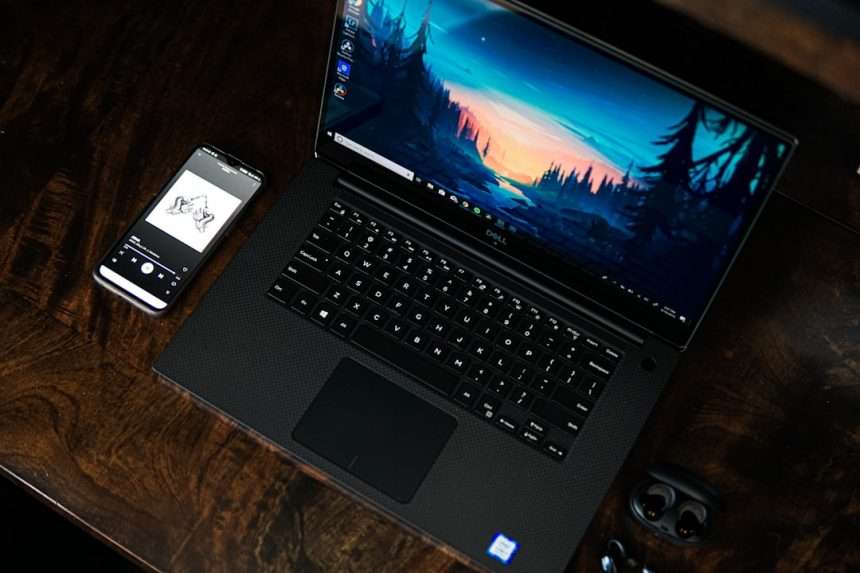
Turning on an HP Pavilion laptop should feel easy. Very easy. Like opening a snack bag. Like pressing a magic button and saying, “Wake up, little computer!” This guide will show you how to switch on your HP Pavilion laptop step by step.
TLDR: Put your HP Pavilion on a flat surface. Plug in the charger if the battery may be low. Open the lid and press the power button once. Wait for the HP logo, then sign in when the screen is ready.
Before You Start
Do not worry. You do not need to be a computer wizard. You do not need a toolbox. You do not need a secret password just to turn it on.
You only need a few simple things:
- Your HP Pavilion laptop
- The charger
- A power outlet
- A calm mood
- Maybe a snack, because snacks help everything
Most HP Pavilion laptops turn on in almost the same way. Some have the power button on the keyboard. Some have it near the side. Some hide it like a tiny treasure. But we will find it.

Step 1: Place the Laptop on a Safe Surface
First, put your HP Pavilion on a flat surface. A desk is great. A table is great. Your bed can work, but it is not the best place.
Why? Soft surfaces can block air vents. Laptops need air. They do not like to feel stuffy. If your laptop gets too warm, it may slow down or shut off.
So give it space. Let it breathe. Your laptop is not a pancake. Do not smother it.
Also check that it is dry. Keep drinks away. Coffee and laptops are not friends. Water and keyboards are even worse friends.
Step 2: Check the Charger
If your laptop has battery power, it may turn on without the charger. But if the battery is empty, it will just sit there. Quiet. Dark. Dramatic.
So plug in the charger first.
- Find the charging cable.
- Plug the round or USB C end into the laptop.
- Plug the other end into a wall outlet.
- Look for a small charging light.
Many HP Pavilion laptops have a tiny light near the charging port. It may be white, orange, or amber. This means the laptop is getting power.
If you do not see a light, do not panic. Some models are shy. They may not show a clear light right away. Make sure the charger is fully connected. Push it in gently. Do not force it.
Step 3: Open the Lid
Now open the laptop lid. Use two hands if you can. Hold the bottom part with one hand. Lift the screen with the other.
Open it slowly. Do not yank it like a stubborn door. The screen is strong, but it still likes kindness.
Some HP Pavilion laptops may wake up when you open the lid. If that happens, great. Your laptop is eager. It may show the HP logo or the lock screen.
If nothing happens, that is normal too. We still have the big moment coming.
Step 4: Find the Power Button
Now we find the famous button. The power button is the key to the whole show.
On many HP Pavilion laptops, the power button is:
- At the top right of the keyboard
- Above the function keys
- On the left or right side edge
- Built into the keyboard as a special key
Look for the power symbol. It looks like a circle with a short vertical line at the top. It is the universal sign for “turn on.” It also looks a bit like a tiny lollipop in a circle.
If your laptop is new to you, take a slow look. Run your eyes across the top row of keys. Check the corners. Check the sides. The button is there. It is just playing hide and seek.

Step 5: Press the Power Button Once
Here comes the exciting part. Press the power button one time.
Do not hold it down for a long time. Do not tap it ten times. Do not attack it like a game controller.
Just press it once. A gentle press is enough.
After you press it, wait. The laptop may take a few seconds. You may hear a fan. You may see a keyboard light. You may see the HP logo on the screen.
This is good. This means your laptop is waking up.
If nothing happens right away, count slowly to ten. Laptops are not always morning people.
Step 6: Watch for the HP Logo
When your HP Pavilion starts, you will usually see the HP logo. It may appear in the center of the screen. The screen may stay dark for a moment first.
This is normal.
The laptop is checking its parts. It is saying hello to the keyboard. It is saying hello to the memory. It is getting Windows ready. Very polite.
You may also see spinning dots. These dots mean Windows is loading. The dots are like tiny digital hamsters running in a circle.
Wait for them to finish.
Step 7: Sign In to Windows
After the laptop finishes starting, you should see the lock screen or sign in screen.
You may need to use:
- A password
- A PIN
- Your fingerprint
- Your face, if your model supports face sign in
Type your PIN or password carefully. Passwords are picky. If one letter is wrong, they get grumpy.
If your keyboard has a Caps Lock light, check it. If Caps Lock is on, it may change your letters. That can make your password fail.
Once you sign in, you will see the desktop. Congratulations. Your HP Pavilion is on and ready.
What If the Laptop Does Not Turn On?
Sometimes you press the power button and nothing happens. No light. No fan. No logo. Just silence.
Do not panic. Try these simple checks.
Check the Charger Again
Make sure both ends are connected. The wall plug should be snug. The laptop plug should be snug too.
If you are using a power strip, make sure it is switched on. Yes, this sounds silly. But it happens all the time. Power strips love to trick people.
Try a Different Outlet
The outlet may not work. Plug a lamp or phone charger into the same outlet. If that does not work either, the outlet is the problem.
Move to another outlet. Try again.
Let It Charge for a Few Minutes
If the battery is fully empty, the laptop may need a little time. Leave it plugged in for 10 to 15 minutes. Then press the power button again.
Think of it like waking someone from a deep nap. They need a minute.
Do a Simple Power Reset
If your HP Pavilion is stuck, a power reset may help.
- Unplug the charger.
- Remove any USB devices.
- Press and hold the power button for about 15 seconds.
- Plug the charger back in.
- Press the power button once.
This can clear a small power problem. It is like telling the laptop, “Okay, let us start fresh.”
What If the Screen Stays Black?
Sometimes the laptop is on, but the screen stays black. This can be confusing. It is like the laptop is awake but wearing sunglasses.
Look for signs of life:
- Do you hear the fan?
- Do keyboard lights turn on?
- Does the power light glow?
- Does the charging light appear?
If yes, the laptop may be on. Try pressing the brightness key. On many HP Pavilion keyboards, brightness keys are on the top row. They may show a little sun icon.
Press the brighter sun key a few times. The screen may simply be too dim.
You can also try pressing Windows + Ctrl + Shift + B. This tells Windows to refresh the display. You may hear a small beep. The screen may blink back on.
What If It Turns On, Then Turns Off?
If your laptop starts and then shuts down, it may have low battery. Keep it plugged in. Try again after 15 minutes.
It may also be too hot. Feel the bottom. If it is very warm, let it cool. Place it on a hard surface. Check that the air vents are not blocked.
If it keeps turning off, there may be a bigger issue. The charger, battery, or internal parts may need attention. But start with the easy things first. Easy fixes are the best fixes.
How to Know It Is Fully On
Your HP Pavilion is fully on when you can use it normally. You should see the Windows desktop or your apps. The mouse pointer should move. The keyboard should respond.
You may see icons like:
- Recycle Bin
- Microsoft Edge
- File Explorer
- Wi Fi symbol
- Battery symbol
If you see these, you did it. The laptop is awake. The digital kingdom is open.
Tips for Turning It On Safely
Here are a few friendly tips. They will help your laptop live a happy life.
- Use the correct charger. The wrong charger may not work well.
- Keep vents clear. Airflow helps stop overheating.
- Do not press the power button many times. One press is enough.
- Keep liquids away. Laptops do not enjoy surprise showers.
- Shut down properly. Use the Start menu when you are done.
How to Shut It Down Later
Turning it on is only half the story. When you finish using it, shut it down the right way.
- Click the Start button.
- Click the Power icon.
- Choose Shut down.
- Wait for the screen to turn off.
- Close the lid gently.
This helps Windows close safely. It also helps protect your files. Do not just hold the power button unless the laptop is frozen. That is the emergency exit.
Quick Step by Step Recap
Here is the whole process in one neat list:
- Place the laptop on a flat, safe surface.
- Plug in the charger if needed.
- Open the lid gently.
- Find the power button.
- Press the power button once.
- Wait for the HP logo.
- Let Windows load.
- Sign in with your PIN or password.
- Enjoy your laptop.
That is it. No magic wand needed. No robot helper needed. Just a button, a little patience, and maybe a tiny cheer when the screen lights up.
Final Thoughts
Switching on an HP Pavilion laptop is simple once you know where to look. Set it down safely. Give it power. Open the lid. Press the power button once. Then wait while it wakes up.
If it does not turn on, start with the basics. Check the charger. Try another outlet. Let it charge. Press the power button again. Most problems are small and easy to fix.
Now you are ready. Your HP Pavilion is not a mystery box anymore. It is your handy little machine. Wake it up, sign in, and go do something fun.