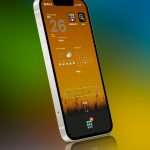
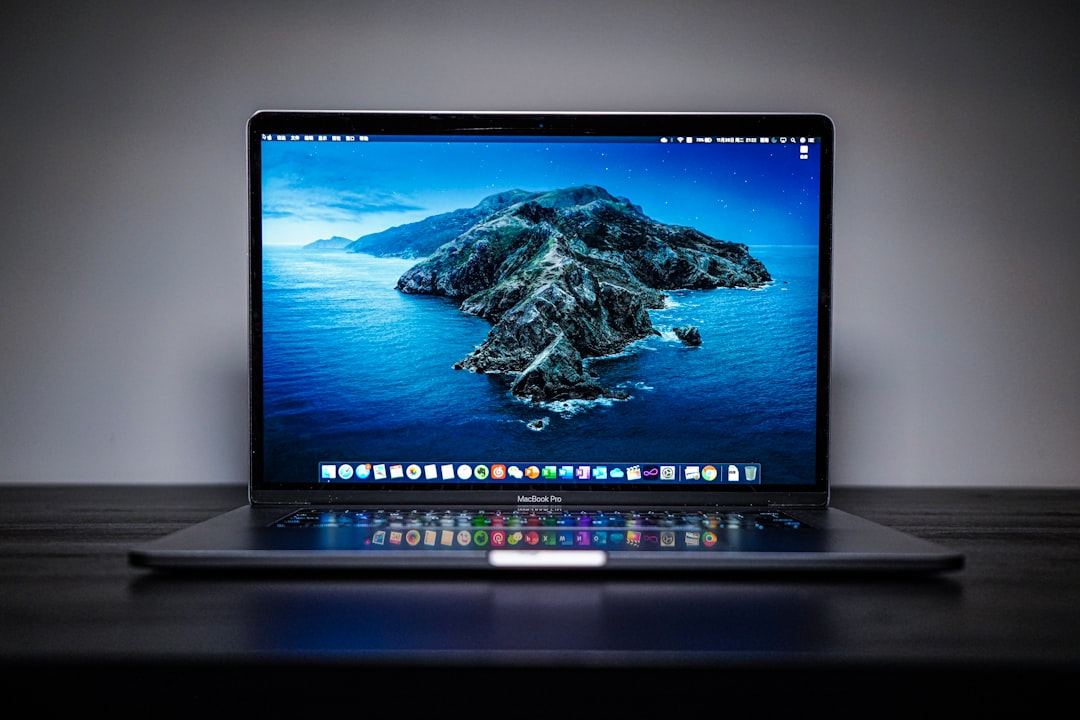
So your MacBook Pro updated overnight. You open the lid, expecting that smooth Apple glow. Instead, you get… an orange screen. Not exactly the sunrise you wanted. Don’t panic. This issue is more common than you think, and in most cases, it’s fixable.
TLDR: An orange screen on your MacBook Pro after an update is usually caused by display settings, corrupted system files, or graphics glitches. Sometimes it is as simple as Night Shift or True Tone acting up. Other times, it may need Safe Mode, NVRAM reset, or macOS reinstallation. Start with the simple fixes before assuming hardware damage.
Let’s break this down in a simple and fun way.
Why Is My MacBook Pro Screen Orange?
An orange screen can mean different things. It might be a light tint. Or it could be a solid orange display that won’t go away. The key is figuring out which type you have.
Here are the most common causes:
- Night Shift turned on and stuck
- True Tone glitch
- Color profile corruption
- Graphics driver issues
- macOS update bug
- Hardware problem (rare, but possible)
Most of these are software related. And that’s good news. Software problems are easier to fix.
1. Night Shift Gone Wild
Night Shift reduces blue light. It makes your screen warmer. Sometimes very warm. After an update, it can glitch and stay stuck on maximum warmth.
How to check:
- Go to System Settings.
- Click Displays.
- Select Night Shift.
- Turn it off.
If your screen instantly goes back to normal, you’re done. Easy win.
If not, keep going.
2. True Tone Acting Strange
True Tone adjusts color based on room lighting. After updates, it can misbehave.
To disable True Tone:
- Open System Settings
- Click Displays
- Toggle off True Tone
Many users report this fixes the orange tint instantly.
3. Wrong Color Profile Selected
macOS uses color profiles to control display appearance. Updates sometimes switch profiles automatically.
Your screen might be using a weird profile not meant for your display.
Here’s how to fix it:
- Open System Settings
- Go to Displays
- Click Color Profile
- Select the default MacBook profile
If you’re unsure which one is correct, pick the one labeled for your specific MacBook model.
This alone solves many orange screen cases.
4. Restart Your Mac (Yes, Really)
This sounds basic. But it works more often than you think.
Updates sometimes leave background processes half loaded. A simple restart can reload display drivers properly.
Click Apple logo → Restart.
Wait. Check.
Still orange? Let’s dig deeper.
5. Boot Into Safe Mode
Safe Mode starts your Mac with minimal drivers. It also clears certain system caches.
For Apple silicon Macs:
- Shut down your Mac.
- Press and hold the power button.
- Release when you see startup options.
- Select your disk.
- Hold Shift and click Continue in Safe Mode.
For Intel Macs:
- Restart your Mac.
- Hold Shift immediately.
- Release when you see the login screen.
If the orange screen disappears in Safe Mode, you likely have:
- A startup program conflict
- A graphics extension problem
- A corrupted cache
Restart normally after Safe Mode. The problem often stays gone.
6. Reset NVRAM and PRAM
NVRAM stores display settings. After updates, these settings can get scrambled.
To reset on Intel Macs:
- Shut down.
- Turn it on.
- Immediately press Option + Command + P + R.
- Hold for 20 seconds.
Apple silicon Macs reset NVRAM automatically when restarting. So just restart.
This reset fixes strange brightness, resolution, and tint problems.
7. Check for Another Update
Sometimes the update that caused the issue gets patched quickly.
Apple releases small follow up fixes all the time.
Go to:
- System Settings
- General
- Software Update
If you see a new update, install it.
8. Reinstall macOS (Without Deleting Data)
If nothing works, your system files might be corrupted.
Good news. You can reinstall macOS without deleting your files.
Steps:
- Shut down your Mac.
- Boot into Recovery Mode.
- Select Reinstall macOS.
- Follow instructions.
This refreshes system files while keeping your data intact.
Software vs Hardware: Quick Comparison
| Symptom | Likely Software | Likely Hardware |
|---|---|---|
| Orange tint but screen usable | Yes | Rare |
| Issue started right after update | Very likely | Unlikely |
| Screen flickering with orange patches | Possible | Possible |
| External monitor looks fine | Yes | Maybe internal display |
| Orange screen even during boot logo | Less likely | More likely |
If the orange screen appears before you even log in, hardware becomes more suspicious.
When It’s Probably Hardware
Hardware causes are less common after updates. But not impossible.
Watch for these signs:
- Orange color appears during startup logo
- Lines or blotches on screen
- Screen changes color when you move the lid
- External monitor looks normal but internal display doesn’t
If you notice these, contact Apple Support or visit an Apple Store.
If your MacBook is under warranty, do not attempt complicated repairs yourself.
How to Prevent It Next Time
Updates are important. But you can reduce risks.
- Back up your Mac before updating
- Wait a few days before installing major macOS releases
- Keep at least 20% storage free
- Avoid shutting down during updates
Patience helps. Early adopters sometimes catch early bugs.
Final Thoughts
An orange screen after a MacBook Pro update looks scary. But most of the time, it’s just a display setting glitch. Night Shift and True Tone are frequent troublemakers. A color profile mix up is also common.
Start with the easy fixes. Toggle settings. Restart. Try Safe Mode. Reset display memory.
Only move to reinstallation or hardware checks if the simple solutions fail.
Your MacBook is not haunted. It’s just confused.
And with the steps above, you can usually bring those colors back to normal in minutes.
Take a breath. You’ve got this.