Use the legal path first: check the rules, pick a legit streaming option, and make sure the network can handle video before you hit play. Restricted networks often block movie sites to save bandwidth or reduce risk. That makes sense, even if it ruins your popcorn mood. For context, Netflix recommends 5 Mbps for Full HD and 15 Mbps for Ultra HD streaming per device [source: Netflix].
TLDR: If you want to watch movies on a restricted network, do three things first: respect the rules, check your speed, and choose a safe option like offline downloads or approved apps. For example, if 30 hotel guests stream in HD at the same time, that can need about 150 Mbps. If the hotel only has 50 Mbps to spare, welcome to Buffer Town. A VPN may help with privacy, but it may also break the network rules or slow your movie by 10 to 30 seconds at every scene change. Annoying? Very.

1. Know the Rules Before You Press Play
Restricted networks are common. You see them at schools, offices, hotels, airports, libraries, and shared apartments. They may block streaming sites. They may limit video quality. They may cut off big downloads.
The point is usually simple. The owner wants fewer slowdowns. They also want fewer legal problems. Workplaces may block movies because, well, they want people working. Shocking, I know.
So ask one simple question: are you allowed to stream here?
- At work: save movies for breaks, if policy allows it.
- At school: use approved learning platforms only.
- At a hotel: check if streaming is included or paid.
- On public Wi Fi: assume it is slow and watched by lots of people.
Do not try to sneak past blocks on networks you do not own. It can get your account banned. It can get you kicked off the network. In some places, it can cause bigger trouble.
Honestly, it feels silly when a harmless movie gets blocked. But the network owner sets the rules. Not fun. Still real.
2. Pick the Right Way to Watch
The best choice is often the least dramatic one. Use a legal streaming app. Use your own mobile data. Or download the movie before you arrive.
Offline downloads are the king move. Many services let you save movies inside their apps. You download at home. Then you watch later with no network fight. No spinning wheel. No awkward restart. No sad little error box.
Try this before a trip:
- Open your streaming app at home.
- Download the movie in the app.
- Pick standard quality if storage is tight.
- Test playback before leaving.
- Bring headphones. Be a decent human.
If offline viewing is not an option, mobile data may work better. A 2 hour HD movie can use several gigabytes. So check your plan first. Nobody wants a “surprise” bill that costs more than the movie.
A VPN is another tool people mention. It can protect traffic on public Wi Fi. That part is useful. But using it to get around blocks may break rules. Some networks block VPNs, too. Expect extra lag if the VPN server is far away. It drives me crazy when the opening credits take 18 seconds longer just because the connection is doing gymnastics.

3. Check Speed, Safety, and Screen Quality
Movie night dies fast on weak Wi Fi. Test the connection before you rent or start a long film. If the speed is poor, drop the quality.
Here is a simple guide:
- Under 3 Mbps: try very low quality, or do not bother.
- 3 to 5 Mbps: standard definition may work.
- 5 to 10 Mbps: HD should be fine for one device.
- 15 Mbps or more: 4K may work, if the network is stable.
Speed is not the only issue. Public networks can be risky. Avoid typing payment details on random Wi Fi. Do not use strange movie sites. If a site screams “free new movies” with 14 flashing buttons, close it. Fast.
Stick with trusted apps. Keep your device updated. Use strong passwords. Enable two factor login when possible. Boring? Yes. Useful? Also yes.
You can also make your movie load better with tiny fixes:
- Close cloud backup apps.
- Pause game updates.
- Move closer to the router.
- Restart the app.
- Use wired internet if offered.
- Choose 720p instead of 1080p.
A Quick Real Life Scenario
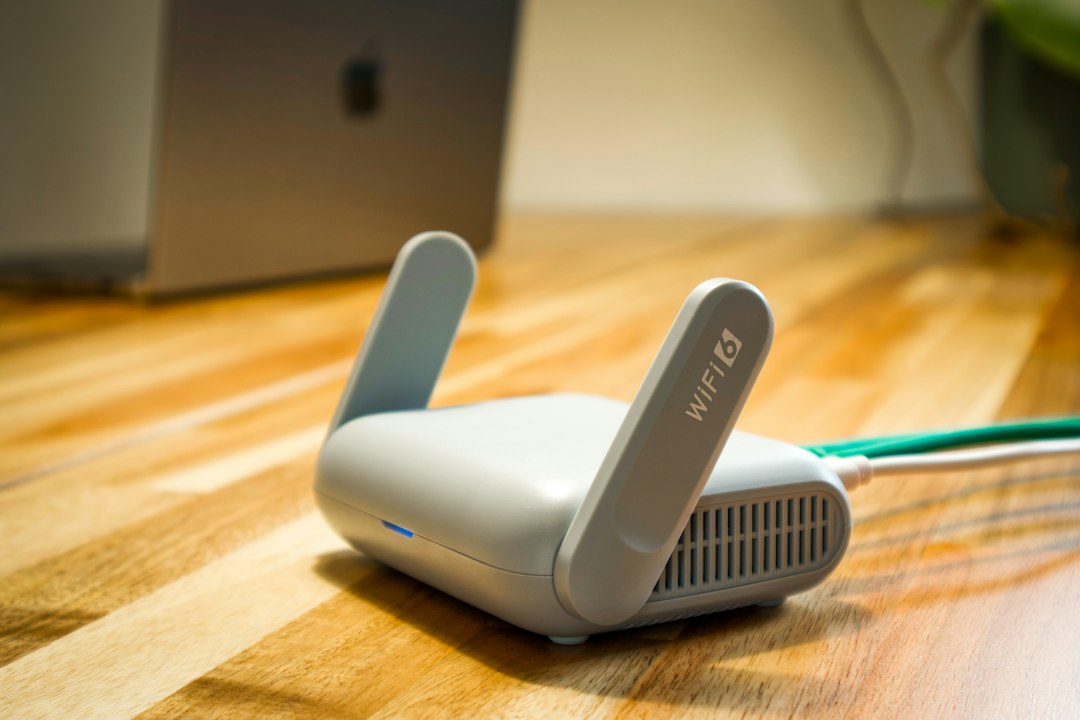
You are at a hotel. The Wi Fi login page works. The movie app opens. Then the video freezes every two minutes. Classic.
Here is the smart play. First, test a short video clip. Then lower the quality to standard definition. If it still stutters, switch to mobile data for a few minutes and compare. If mobile data works, use it only if your plan can handle the size. If not, watch your downloaded episodes instead.
At work or school, the answer is even easier. Do not fight the filter. Use your break time and your own connection. Or wait until you get home. The movie will survive. Your access badge might not.
The Simple Movie Checklist
- Rule check: Are you allowed to stream?
- App check: Is the service legal and trusted?
- Speed check: Is there enough bandwidth?
- Safety check: Are you avoiding sketchy sites?
- Backup plan: Do you have offline downloads?
Watching movies on restricted networks is not complicated. Be fair to the network. Protect your device. Keep a backup ready. Then enjoy the film with fewer errors, fewer freezes, and far less rage at the loading circle.