
High CPU usage in Windows 11 can make an otherwise capable PC feel slow, noisy, and unreliable. Apps may freeze, the mouse pointer may lag, browser tabs may stop responding, and laptop fans may run constantly. In most cases, the problem is caused by a background process, outdated software, malware, excessive startup apps, or Windows services working harder than expected.
TLDR: To fix high CPU usage in Windows 11, the user should first identify the process causing the spike in Task Manager, then disable unnecessary startup apps and background services. Updating Windows, drivers, and apps often resolves compatibility issues, while malware scans can remove hidden threats. If the problem continues, adjusting power settings, repairing system files, or resetting Windows may be necessary.
Why Windows 11 CPU Usage Gets Too High
CPU usage reflects how much processing power the system is using at a given time. A brief jump to 80% or 100% is normal when launching a game, installing updates, exporting video, or opening a large application. However, constant high CPU usage while the computer is idle usually indicates that something is wrong.
Common causes include too many startup programs, buggy applications, Windows Search indexing, antivirus scans, outdated drivers, malware, corrupted system files, or background synchronization tools. Before replacing hardware or reinstalling Windows, a user should try the following seven working solutions.

1. Identify the Problem Process in Task Manager
The first and most important step is to find out what is consuming the CPU. Windows 11 includes Task Manager, which shows real-time CPU usage for apps, background processes, and system services.
- Press Ctrl + Shift + Esc to open Task Manager.
- Select Processes from the left sidebar.
- Click the CPU column to sort processes by usage.
- Look for any app or service using an unusually high percentage.
- If it is a normal app, select it and click End task.
If a browser is using too much CPU, the cause may be too many tabs, extensions, video playback, or a misbehaving webpage. If an unknown process appears at the top, the user should search for its name online before ending it. Some Windows processes are essential, and stopping them may cause temporary instability.
Tip: If the same application repeatedly causes high CPU usage, updating, reinstalling, or replacing that application is often the best long-term fix.
2. Disable Unnecessary Startup Apps
Many programs automatically launch when Windows starts. Cloud storage tools, game launchers, chat apps, RGB utilities, printer software, and update assistants can all run in the background. Individually, they may use little CPU. Together, they can slow down the entire system.
To disable unnecessary startup apps:
- Open Settings.
- Go to Apps > Startup.
- Review the list of apps that start with Windows.
- Turn off anything that is not needed immediately after login.
Alternatively, Task Manager can be used:
- Open Task Manager.
- Click Startup apps.
- Right-click an unnecessary item.
- Select Disable.
Disabling startup apps does not uninstall them. It only prevents them from starting automatically. The user can still open those programs manually when needed. This simple change often reduces CPU usage during startup and improves overall responsiveness.
3. Update Windows 11, Drivers, and Apps
Outdated software can cause high CPU usage due to bugs, memory leaks, driver conflicts, or poor optimization. Windows 11 depends heavily on correct chipset, graphics, storage, Bluetooth, and network drivers. If one driver behaves poorly, the CPU may work harder than necessary.
To update Windows 11:
- Open Settings.
- Go to Windows Update.
- Click Check for updates.
- Install all available updates.
- Restart the PC when prompted.
Driver updates may also appear under Advanced options > Optional updates. For graphics cards, it is often better to download the latest driver from the manufacturer’s official software, such as NVIDIA, AMD, or Intel tools.
Applications should also be updated. Microsoft Store apps can be updated through the Store’s Library section. Traditional desktop programs usually have an update option in their settings menu. Keeping everything current helps Windows 11 run more efficiently and reduces unnecessary CPU load.

4. Scan for Malware and Unwanted Software
Malware, cryptominers, adware, and unwanted background tools can cause extreme CPU usage. Some malicious programs intentionally hide from the user while consuming system resources. If high CPU usage appears suddenly, especially after installing free software or downloading files from unknown sources, a security scan is essential.
Windows Security can perform a full scan:
- Open Start and search for Windows Security.
- Open Virus & threat protection.
- Select Scan options.
- Choose Full scan.
- Click Scan now.
For persistent threats, the user can also run Microsoft Defender Offline scan. This restarts the computer and scans before Windows fully loads, which can help remove stubborn malware.
Suspicious browser extensions should also be reviewed. Extensions that inject ads, track activity, or modify search results may increase CPU usage. Removing unknown or unused extensions can significantly improve browser performance.
5. Adjust Windows Search, Sync, and Background Services
Windows 11 runs several background services to improve convenience. These include Windows Search indexing, OneDrive sync, widgets, update services, telemetry, and background app tasks. While these are usually useful, they can temporarily or continuously increase CPU usage on some systems.
If SearchIndexer.exe or Windows Search is using too much CPU, the user can reduce indexing:
- Open Settings.
- Go to Privacy & security > Searching Windows.
- Select Classic instead of Enhanced.
- Exclude large folders that do not need indexing.
OneDrive or another cloud tool may also use CPU while syncing thousands of files. In that case, pausing sync temporarily can help confirm the cause. The user can right-click the cloud icon in the system tray and choose a pause option if available.
Background app permissions can also be adjusted for individual Microsoft Store apps. If an app does not need to run when closed, limiting its background activity may reduce CPU usage and improve battery life.
6. Change Power Settings and Reduce Visual Effects
Windows 11 power settings influence how the CPU behaves. On desktops, a performance-oriented plan may keep the processor active more often. On laptops, battery saver options may reduce background activity but can also make certain tasks feel slower. Choosing the right balance can improve stability and reduce unnecessary CPU spikes.
To change power mode:
- Open Settings.
- Go to System > Power & battery.
- Find Power mode.
- Select Balanced for everyday use.
Visual effects can also contribute to system load, especially on older hardware. Windows 11 includes animations, transparency effects, and smooth transitions. These may look attractive, but they are not essential.
To reduce visual effects:
- Open Settings.
- Go to Accessibility > Visual effects.
- Turn off Transparency effects.
- Turn off Animation effects if performance remains poor.
This solution is especially useful for budget laptops, older processors, and systems with limited memory. It may not solve every high CPU issue, but it can make Windows 11 feel smoother.
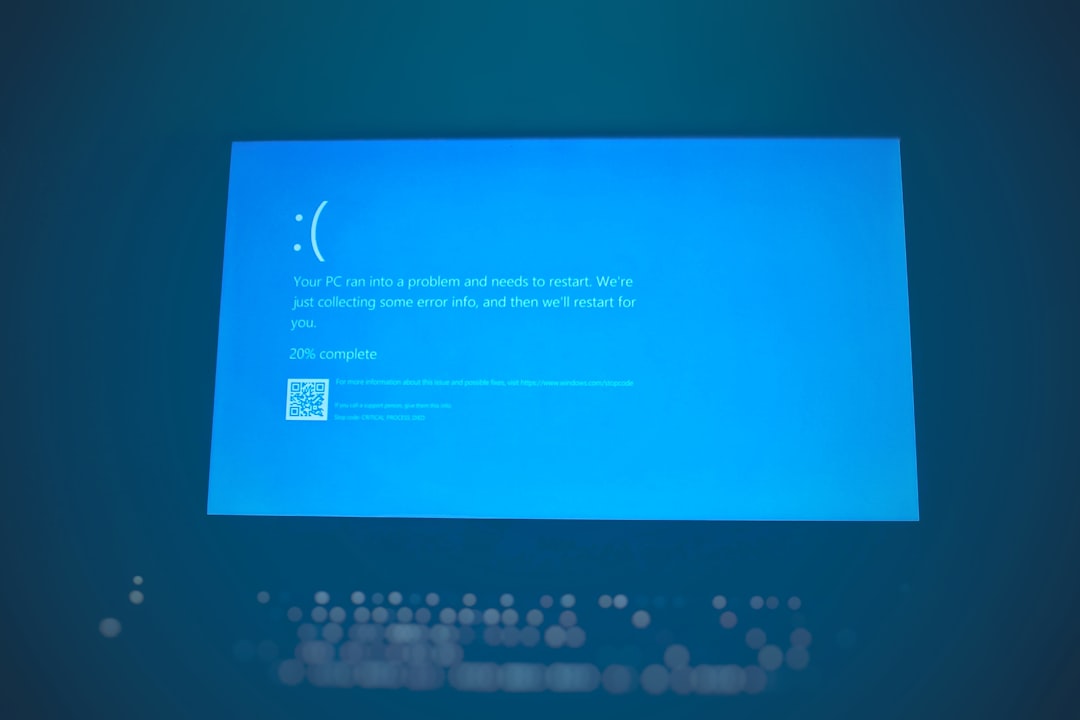
7. Repair System Files or Reset Windows 11
If high CPU usage continues after the previous fixes, corrupted system files may be responsible. Windows includes built-in tools that can repair the operating system without requiring third-party software.
The user can run System File Checker:
- Right-click Start.
- Select Terminal Admin or Windows Terminal Admin.
- Type
sfc /scannowand press Enter. - Wait for the scan to finish.
- Restart the computer.
If SFC finds problems but cannot fix them, DISM can repair the Windows image. In an administrator terminal, the user can run:
DISM /Online /Cleanup-Image /RestoreHealth
After DISM completes, running sfc /scannow again is recommended.
If nothing works, a Windows reset may be the final option. This can reinstall Windows while allowing the user to keep personal files. However, applications may need to be reinstalled afterward, so important files should be backed up first.
To reset Windows 11:
- Open Settings.
- Go to System > Recovery.
- Click Reset PC.
- Choose Keep my files or Remove everything.
- Follow the on-screen instructions.
Extra Checks That Can Help
Several smaller checks may also help diagnose high CPU usage. The user should make sure the computer is not overheating, because thermal problems can cause throttling and erratic performance. Dust buildup, blocked vents, or a failing fan may need attention.
It is also helpful to uninstall unused programs. Trial software, old printer utilities, outdated VPN clients, and duplicate antivirus tools can all create background activity. A clean software environment usually performs better than one filled with unnecessary services.
Finally, if CPU usage remains high only during demanding tasks, the computer may simply be reaching its hardware limits. In that case, upgrading RAM, switching to a faster SSD, or using a newer processor may be the most practical long-term solution.
FAQ
Why is CPU usage at 100% in Windows 11?
CPU usage may reach 100% because of a demanding app, too many background processes, malware, Windows updates, search indexing, driver issues, or corrupted system files. Task Manager is the best place to identify the exact process responsible.
Is 100% CPU usage dangerous?
Short periods of 100% CPU usage are usually not dangerous. However, constant high usage can cause overheating, slow performance, fan noise, and reduced laptop battery life. If it happens while the PC is idle, the issue should be investigated.
Can Windows Update cause high CPU usage?
Yes. Windows Update can temporarily increase CPU usage while downloading, installing, or configuring updates. This is normal, but if it continues for hours, restarting the computer or running the Windows Update troubleshooter may help.
Does disabling startup apps improve CPU usage?
Yes. Disabling unnecessary startup apps can reduce CPU usage after login and prevent background programs from consuming resources. It also helps Windows 11 boot faster and feel more responsive.
Should system processes be ended in Task Manager?
System processes should be handled carefully. Ending essential Windows services can cause instability or force a restart. If a system process uses too much CPU, it is usually better to update Windows, restart the PC, or run repair commands.
Can malware cause high CPU usage?
Yes. Malware, adware, and cryptomining software can use large amounts of CPU in the background. A full scan with Windows Security or another trusted security tool is strongly recommended when high CPU usage appears suddenly.
What should be done if none of the fixes work?
If none of the fixes work, the user should back up important files, run SFC and DISM repair commands, check for overheating, and consider resetting Windows 11. If the problem still remains, hardware limitations or failing components may be involved.