
Welcome, brave beginner. A laptop may look like a flat metal book with a glowing face. But do not worry. It is not a spaceship. It is more like a helpful little desk that folds in half.
TLDR: Open the laptop, turn it on, and log in. Use the keyboard, touchpad, and screen to move around. Click icons to open apps, type words, use the internet, and save your work. When you are done, shut it down safely and charge the battery.
Meet Your Laptop
A laptop is a computer you can carry. It has a screen, a keyboard, a touchpad, speakers, ports, and a battery. It can help you write, learn, shop, watch videos, talk to family, and play games.
Think of it as a tiny office, movie theater, library, and game room. All in one neat box.
- Screen: This shows pictures, words, videos, and buttons.
- Keyboard: This lets you type letters, numbers, and commands.
- Touchpad: This moves the pointer on the screen.
- Power button: This turns the laptop on and off.
- Ports: These are small holes for chargers, headphones, mice, and other devices.
- Battery: This gives the laptop power when it is not plugged in.

Step 1: Put It Somewhere Safe
Place your laptop on a flat surface. A table is great. A desk is great. A kitchen counter is fine too, as long as it is dry.
Try not to use it on a bed or pillow for a long time. Laptops need air. If the bottom gets blocked, it can become hot. A hot laptop is a grumpy laptop.
Keep drinks away. Coffee is lovely. Coffee inside a laptop is a tiny disaster.
Step 2: Plug It In
Find the charger. One end goes into the wall. The other end goes into the laptop. It may be a round plug or a small USB C plug.
Look for a tiny charging light. It may glow white, orange, or green. This means power is flowing. Good job. You have fed the laptop.
You can use a laptop while it charges. That is normal. When the battery is full, you can unplug it and carry it around.
Step 3: Turn It On
Find the power button. It often has a circle symbol with a line at the top. Press it once. Do not hold it for a long time unless nothing happens.
The screen may stay dark for a few seconds. Be patient. The laptop is waking up. It is putting on its digital socks.
After a short time, you may see a logo. Then you may see a login screen.
Step 4: Log In
Most laptops ask for a password, PIN, fingerprint, or face scan. This keeps your stuff private.
If it asks for a password, click in the password box. Type your password. Then press Enter on the keyboard.
If you make a mistake, do not panic. Use the Backspace key to erase. Try again.
Tip: Passwords are usually case sensitive. That means A and a are not the same.
Step 5: Learn the Touchpad
The touchpad is the flat square or rectangle below the keyboard. It acts like a mouse.
- Move one finger on the touchpad to move the pointer.
- Tap once to click.
- Tap twice quickly to open something.
- Use two fingers to scroll up and down.
- Tap with two fingers to right click on many laptops.
The pointer is the little arrow on the screen. Move it over buttons, icons, and menus. Then click.
If the touchpad feels odd, you can connect a regular mouse. Many beginners like that. A mouse is simple and friendly.
Step 6: Understand the Desktop
After you log in, you may see the desktop. This is the main screen area. It is like a digital table.
Small pictures on the desktop are called icons. Each icon can open a program, file, or folder.
A folder is like a drawer. It stores files. A file can be a photo, document, video, song, or download.
At the bottom of the screen, you may see a bar. On Windows, it is called the taskbar. On a Mac, it is called the Dock. It holds useful app buttons.

Step 7: Open an App
An app is a program. It helps you do a task. A web browser opens websites. A word processor lets you write. A photo app shows pictures.
To open an app, move the pointer over its icon. Then double click. Or click once if it is on the taskbar or Dock.
Common apps include:
- Web browser: Chrome, Safari, Edge, or Firefox.
- Email app: For reading and sending messages.
- File manager: File Explorer on Windows or Finder on Mac.
- Settings: For changing laptop options.
- Notes or documents: For typing and saving text.
If an app opens, success. If it does not, try again slowly. Computers like calm fingers.
Step 8: Use the Keyboard
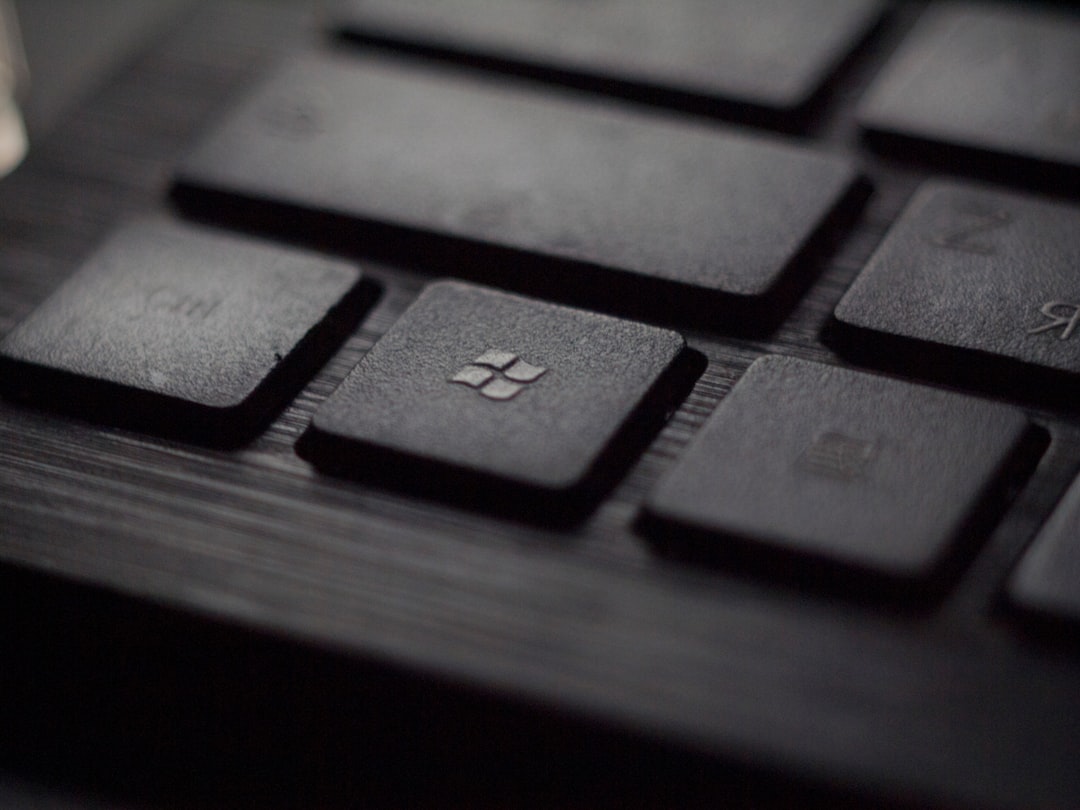
The keyboard is for typing. Each letter key makes a letter. The number keys make numbers. The big long key is the spacebar. It adds a space.
Here are important keys:
- Enter: Starts a new line or confirms an action.
- Backspace: Deletes the thing before the cursor.
- Shift: Makes capital letters when held down.
- Caps Lock: Makes all letters capital until you turn it off.
- Tab: Moves forward in forms or makes an indent.
- Esc: Cancels or closes some menus.
- Arrow keys: Move the cursor or scroll in some apps.
The blinking line where typing appears is called the cursor. It is saying, “Type here, friend.”
Step 9: Connect to the Internet
Most laptop fun needs the internet. To connect, look for the Wi Fi symbol. It looks like curved lines or a tiny fan.
Click the Wi Fi symbol. Choose your home network name. Type the Wi Fi password. Click Connect.
If the password is correct, you are online. Now you can open a browser and visit websites.
To visit a website, click the address bar at the top of the browser. Type a web address or a search phrase. Press Enter.
For example, you can type weather today, easy soup recipe, or cute cats wearing hats. The internet has range.
Step 10: Search Without Stress
You do not need to know every website. Search engines help. Type what you want in simple words.
- “How to print a document”
- “Best beginner laptop tips”
- “Chicken soup recipe easy”
- “How to make text bigger”
Click results that look helpful. Avoid strange pop ups. If something flashes and screams, “You won a prize,” you probably did not. Close it.
Step 11: Create and Save a Document
Open a writing app. This may be Word, Google Docs, Pages, Notepad, or another app.
Click on the blank page. Type a few sentences. Congratulations. You are now a digital author.
To save your work, look for File, then Save. You may need to choose a name. Pick something clear, like My First Document.
Choose where to save it. The Documents folder is a good place. Then click Save.
Saving is important. It protects your work if the laptop turns off. Save often. Your future self will clap.
Step 12: Find Your Files
Files can feel hidden at first. Do not worry. They are usually in folders like Documents, Downloads, Pictures, or Desktop.
On Windows, open File Explorer. On Mac, open Finder. These apps help you browse folders.
If you downloaded something from the internet, check the Downloads folder. That is where many files land. It is like the laptop’s front porch.
Step 13: Adjust Volume and Brightness
If the screen is too bright, lower the brightness. If it is too dark, raise it. Look for sun symbols on the keyboard.
If sound is too loud, lower the volume. Look for speaker symbols. You can also click the sound icon on the screen.
These controls may use the Fn key. If a brightness key does nothing, hold Fn and press it again.
Step 14: Close Apps
When you are done with an app, close it. Look for the X button in the corner on Windows. On Mac, look for the red circle.
Closing apps can help your laptop run faster. Too many open apps can make it tired. Laptops enjoy a clean desk too.
If an app asks if you want to save changes, choose Save if you need the work. Choose Don’t Save only if you are sure.
Step 15: Shut Down the Laptop
Do not just slam the lid every time. Closing the lid often makes the laptop sleep. Sleep is useful. But shutting down is good too.
To shut down on Windows, click the Start button, then the power icon, then Shut down.
To shut down on Mac, click the Apple menu, then Shut Down.
Wait until the screen goes dark. Then close the lid. Nice and gentle. Treat it like a sandwich with feelings.
Handy Beginner Safety Tips
- Use strong passwords. Do not use “password” as your password.
- Do updates. Updates fix problems and improve safety.
- Do not click weird links. Be careful with unknown emails.
- Back up important files. Use cloud storage or an external drive.
- Keep it clean. Use a soft cloth for the screen.
- Let it breathe. Do not block air vents.
What If Something Goes Wrong?
First, breathe. Most laptop problems are small. If the screen freezes, wait a minute. It may recover.
If nothing works, hold the power button for about ten seconds. This forces the laptop to turn off. Then press the power button again to restart.
If the internet stops working, check Wi Fi. Make sure airplane mode is off. Restarting the router can also help.
If you cannot find a file, use the search tool. Type part of the file name. The laptop may find it for you.
Practice Makes It Easy
You do not need to learn everything in one day. Start small. Turn it on. Open a browser. Type a search. Save a note. Shut it down.
Do those steps a few times. Soon your hands will remember. The laptop will feel less mysterious. It may even feel friendly.
Remember this: every expert was once a beginner. Every fast typer once hunted for the letter Q. You are allowed to be slow. You are allowed to click the wrong thing. That is how learning works.
So open the lid. Press the button. Say hello to your laptop. You are ready to begin.