Right-clicking is one of the most common computer actions, but it can feel confusing on a laptop trackpad if you are used to a desktop mouse. The good news is that nearly every modern laptop supports right-clicking in more than one way. Whether you use Windows, macOS, ChromeOS, or Linux, learning the correct trackpad gesture can make file management, browsing, editing, and everyday navigation much faster and more precise.
TLDR: To right-click on most laptop trackpads, tap with two fingers, press the lower-right corner of the trackpad, or hold a keyboard modifier while clicking. On Windows laptops, you can usually adjust right-click behavior in Touchpad Settings, while Mac users can configure it under Trackpad settings. If right-click does not work, check your touchpad settings, update drivers, clean the trackpad, or restart the laptop.
Why Right-Clicking Matters
The right-click menu, often called the context menu, gives you quick access to actions related to the item you are pointing at. For example, right-clicking a file may let you rename, copy, delete, compress, share, or view its properties. Right-clicking inside a web browser may let you open a link in a new tab, save an image, inspect a page, or copy selected text.
Because the menu changes depending on what you click, right-clicking is a practical shortcut rather than just an alternative mouse button. On a laptop, knowing how to trigger it reliably can reduce frustration and help you work more efficiently.
The Most Common Way: Tap With Two Fingers
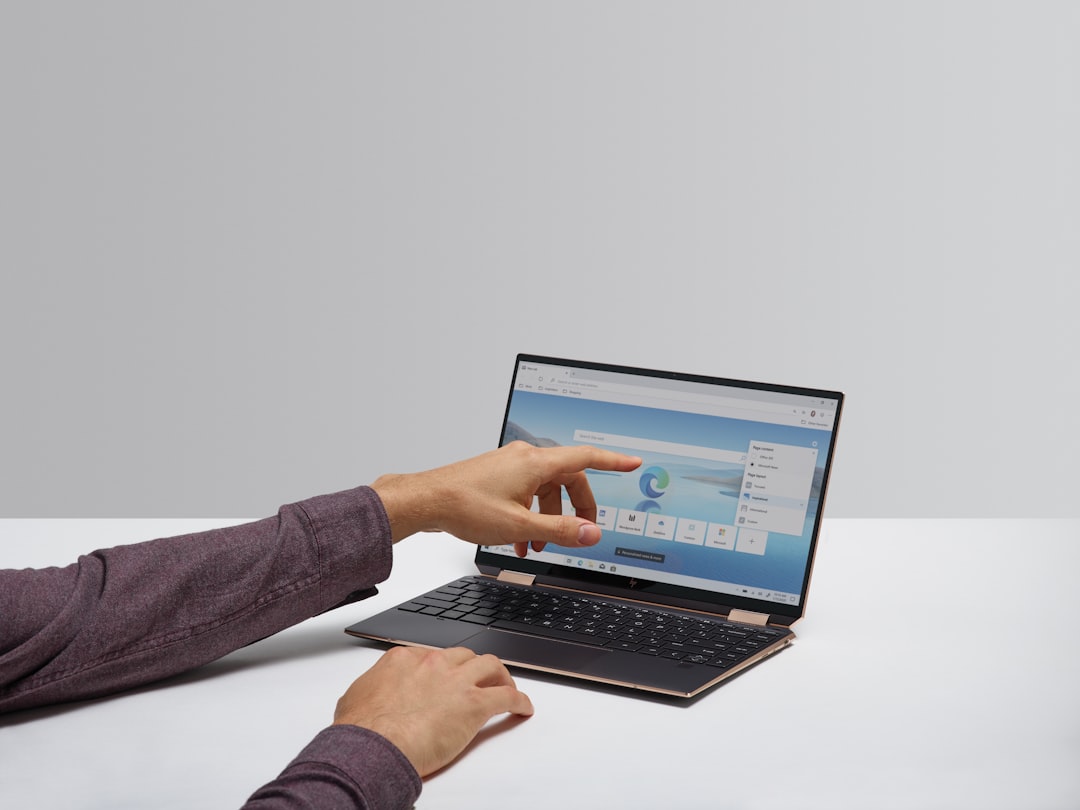
On many modern laptops, the easiest way to right-click is to tap the trackpad with two fingers at the same time. This gesture is widely supported on Windows laptops, MacBooks, Chromebooks, and many Linux systems.
To do it correctly:
- Place two fingers lightly on the trackpad.
- Tap once, without pressing too hard.
- Lift both fingers at the same time.
- Look for the context menu to appear near the pointer.
If nothing happens, try tapping more deliberately, making sure both fingers touch the surface at nearly the same moment. Some trackpads are sensitive to timing, finger spacing, or pressure. Your fingers do not need to be close together; in fact, a little space between them can sometimes make the gesture easier for the trackpad to recognize.
Press the Lower-Right Corner of the Trackpad
Another common method is to press the lower-right corner of the trackpad. Many Windows laptops divide the trackpad into left-click and right-click zones. Pressing the lower-left area acts like a normal click, while pressing the lower-right area opens the right-click menu.
This method is especially useful if you prefer a physical click instead of a tap gesture. It can also be more reliable on older laptops where multi-touch gestures are limited or disabled.
To use this method:
- Move the pointer over the item you want to interact with.
- Place one finger on the lower-right area of the trackpad.
- Press down until the trackpad clicks.
- Release your finger when the context menu appears.
Some laptop trackpads are hinged at the top, meaning the lower edge clicks more easily than the upper edge. If you press near the center or top-right corner and nothing happens, move your finger closer to the bottom-right corner.
Right-Clicking on a Windows Laptop
Windows laptops vary by manufacturer, but most support both two-finger tap and bottom-right corner click. If right-clicking does not work as expected, the first place to check is the Windows touchpad settings.
To check right-click settings in Windows 11 or Windows 10:
- Open Settings.
- Go to Bluetooth & devices or Devices.
- Select Touchpad.
- Look for sections such as Taps, Gestures, or Clicks.
- Enable options such as Tap with two fingers to right-click.
Depending on your laptop, you may also see options for pressing the bottom-right corner of the touchpad. If your laptop uses manufacturer-specific software, such as Synaptics, ELAN, Dell, Lenovo, HP, or ASUS touchpad utilities, additional settings may appear in the Control Panel or a dedicated app.
Important note: If the touchpad settings page is missing or very limited, your touchpad driver may not be installed correctly. Installing the latest driver from your laptop manufacturer can restore full gesture control.
Right-Clicking on a MacBook Trackpad
Apple calls right-clicking secondary click. On a MacBook, the most common right-click gesture is also a two-finger click or tap. Macs are known for smooth gesture support, but secondary click can be customized if needed.
To configure right-click on macOS:
- Open System Settings or System Preferences, depending on your macOS version.
- Select Trackpad.
- Open the Point & Click section.
- Enable Secondary click.
- Choose the method you prefer, such as Click or tap with two fingers.
You may also be able to set secondary click to the bottom-right or bottom-left corner of the trackpad. This is useful if you are switching from a Windows laptop and want a more familiar click-zone behavior.
Mac users can also right-click by holding the Control key while clicking the trackpad. This method has existed for many years and remains a dependable option, especially if trackpad gestures are temporarily disabled.
Right-Clicking on a Chromebook
On a Chromebook, right-clicking is straightforward. The standard gesture is to tap or click the touchpad with two fingers. ChromeOS is built around simple touchpad gestures, and two-finger right-clicking is enabled on most devices by default.
If you want to adjust your touchpad settings:
- Click the time in the bottom-right corner of the screen.
- Open Settings.
- Go to Device.
- Select Touchpad.
- Review tap-to-click, scrolling, and gesture options.
If two-finger tapping does not work, make sure tap-to-click is enabled. If it is off, you may need to physically click the trackpad with two fingers instead of lightly tapping.
Right-Clicking on Linux Laptops
Linux touchpad behavior depends on the desktop environment, distribution, and driver system in use. Popular desktop environments such as GNOME, KDE Plasma, Cinnamon, and XFCE usually support two-finger right-clicking, but the setting may be named differently.
In many Linux environments, you can look under:
- Settings > Mouse & Touchpad
- System Settings > Input Devices
- Touchpad > Click Method
You may see options such as Two-finger click, Area click, or Clickfinger behavior. Two-finger click means the number of fingers determines the click type. Area click means the lower-right corner functions as right-click.
If you are using a minimal Linux setup, touchpad behavior may need to be adjusted through configuration tools or command-line utilities. In that case, consult documentation for your distribution and touchpad driver.
Use the Keyboard as a Backup
If your trackpad right-click is not working, you may still be able to open the context menu using the keyboard. This is useful when troubleshooting or when the trackpad is physically damaged.
Common keyboard methods include:
- Windows: Press Shift + F10 to open the context menu for the selected item.
- Windows: Some keyboards have a dedicated Menu key, usually near the right Ctrl key.
- macOS: Hold Control and click the trackpad.
- Browser pages: Use keyboard shortcuts such as copy, paste, open link, or save, when available.
Keyboard alternatives are not always identical to right-clicking with a pointer, but they can provide access to many of the same commands.
What to Do If Right-Click Is Not Working
If you cannot right-click on your laptop trackpad, do not assume the hardware is broken immediately. Most right-click problems are caused by settings, drivers, temporary software issues, or accidental gesture changes.
Try these steps in order:
- Restart the laptop. A simple restart can resolve temporary input problems.
- Check touchpad settings. Make sure two-finger tap, secondary click, or corner click is enabled.
- Clean the trackpad. Dirt, moisture, and oil can interfere with gesture detection.
- Update drivers. On Windows, install the latest touchpad driver from the manufacturer.
- Disconnect external devices. A mouse, dock, or input utility may change pointer behavior.
- Check accessibility settings. Some accessibility features can modify clicking, tapping, or pointer control.
- Test in another app. If right-click works elsewhere, the issue may be app-specific.
Tips for More Accurate Trackpad Right-Clicking
Trackpads can feel inconsistent if your hand position changes often. Building a consistent technique will help you right-click with fewer mistakes.
- Keep your wrist steady. Sudden palm contact may confuse the trackpad.
- Use the pads of your fingers. Fingertips or nails may not register well.
- Avoid resting extra fingers on the trackpad. Accidental contact can trigger scrolling or zooming.
- Adjust sensitivity. If the pointer jumps or gestures fail, reduce or increase touchpad sensitivity.
- Practice on the desktop. Right-click empty space until the gesture feels natural.
If you frequently select text, drag files, or work in design and productivity applications, it may be worth learning both two-finger tapping and corner clicking. Having more than one method available lets you choose the most comfortable option for each situation.
When an External Mouse May Be Better
A trackpad is convenient, but an external mouse can be more comfortable for long work sessions, gaming, spreadsheets, photo editing, or tasks requiring high precision. If your hand becomes tired or your right-click accuracy remains poor after adjusting settings, a mouse may be the practical solution.
However, using an external mouse does not mean you should ignore trackpad gestures. Laptops are designed for mobility, and there will be times when you need to work without accessories. Knowing how to right-click from the trackpad remains an essential skill.
Final Thoughts
Right-clicking on a laptop trackpad is easy once you know the correct gesture for your device. In most cases, the best method is to tap with two fingers or press the lower-right corner of the trackpad. Mac users can also rely on Control-click, while Windows users should confirm that touchpad gestures are enabled in settings.
If right-clicking does not work, approach the issue methodically: check settings, restart the computer, update drivers, and clean the trackpad surface. With the right configuration and a little practice, your laptop trackpad can provide the same essential right-click functions as a traditional mouse, while keeping your workflow efficient and dependable.