
Video quality can make or break your content. Blurry faces. Blocky skies. Washed-out colors. We have all seen it. That is where AI video enhancers step in. In this article, we put WinXVideo AI to the test. Four real-world performance tests. Two in 4K. Two in low resolution. Simple setup. Clear results. Let’s see what it can really do.
TLDR: We tested WinXVideo AI on 4K and low-resolution clips. It improved sharpness, reduced noise, and boosted detail, especially on older 480p footage. Processing speed was solid, even on large 4K files. While it is not magic, the results were impressive and practical for everyday creators.
Why Test 4K and Low-Resolution?
Because they stress the system in different ways.
- 4K clips test processing power and detail handling.
- Low-resolution clips test AI upscaling and noise removal.
Many tools shine in one area and fail in another. We wanted balance. We wanted real-world results.
Here is what we tested:
- 4K nature footage with high detail
- 4K indoor event footage with low light
- 480p old home video clip
- 720p YouTube screen recording
Test 1: 4K Nature Clip – Detail and Sharpness
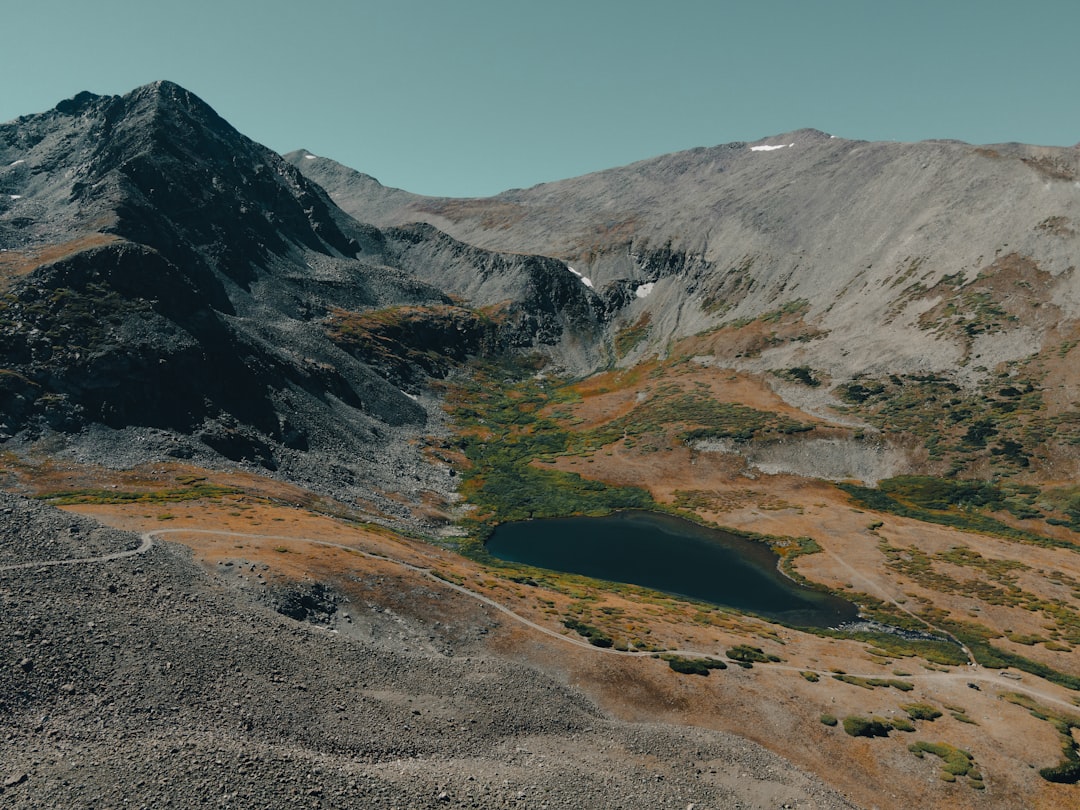
The first test was a 4K drone clip. Mountains. Trees. Running water. Lots of fine detail.
High-resolution footage already looks good. So why enhance it? Because even 4K can have:
- Compression artifacts
- Soft focus
- Slight color fading
We loaded the clip into WinXVideo AI. We selected the enhancement model focused on detail recovery. Then we let it run.
What We Noticed
- Edges of trees looked sharper.
- Water texture appeared more defined.
- Colors looked more vibrant but not fake.
The AI did not oversharpen. That is important. Some tools make everything look crispy. This one kept it natural.
Performance
- Clip length: 3 minutes
- Original size: 1.2 GB
- Processing time: About 6 minutes
That is reasonable for a 4K file. CPU and GPU usage were high but stable. No crashes. No stutters.
Verdict: Subtle but meaningful improvement. Great for travel creators and cinematic shots.
Test 2: 4K Low-Light Event – Noise Reduction
Next was a 4K indoor birthday party clip. Dim lighting. Moving people. Phone camera.
Low light is brutal for video quality. You often get:
- Grain
- Color noise
- Blur during movement
We applied WinXVideo AI’s noise reduction and enhancement model.

Before vs After
Before:
- Visible dancing noise in dark areas
- Skin tones looked uneven
- Background details were muddy
After:
- Noise reduced noticeably
- Faces looked smoother
- Shadows cleaner but not overly blurred
One thing we liked: It did not turn faces into plastic. Many AI smoothers destroy texture. WinXVideo AI kept things human.
Speed Results
- Clip length: 5 minutes
- Processing time: 11 minutes
This was heavier. Noise reduction needs more calculations. Still acceptable for 4K.
Verdict: Big win for event videographers. Especially for weddings and indoor shoots.
Test 3: 480p Home Video – Upscaling to 4K
This was the real challenge.
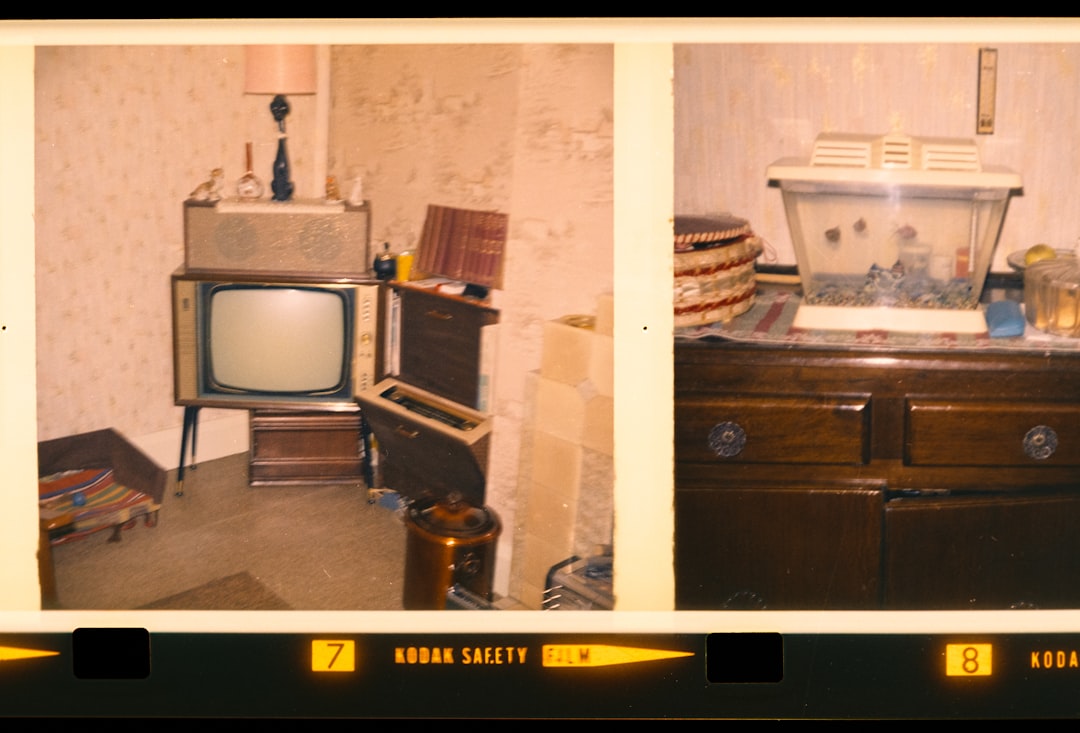
An old 480p family clip. Early 2000s. Shaky camera. Low detail. Soft faces.
Upscaling from 480p to 4K is a jump of massive proportions. That is 8x the pixel count.
We selected the AI upscaling model. Output set to 4K.
What Changed?
- Faces became clearer.
- Edges gained structure.
- Noise was cleaned up.
Important note. It did not create real detail that never existed. It reconstructed it. Smart guesswork. But very convincing.
Visual Impact
The biggest improvement was stability of edges. Previously blurry outlines became more defined. Text on a T-shirt went from unreadable to slightly legible.
Was it true 4K quality? No.
Was it dramatically better than 480p? Absolutely.
Performance Metrics
- Clip length: 4 minutes
- Processing time: 9 minutes
Faster than expected. Likely because original detail was lower, so base data was smaller.
Verdict: Perfect for digitizing old memories.
Test 4: 720p Screen Recording – Text and Lines
Screen recordings are tricky. They contain:
- Sharp edges
- Small text
- Flat colors
AI tools sometimes blur text when trying to smooth noise.
We used a 720p tutorial video. Lots of menus. Small UI icons. We upscaled it to 1080p.
Results
- Text became sharper.
- Lines stayed crisp.
- No strange halos around icons.
Compression artifacts from the original upload were reduced. That made the video easier to watch.
Processing
- Clip length: 6 minutes
- Processing time: 7 minutes
This was efficient. Very usable for YouTubers and course creators.
Verdict: Strong performance for professional tutorials.
Performance Comparison Chart
| Test | Resolution | Main Goal | Processing Time | Improvement Level |
|---|---|---|---|---|
| Nature Clip | 4K | Sharpen detail | 6 min | Moderate but clean |
| Low-Light Event | 4K | Noise reduction | 11 min | High impact |
| Old Home Video | 480p to 4K | Upscaling | 9 min | Dramatic upgrade |
| Screen Recording | 720p to 1080p | Text clarity | 7 min | Very sharp results |
Ease of Use
Performance is important. But usability matters too.
WinXVideo AI keeps it simple:
- Clean interface
- Clear AI model options
- Hardware acceleration support
No complex sliders. No confusing jargon. You choose a model. Select output. Click run.
Beginners will feel comfortable. Advanced users can still tweak settings like resolution and format.
System Requirements and Stability
We tested on a mid-range PC:
- 16GB RAM
- RTX series GPU
- Modern multi-core CPU
The software remained stable during all tests. No overheating issues. No failed renders.
GPU acceleration clearly helped. Without a GPU, processing would likely take longer.
Strengths and Limitations
Strengths
- Effective noise reduction
- Strong upscaling for old footage
- Natural-looking sharpness
- Stable processing
Limitations
- Processing time increases with heavy noise
- Cannot create true detail from extremely poor footage
- Requires decent hardware for best speed
No AI tool is magic. But this one performs consistently.
Who Should Use WinXVideo AI?
This tool is great for:
- Content creators
- Wedding videographers
- YouTubers
- People restoring family videos
If you deal with mixed-quality footage, it shines. Especially when upgrading old clips.
Final Thoughts
After four tests, the results were clear. WinXVideo AI handles both 4K and low-resolution clips with confidence.
It sharpened landscapes. Cleaned up dark scenes. Revived old home videos. Kept text crisp in tutorials.
The biggest surprise? The balance. Strong enhancement without heavy artificial effects.
If you want fast, reliable AI video improvement without complex controls, this tool delivers.
And the best part? Your old blurry memories might finally look alive again.