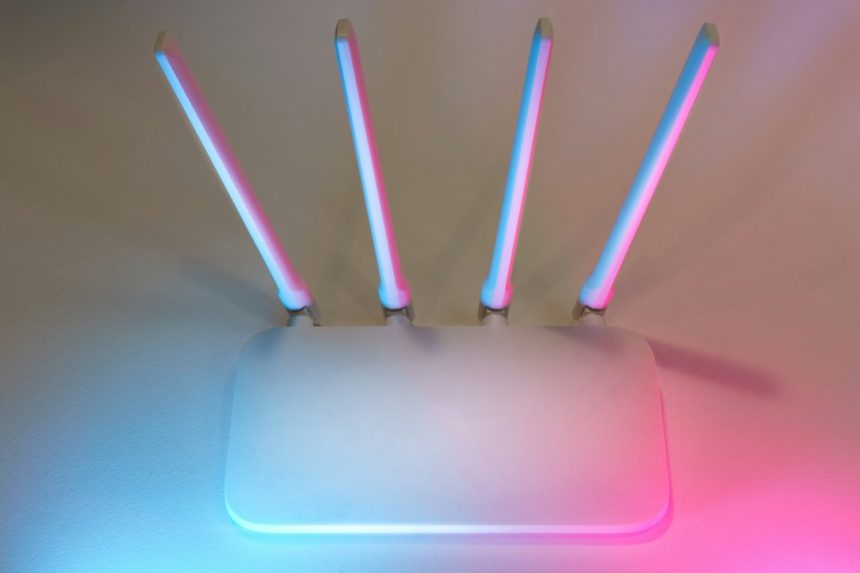
A gateway IP address is the local address of the router or device that sends traffic from a private network to the internet. On most home networks, it looks like 192.168.1.1 or 192.168.0.1. Windows users can often find it under Default Gateway by using the ipconfig command [source: Microsoft].
TLDR: A gateway IP address is usually the router’s local IP address. For example, if a laptop has the IP address 192.168.1.34, the gateway may be 192.168.1.1. In a small office with 25 devices, one gateway can route web traffic for every phone, laptop, printer, and camera. Finding it helps with router login, Wi-Fi fixes, DNS changes, and network checks.
What a Gateway IP Address Does
A gateway acts like the exit door for a local network. A phone, PC, or smart TV sends data to the gateway when it needs to reach a website, app, or cloud service.
Without a working gateway, local devices may still see each other. A laptop may still connect to a printer. But websites will fail to load. Streaming apps may spin forever. Honestly, it feels like the internet is broken when the real issue is just the gateway or router.
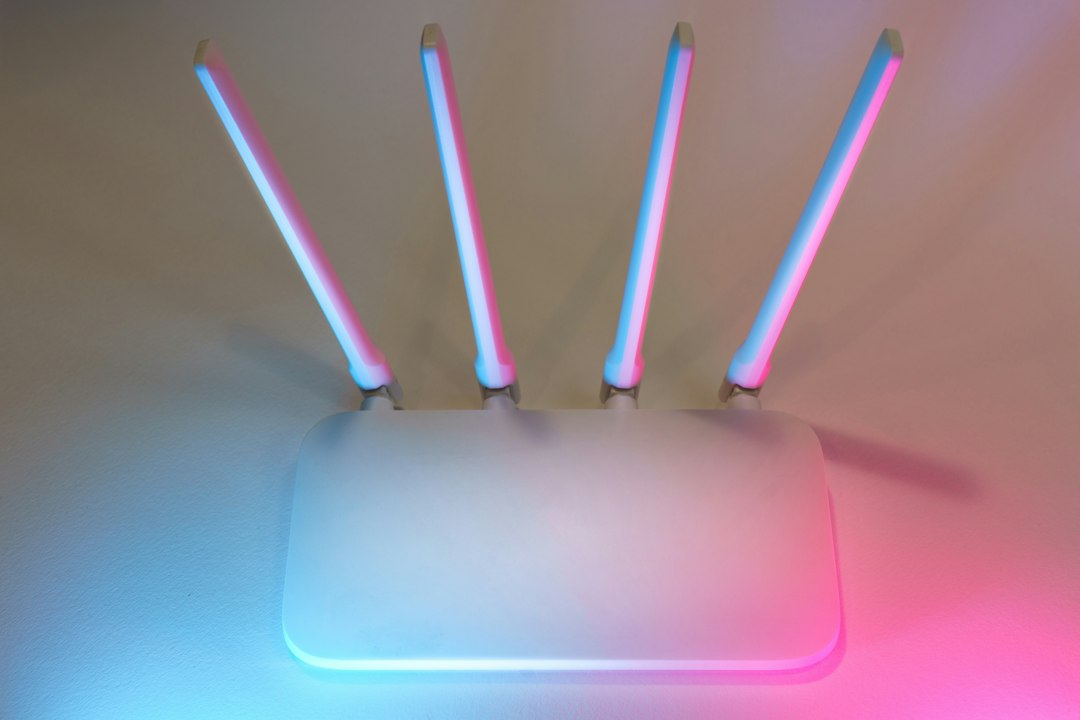
In most homes, the gateway is the Wi-Fi router. In larger offices, it may be a firewall, modem-router combo, or managed network appliance.
Gateway IP vs Public IP
- Gateway IP: A private address used inside the local network, such as 192.168.1.1.
- Public IP: The internet-facing address assigned by the internet provider.
- Device IP: The address assigned to a phone, laptop, console, or printer on the same network.
Private gateway addresses usually come from ranges such as 192.168.x.x, 10.x.x.x, or 172.16.x.x to 172.31.x.x. These are not used directly on the public internet.
How to Find the Gateway IP on Windows
- Press Windows + R.
- Type
cmdand press Enter. - Type
ipconfigand press Enter. - Find the active adapter, such as Wi-Fi or Ethernet.
- Look for Default Gateway.
The number beside Default Gateway is the gateway IP address. It may look like 192.168.1.1. If several adapters appear, the active one is usually the adapter with an IPv4 address and a gateway listed.
How to Find the Gateway IP on Mac
- Open System Settings.
- Select Wi-Fi or Network.
- Pick the connected network.
- Click Details.
- Open the TCP/IP section.
- Find Router.
On macOS, the gateway is usually labeled as Router. That small wording change wastes a few extra seconds because many people expect to see “gateway.” The catch is that Apple uses simpler labels, which can be helpful once a user knows where to look.
How to Find the Gateway IP on Android
Android menus vary by brand. Samsung, Google Pixel, Xiaomi, and OnePlus may use different labels. The general path is still similar.
- Open Settings.
- Tap Network & internet or Connections.
- Tap Wi-Fi.
- Select the connected network.
- Open Network details, Advanced, or IP settings.
- Look for Gateway or Router.
If the gateway does not appear, a user can switch from DHCP view to advanced network details without saving any changes. No manual IP change is needed just to read the value.
How to Find the Gateway IP on a Router
The router’s gateway IP is often printed on a label on the device. It may also appear in the manual or on the setup card from the internet provider.
Common router login addresses include:
- 192.168.1.1
- 192.168.0.1
- 10.0.0.1
- 192.168.1.254
To check it, a user can type the address into a browser while connected to the same Wi-Fi or Ethernet network. If the router login page opens, the address is correct. If it fails, the router may use a different address, or the device may be connected to another network.
Image not found in postmeta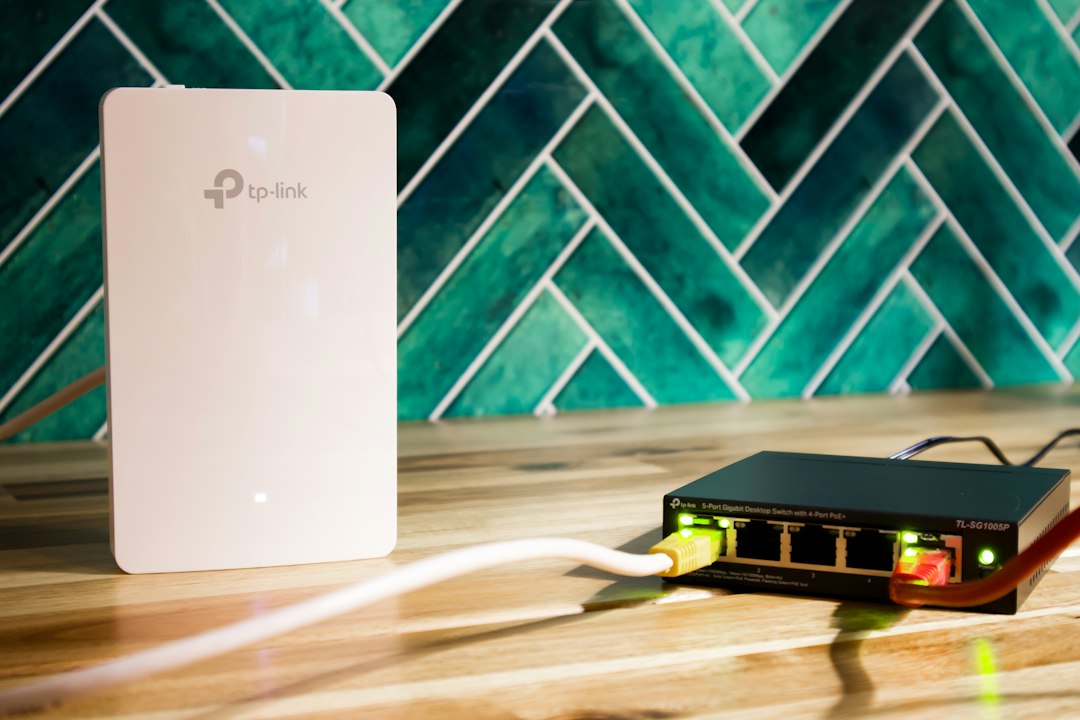
Why Someone May Need the Gateway IP
- Router login: The gateway IP opens the admin page for many routers.
- Wi-Fi troubleshooting: It helps confirm whether a device can reach the router.
- DNS changes: Some router DNS settings sit behind the gateway login page.
- Printer setup: Network printers often need a valid gateway to work across devices.
- Security checks: Unknown gateway changes can point to misconfigured or unsafe networks.
What If the Gateway IP Is Missing?
If no gateway appears, the device may not have received proper network settings. Restarting the router and reconnecting to Wi-Fi often fixes it. If that fails, the user can forget the network and join again.
On office networks, a missing gateway may mean DHCP is down or the access point is misconfigured. In that case, the network admin should check the router, firewall, and DHCP server.
FAQ
Is the gateway IP the same as the router IP?
In most home networks, yes. The gateway IP is usually the router’s local IP address.
Can the gateway IP be changed?
Yes. It can be changed in the router settings. After that, connected devices may need to reconnect.
Is 192.168.1.1 always the gateway?
No. It is common, but not guaranteed. Other networks may use 192.168.0.1, 10.0.0.1, or another private address.
Can a network have more than one gateway?
Yes. Larger networks may use several gateways for different subnets, backup paths, or security zones.
Does the gateway IP reveal a user’s public location?
No. A gateway IP is usually private and local. It does not show the public internet location by itself.