
Whether you’re a casual computer user or a seasoned IT professional, encountering hard disk issues can be a heart-sinking experience. One particularly puzzling problem is the “NTFS attribute list entry error” — a term that sounds technical because it is. This issue stems from how the Windows NT File System (NTFS) organizes and manages data on your hard disk, and it often surfaces during disk repair operations or routine file access.
TL;DR (Too Long; Didn’t Read)
The NTFS attribute list entry error typically indicates file system corruption, often caused by hardware malfunctions, improper shutdowns, or software interference. While alarming, it can often be resolved using disk repair tools like CHKDSK or third-party utilities. It’s important to act quickly to prevent data loss. Backing up your files and checking your drive health regularly can help minimize future issues.
Understanding NTFS and Attribute Lists
Windows systems commonly use the NTFS (New Technology File System) because it supports large volumes, security features, and efficient file storage. In NTFS, every file is a collection of attributes. These attributes store data such as the file name, permissions, timestamps, and the actual file contents.
When a file grows larger or becomes fragmented across the disk, NTFS may use an Attribute List to track all its attributes that no longer fit within the Master File Table (MFT) record. The Attribute List is essentially a pointer system that tells the OS where to find the rest of the file’s metadata stored elsewhere on the volume.
When this list becomes corrupted or improperly referenced, you may encounter the infamous “NTFS attribute list entry error”.
Common Symptoms and Causes
Errors with the NTFS attribute list can manifest in a variety of ways. Some common symptoms include:
- Files that refuse to open, even though they appear in Explorer
- Disk errors during boot-up or random system crashes
- “The file or directory is corrupted and unreadable” messages
- Errors flagged when running tools like CHKDSK
These issues can stem from a number of causes:
- Unplanned shutdowns or power failures that interrupt disk writes
- Bad sectors developing in crucial parts of the disk
- Faulty RAM or motherboard components introducing data corruption
- Malware attacks or third-party software interfering with system operations
What Happens During Disk Repair?
Windows includes a powerful tool called CHKDSK (Check Disk), which can be run through the Command Prompt with administrative privileges. When an attribute list error is detected, CHKDSK performs the following actions:
- Scans the MFT for inconsistencies or missing attribute links.
- Reconstructs the attribute list where possible, or isolates the corrupted segment.
- Attempts to re-associate orphaned attributes or recover readable data.
- Marks bad sectors as unusable to avoid future write attempts there.
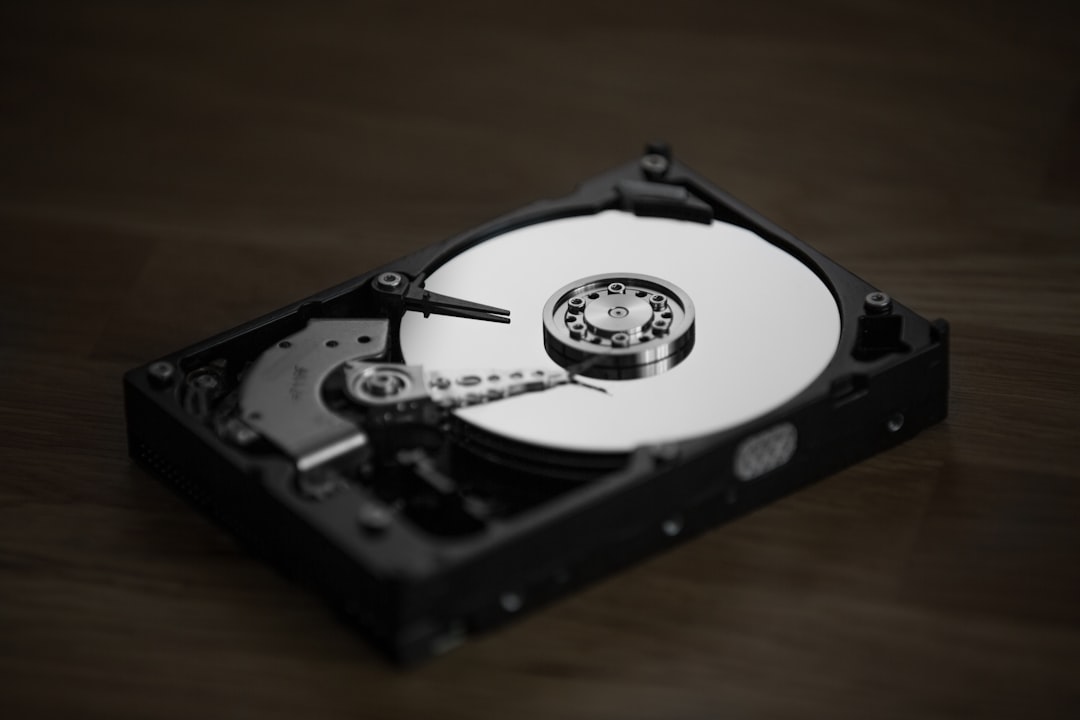
In many cases, running CHKDSK with the /f (fix) and /r (recover) parameters will resolve the issue. However, if the corruption is severe, you may need to escalate your repairs or consider third-party recovery tools.
How to Run CHKDSK for Attribute List Errors
Follow these steps to run CHKDSK:
- Open the Command Prompt as Administrator.
- Type the following command:
chkdsk C: /f /r(replaceC:with your drive letter if needed). - Press Enter. If your system drive is being checked, you’ll be prompted to schedule the scan on the next restart. Confirm with ‘Y’.
- Restart your PC to let CHKDSK run.
Important: Make sure you’ve backed up important files before you run CHKDSK, as repairing the file system can result in data loss under certain conditions.
Alternative Tools and Techniques
If CHKDSK fails or reports errors it cannot fix, consider the following alternatives:
- TestDisk: A free and powerful tool that can recover lost partitions and repair corrupted file systems.
- EaseUS Partition Master: Offers a user-friendly graphical interface and supports file system checks and repairs.
- MiniTool Partition Wizard: Another effective but freemium tool that works well for diagnosing and fixing NTFS errors.
These tools often provide deeper inspection and recovery options than CHKDSK, and they typically offer a preview of recoverable data before making changes.
Prevention and Best Practices
Prevention is always better than scrambling to recover data after an incident. To reduce the risk of encountering NTFS attribute errors:
- Regularly back up your data. Use services like OneDrive, or tools like Macrium Reflect.
- Use an Uninterruptible Power Supply (UPS) to avoid sudden shutdowns during file writes.
- Run disk health scans using utilities like CrystalDiskInfo or HardDisk Sentinel.
- Avoid overfilling your drive. Aim to keep at least 10-15% free space to reduce fragmentation.
- Update your drivers and firmware. Especially for SSDs, outdated firmware can cause file system errors.

When to Replace the Disk
If NTFS errors become recurring or CHKDSK repeatedly finds and relocates bad sectors, the problem may lie in aging or failing hardware.
Key signs it may be time for a replacement:
- Delayed startup and shutdown sequences
- New bad sectors detected regularly
- High reallocated sector count in S.M.A.R.T reports
- Mechanical noises (for HDDs) or sudden drops in performance (for SSDs)
Replacing the drive and cloning the contents to a new one can save you from the devastating effects of data loss. Tools like Clonezilla or Macrium Reflect can help with this process.
Conclusion
The “NTFS attribute list entry error” may sound intimidating, but understanding what it is and how to address it can help you act swiftly and effectively. With tools like CHKDSK and third-party software, many users can resolve this issue without losing their data. But despite the best tools and practices, remember: nothing beats a solid backup strategy.
Learning the intricacies of your file system might not be the most exciting part of tech life, but it’s essential knowledge that can save your data—and your sanity—when things go wrong.