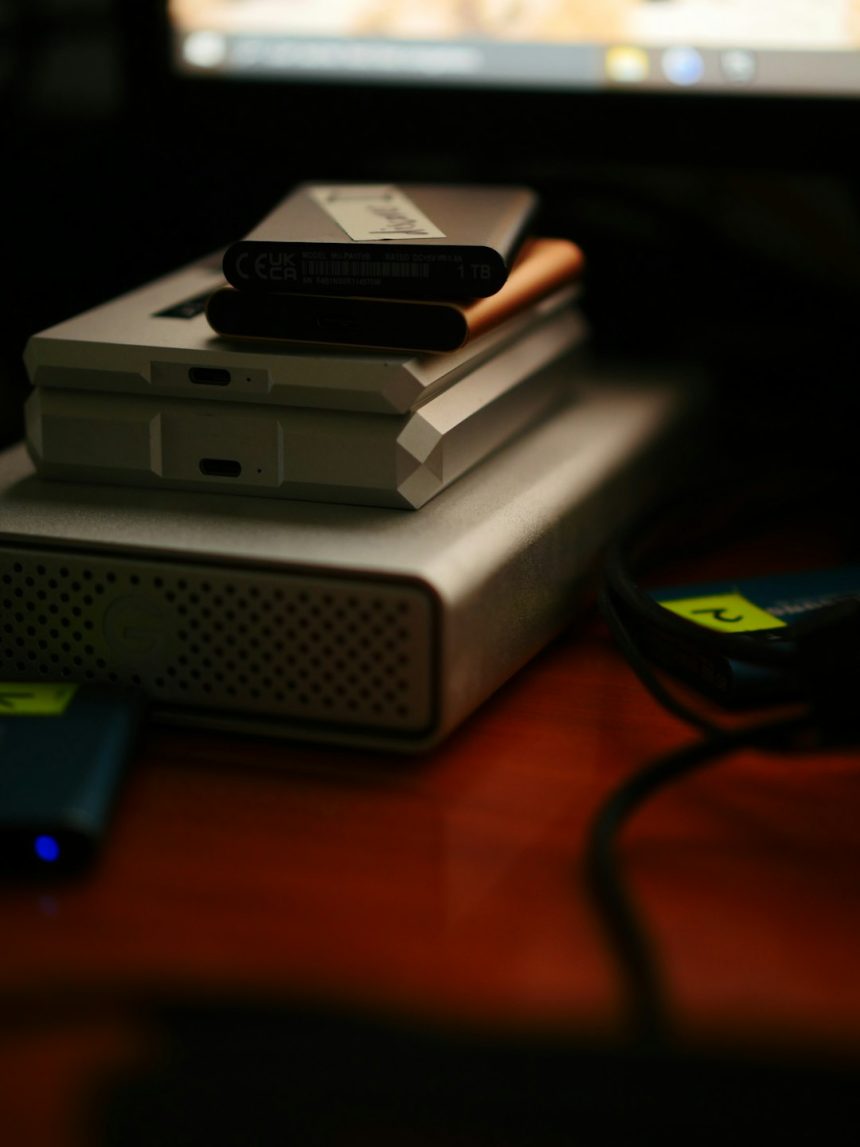
A Windows user should create a full system image with a Macrium Reflect alternative before installing any major Windows update. The image should be saved to an external drive, then checked with rescue media before the update starts. Microsoft also tells users to back up a PC before major changes or recovery work [source: Microsoft].
TLDR: A full system image copies Windows, apps, settings, boot files, and personal data into one restorable backup. For example, if a Windows 11 feature update breaks a driver, a user can restore the whole PC in about 20 to 60 minutes instead of spending 4 to 8 hours reinstalling Windows and apps. Tools such as Hasleo Backup Suite, AOMEI Backupper, EaseUS Todo Backup, Veeam Agent, and Clonezilla can do the job. The safest plan is simple: image the disk, create rescue media, test that the backup is visible, then install the update.
Why a full system image matters before big updates
Major Windows updates can change drivers, boot files, recovery partitions, security settings, and system services. Most updates work fine. Some do not. That is where a full image saves the day.
A normal file backup protects documents and photos. A system image protects the full Windows setup. It includes the operating system, installed programs, activation data, app settings, user profiles, and hidden boot partitions. If the update fails, the user restores the image and returns to the old working state.
Honestly, it feels like Windows waits until the worst possible moment to expose a bad audio driver, BitLocker prompt, or boot loop. A clean system image removes the panic.
Best Macrium Reflect alternatives for this job
- Hasleo Backup Suite: A strong free choice for home users. It supports system backups, disk backups, scheduling, and WinPE rescue media.
- AOMEI Backupper: Simple interface, good for nontechnical users. Some restore and clone features may sit behind paid editions.
- EaseUS Todo Backup: Friendly design and clear backup steps. The catch is that upgrade prompts can get annoying during setup.
- Veeam Agent for Microsoft Windows: Reliable and respected. Good for workstations, small offices, and users who want restore points with more control.
- Clonezilla: Free and powerful. It is not pretty. It is best for users who can handle text menus and careful disk selection.
What the user needs before starting
The user should prepare a few things first. A rushed backup can be worse than no backup.
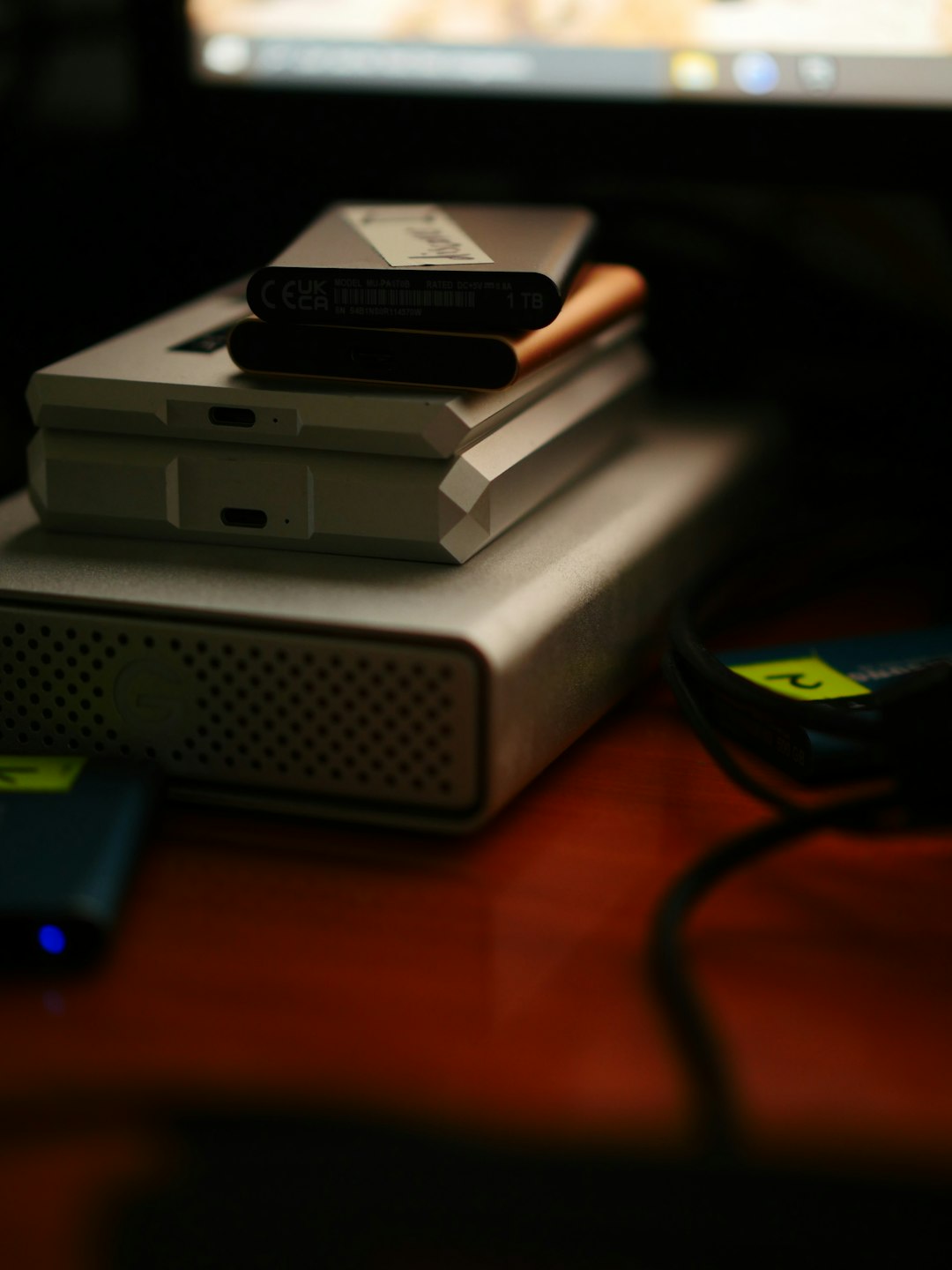
- An external USB drive with enough space for the image. A 1 TB system drive may only need 300 GB if the used space is 300 GB.
- A USB flash drive for rescue media, usually 8 GB or larger.
- BitLocker recovery key if device encryption is enabled.
- Power connection for laptops.
- At least one hour with no forced shutdowns or restarts.
How to create the full Windows image
- Install the backup tool. The user should pick one trusted alternative and install it from the vendor’s official site.
- Choose system backup or disk backup. For most people, system backup is enough. It selects the Windows partition and boot partitions automatically. For extra safety, disk backup copies the entire drive.
- Select the external drive as the target. The backup should not be stored only on the same internal disk. If that disk fails, the image is gone too.
- Enable compression. Normal compression is usually fine. High compression saves space but can take longer.
- Start the backup. The first image may take 20 minutes to 2 hours, based on disk size, USB speed, and used storage.
- Check the backup log. The job should say completed or successful. If it reports skipped sectors or read errors, the system drive may need a health check.

Create rescue media before updating
This step gets skipped too often. It drives people crazy later, because a perfect backup is not useful if the PC cannot boot into a restore tool.
The user should open the chosen backup program and create bootable rescue media on a USB flash drive. Most tools use Windows PE or Linux-based recovery media. After creation, the user should restart the PC and test the USB boot menu. No restore is needed during the test. The goal is only to confirm that the rescue tool opens and can see the external drive.
Run a quick restore check
The user should not overwrite anything during testing. Instead, the user should confirm three things:
- The rescue media starts correctly.
- The backup image appears on the external drive.
- The internal Windows disk is detected by the restore tool.
If any of these fail, the user should fix the issue before installing the update. Common fixes include using another USB port, disabling fast startup, unlocking BitLocker, or recreating rescue media.
After the Windows update
If the update works well for a few days, the user can create a fresh image of the new working setup. The old image should be kept for a short period, especially after large feature updates. A smart setup keeps at least two images: one from before the update and one from after the system proves stable.
Image not found in postmeta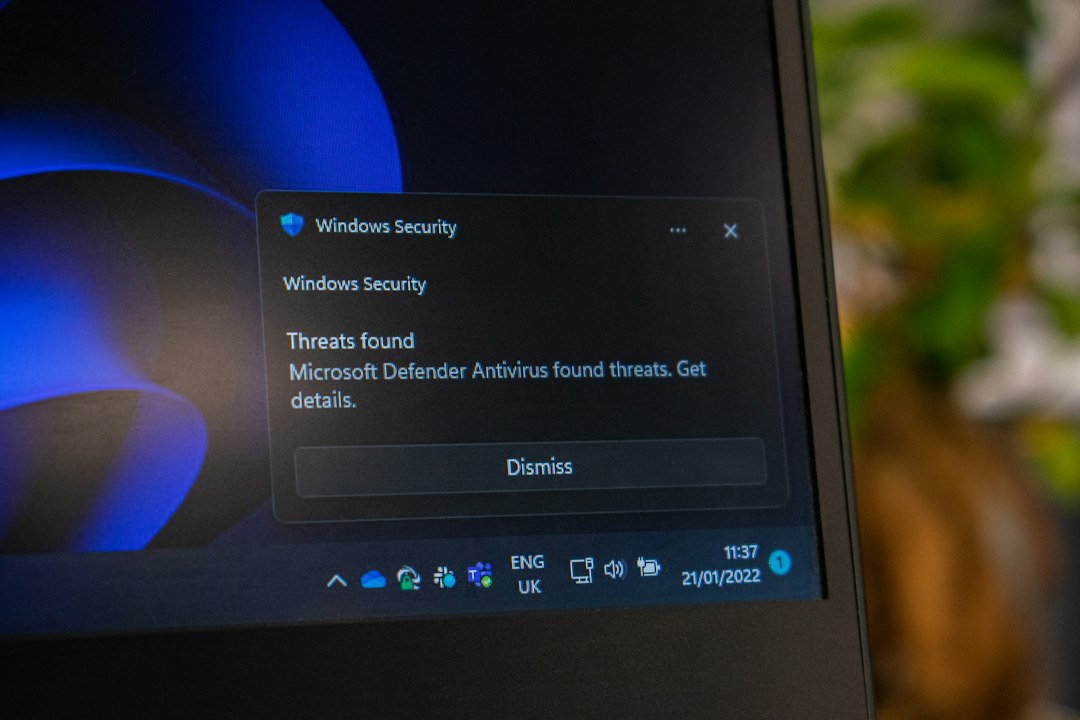
FAQ
Is a system image better than a normal backup?
Yes, for update recovery. A file backup saves personal files. A system image restores the entire Windows installation.
Can Windows create a system image without extra software?
Windows still includes older backup tools in some versions, but they feel dated. Third-party tools usually offer easier rescue media, clearer logs, and better restore options.
Which Macrium Reflect alternative is best for beginners?
Hasleo Backup Suite and AOMEI Backupper are usually the easiest starting points. Clonezilla is better for technical users.
Should the backup be stored on the same PC?
No. The image should be stored on an external drive or network location. A backup on the same disk can be lost during disk failure.
How often should a user create a full image?
A full image should be created before major Windows updates, driver upgrades, BIOS updates, or big software changes. Monthly imaging also works well for busy PCs.