
Missed calls can lead to missed opportunities, especially when you rely on your iPhone for both personal and professional communication. If you’ve noticed that calls are going straight to voicemail or arriving silently despite your phone not being on Do Not Disturb, you’re not alone. Apple’s robust set of features designed to minimize interruptions can sometimes get in the way of important calls. This article will guide you through how to unsilence calls on an iPhone, ensuring you never miss an important ring again.
TLDR: How to Unsilence Calls on iPhone
If your iPhone isn’t ringing when a call comes in, the culprit could be your mute switch, Do Not Disturb, Focus modes, or even silent unknown caller settings. First, ensure the physical mute switch is turned off. Then, check your Focus and Do Not Disturb settings in Control Center. Disable “Silence Unknown Callers” if you’re expecting calls from numbers not in your contacts. Try all these to make sure incoming calls ring audibly.
1. Check the Silence Switch
The most common issue related to silent calls is your iPhone’s silence switch. This is a physical switch located on the left-hand side of the device just above the volume buttons.
- If the switch shows orange, the phone is silenced. Flip it back to its original position to turn off Silent Mode.
- Once done, test the volume by having someone call you or by playing audio.
Even though it seems simple, many users overlook this first and most obvious step.
2. Ensure Volume Is Turned Up
iPhones can ring quietly or not at all if the volume is too low or muted altogether. Here’s how to adjust the ringer volume:
- Go to Settings > Sounds & Haptics.
- Under Ringer and Alerts, move the slider to the right to increase volume.
- If desired, disable “Change with Buttons” to prevent accidental changes using volume buttons.
Make sure the volume is at a reasonable level to hear incoming calls, particularly in noisy environments.
3. Examine Focus and Do Not Disturb Settings
Apple introduced Focus modes with iOS 15, making silent calls more likely if misconfigured. Calls may be automatically silenced based on these personalized Focus settings.
- Swipe down from the top right corner of the screen to open Control Center.
- Check whether a Focus mode (such as Do Not Disturb, Work, or Sleep) is active. If so, tap it to disable.
- To customize these modes, go to Settings > Focus, select the active Focus, then adjust the People and Apps permitted to notify you.
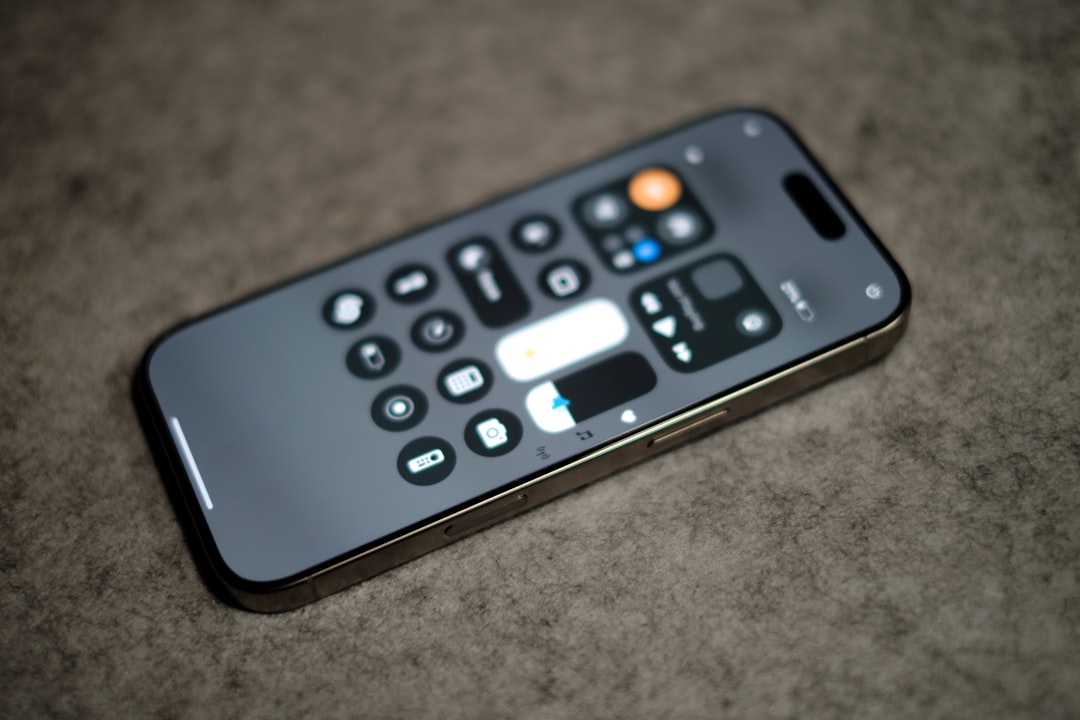
Ensure important contacts are allowed under your Focus settings so their calls won’t be silenced.
4. Disable Silence Unknown Callers
This feature is meant to deter spam, but it can also block important calls from numbers not in your contacts. Here’s how to disable it:
- Open Settings and then tap Phone.
- Find and tap Silence Unknown Callers.
- Toggle the switch to the off position.
Once disabled, calls from any number will ring—whether they are in your contacts or not.
5. Turn Off Call Forwarding
In rare cases, your iPhone might be forwarding calls to another number, making it seem like you’re not receiving any. Check this setting as follows:
- Go to Settings > Phone > Call Forwarding.
- If enabled, toggle it off.
Disabling call forwarding ensures that calls route directly to your iPhone and aren’t silently redirected elsewhere.
6. Check for Bluetooth Connections
If you’re connected to a Bluetooth headset or speaker, the phone may route audio including ringtones through the connected device. This makes it seem like your phone isn’t ringing when in fact it’s ringing through your headphones.
- Disable Bluetooth temporarily by swiping to open Control Center and tapping the Bluetooth icon.
- Alternatively, go to Settings > Bluetooth and manually disconnect any linked devices.
This is especially relevant when using AirPods or other Bluetooth earbuds, which can silently take over call audio.
7. Inspect Notifications and Ringtone Settings
Incorrectly configured notification or ringtone settings could prevent proper call alerts. To fix:
- Navigate to Settings > Sounds & Haptics.
- Select Ringtone and choose an audible one (avoid “None” or overly quiet sounds).
- Make sure Vibrate on Ring is enabled if you rely on vibration.
Try previewing the ringtone to confirm it’s working as expected.
8. Reset All Settings (As a Last Resort)
If everything seems correct but calls are still being silenced, resetting all settings might help. This won’t delete your data but will revert settings like Wi-Fi passwords, wallpapers, and notification preferences.
- Go to Settings > General > Transfer or Reset iPhone.
- Tap Reset, then choose Reset All Settings.
This option is useful if the issue stems from deeply buried configurations or software bugs.
9. Update Your iOS Version
Lastly, make sure your iPhone is running the latest version of iOS. Bugs affecting call behavior may be resolved in newer versions of the operating system.
- Go to Settings > General > Software Update.
- If an update is available, tap Download and Install.
Regular updates improve performance and resolve known software glitches, potentially resolving call issues.
When to Seek Further Help
If none of the above solutions restore your call notifications, you may be facing a hardware-related issue. In these cases, it’s best to contact Apple Support or visit an authorized service provider. Issues with the speakers, microphones, or logic board can definitely interfere with phone functionality, including call audibility.
Conclusion
Your iPhone is equipped with smart features to help manage distractions, but these same tools can cause frustration if calls are unintentionally silenced. By methodically checking your device’s silence switch, Focus settings, call silencing features, and volume controls, you’ll likely restore your iPhone’s ringing capability without needing professional help. Whether it’s work or personal, ensuring your calls ring through is essential for staying connected in today’s fast-paced world.
Take the time to verify each setting described above and test your call functionality along the way. A well-audible iPhone is not just convenient—it’s crucial.