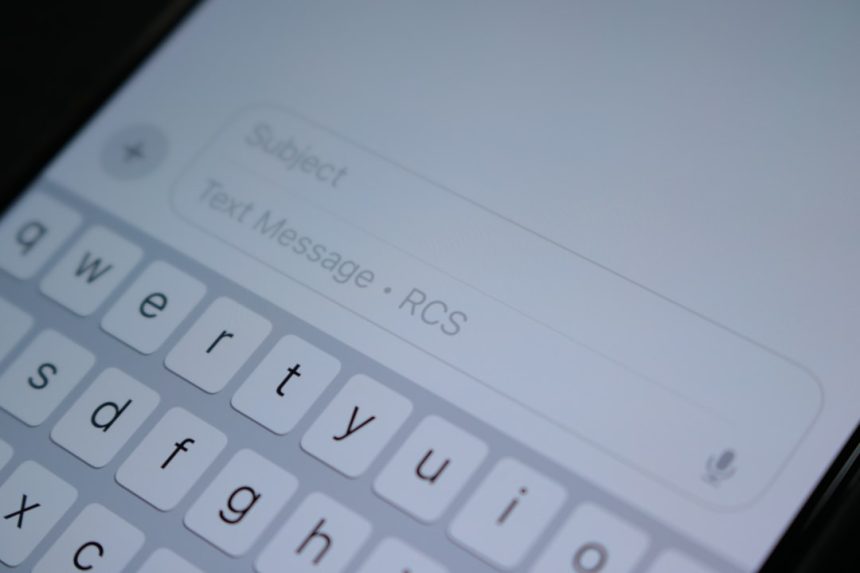
The fastest way to send a PDF by text is to attach it in your Messages app, or send a share link if the file is too big. You do not need email. You just need the PDF on your phone, the right app, and maybe 30 seconds of patience.
TL;DR: Open the PDF, tap Share, choose Messages, pick the person, and send it. If the PDF is large, upload it to iCloud Drive, Google Drive, Dropbox, or OneDrive, then text the link instead. For example, if Maya needs to send a 740 KB lease to her landlord, iMessage can usually send it in under 10 seconds. But a 25 MB handbook may fail on MMS, so a link is the safer move.

First, know this tiny but annoying truth
SMS cannot send PDF files. Plain old SMS only sends text. That is it. No PDFs. No photos. No glitter. Nothing fun.
When people say “text me the PDF,” they usually mean one of these:
- iMessage on iPhone
- RCS in Google Messages on Android
- MMS, the older photo and file texting system
- A messaging app, like WhatsApp, Signal, Telegram, or Messenger
- A cloud link sent by text
The catch is that phone carriers still love file limits. It drives me crazy that a file can send fine to one person, then fail with another person for no clear reason. Usually, the reason is file size or the type of messaging service being used.
Method 1: Send a PDF by text on iPhone
If both people use iPhones, this is usually easy. iMessage handles PDF files much better than old MMS.
- Open the Files app on your iPhone.
- Find the PDF you want to send.
- Tap and hold the PDF.
- Tap Share.
- Tap Messages.
- Type the contact name or phone number.
- Add a short note if you want.
- Tap the blue send arrow.
That is the cleanest path. You can also open the PDF first, then tap the Share icon. It looks like a square with an arrow coming out of it.
Quick tip: If your message bubble is blue, you are using iMessage. If it is green, you are using SMS or MMS. Green bubbles may have smaller file limits. Yes, it is annoying. No, you did not break anything.
Method 2: Send a PDF from an Android phone
Android phones usually use the Google Messages app. If RCS is on, sending files is much smoother.
- Open Google Messages.
- Open the chat with the person.
- Tap the plus button or attachment icon.
- Choose Files.
- Pick your PDF.
- Tap Send.
If you cannot see the PDF, open your Files app first. Tap the PDF. Then tap Share. Choose Messages. Pick the contact. Send it.
For best results, turn on RCS:
- Open Google Messages.
- Tap your profile icon.
- Tap Messages settings.
- Tap RCS chats.
- Turn on RCS if it is available.
RCS is not perfect. But it is usually better than MMS. It can handle higher quality media and bigger files, depending on your carrier and the other person’s phone.
Method 3: Text a cloud link instead
This is the best option for big PDFs. It is also great when the PDF must stay crisp. Think contracts, resumes, menus, invoices, forms, guides, or school packets.
You upload the PDF to a cloud service. Then you text the link. No email needed.
Good options include:
- iCloud Drive for iPhone users
- Google Drive for Android users and Google accounts
- Dropbox for simple file links
- OneDrive for Microsoft users
How to send a Google Drive link by text
- Open the Google Drive app.
- Tap the plus button.
- Tap Upload.
- Choose your PDF.
- Wait for the upload to finish.
- Tap the three dots next to the file.
- Tap Share or Copy link.
- Make sure the person has access.
- Paste the link into a text message.
Honestly, it feels like sharing settings always hide one tap too deep. If the person says, “It says I need permission,” open the sharing settings again. Change access to Anyone with the link, if the file is not private.
How to send an iCloud Drive link by text
- Open the Files app.
- Find the PDF in iCloud Drive.
- Tap and hold the file.
- Tap Share.
- Choose Collaborate or Send Copy, depending on your goal.
- Tap Messages.
- Send the link to your contact.
Use Send Copy if you just want them to receive the PDF. Use Collaborate only if they need shared access.
Method 4: Use WhatsApp, Signal, Telegram, or Messenger
If texting keeps failing, use a chat app. This is often easier. These apps are built for sharing files.
Here is the basic flow:
- Open the chat app.
- Open the conversation.
- Tap the attachment icon.
- Choose Document or File.
- Select the PDF.
- Tap Send.
This works well for family groups, clients, classmates, and coworkers. It also avoids some carrier nonsense. Still, the other person must use the same app.
What if the PDF is too large?
Big PDFs are where things get messy. A few scanned pages can turn into a monster file fast. A 3 page form might be 500 KB. A 40 page scanned packet might be 60 MB. That is when text apps start acting grumpy.
Try these fixes:
- Send a link instead. This is the easiest fix.
- Compress the PDF. Use the Files app, Google Drive tools, or a PDF app.
- Split the PDF. Send only the pages they need.
- Rescan at a lower quality. Use black and white for forms.
- Convert photos to one PDF before sending, if the pages are images.
Expect to waste time on giant scanned files. They look harmless. Then they sit there “sending” like they are thinking about life.

When should you attach the PDF, and when should you text a link?
Use a direct attachment when:
- The PDF is small.
- You are using iMessage or RCS.
- The person needs a quick copy.
- The file is not sensitive.
Use a cloud link when:
- The PDF is over 10 MB.
- The file must keep full quality.
- You need to update it later.
- You are sending it to several people.
- The attachment keeps failing.
For private files, be careful. A medical form, bank document, tax file, or signed contract should not use an open public link. Set access to one person if you can. Also, remove access later if needed.
Quick troubleshooting
- The PDF will not send: Use a cloud link.
- The person cannot open it: Ask them to install a PDF reader or open it in their browser.
- The link asks for permission: Fix the sharing setting.
- The message is stuck: Turn Wi Fi off and on. Then try again.
- The file looks blurry: Send the original PDF, not screenshots.
- The attachment button is missing: Open the PDF first and use the phone’s Share button.
The simplest choice
If the PDF is small, attach it right inside Messages. That is the fastest route. If the PDF is big, text a cloud link. That is the least painful route.
No email is required. Just tap Share, choose the right sending method, and spare yourself the inbox circus.