The safest way to pause Find My location is to use Apple’s built-in sharing controls, not spoofing apps or random “location hider” tools. Apple does not offer a clean one-tap “pause” button for Find My People sharing, but you can stop sharing with one person, stop sharing with everyone, disable Location Services, or switch which Apple device reports your location. Each option has different privacy, safety, and notification effects, so the right choice depends on whether you want a short break, a permanent stop, or a cleaner family-sharing setup.
TLDR: If you want to pause Find My location, open the Find My app, go to People, choose a person, and tap Stop Sharing My Location. For a broader pause, use Settings > Privacy & Security > Location Services, but expect other apps to lose location access too. For example, if a family of four uses Find My daily, stopping sharing with one person affects only 25% of that group, while turning off Location Services affects maps, weather, ride apps, photos, and more. If you need timed sharing, Google Maps or WhatsApp may feel less clumsy than Apple’s all-or-nothing controls.
What “pause” really means in Apple Find My
Apple Find My has two separate ideas that often get mixed up. First, there is device location, which helps you find an iPhone, iPad, Mac, Apple Watch, AirPods, or AirTag. Second, there is people location sharing, which lets friends or family see where you are.
When most people say they want to pause Find My location, they usually mean the second one. They want a person to stop seeing their live location for a while. Apple lets you stop sharing, but it does not label it as a temporary pause. That can be annoying, because a simple “pause for 1 hour” button would solve a lot of awkward privacy moments.
Also, the other person may notice. In many cases, Find My shows that location sharing has stopped or that no location is available. So this is not a silent privacy switch. If safety or trust is involved, be direct. A short message such as “I’m turning location sharing off while I’m at an appointment” can prevent confusion.
Option 1: Stop sharing with one person
This is the cleanest Apple-approved method when you only want one contact to stop seeing your location.
- Open the Find My app.
- Tap the People tab.
- Select the person you want to change.
- Scroll down and tap Stop Sharing My Location.
This does not disable Find My for your device. You can still locate your own iPhone if it is lost, and other selected contacts may still see you if you share with them. This is useful for ending old arrangements, such as sharing with a former roommate, coworker, or travel group.
The downside is that restarting sharing later takes extra taps. You must invite the person again. Honestly, it feels like Apple designed this for permanence, not short breaks.
Option 2: Stop sharing with everyone
If you want a broad pause for all people, use the global sharing switch.
- Open Settings.
- Tap your Apple Account name at the top.
- Tap Find My.
- Turn off Share My Location.
This stops people from seeing your location through Find My. It does not necessarily turn off Find My iPhone, which is the anti-loss feature used to locate, lock, or erase your device. That distinction matters. Many users turn off more than they meant to and later cannot find a missing phone.
Use this option when you need a full privacy break. For example, you might be attending a confidential medical appointment, visiting a shelter, handling legal matters, or simply setting a boundary with family. Privacy is not suspicious by default. It is a normal control that users should understand.
Option 3: Turn off Location Services
This is the heavy switch. It affects more than Find My.
- Go to Settings.
- Tap Privacy & Security.
- Tap Location Services.
- Turn Location Services off.
This may stop location access across the phone, including maps, weather, delivery apps, camera geotags, ride services, smart home automations, and emergency-related features. Expect to waste time turning permissions back on later. It can take 30 to 90 seconds per app if several services need fresh prompts.
Use this only if you want a system-wide location pause. For most people, it is too blunt. If your goal is only to stop one person from seeing you in Find My, use the People tab instead.
Option 4: Change which device shares your location
Apple lets you choose which device represents your location. This can help if you carry both an iPhone and an iPad, or if you upgraded phones and sharing still points to the wrong device.
On the device you want to use:
- Open Settings.
- Tap your Apple Account name.
- Tap Find My.
- Tap Use This iPhone as My Location, if shown.
This feature is legitimate when your devices are yours and you want sharing to reflect the device you actually carry. Do not use it to mislead someone in a safety-related arrangement. That can damage trust and may cause real harm in caregiving, travel, or child safety situations.
What not to use: spoofers and shady “pause” apps
Avoid tools that claim they can fake your iPhone location without consequences. Many require a computer, developer settings, profiles, or permissions that weaken security. Some collect data. Some break after iOS updates. A few are outright scams.
Apple’s location system is tightly tied to privacy prompts, device trust, and account security. If an app asks for your Apple Account password, device management access, or strange certificate installs, stop. That is a serious warning sign.
How alternatives compare
Apple Find My is strong for families and device recovery. It works well inside the Apple ecosystem. It is less flexible for temporary personal sharing.
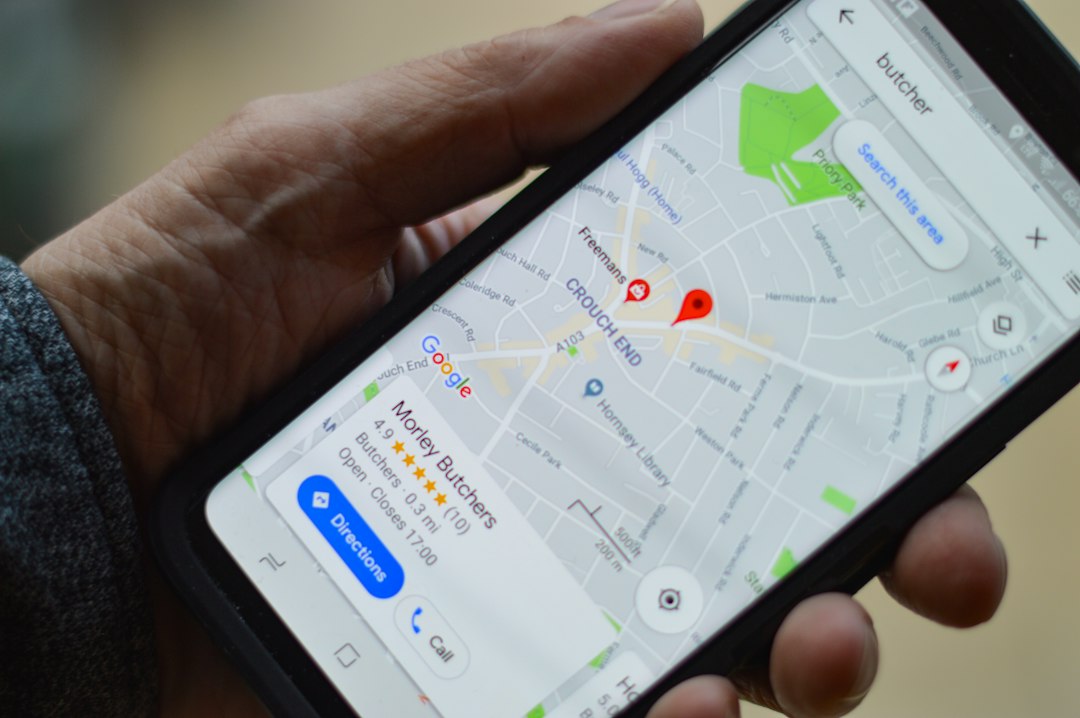
Google Maps Location Sharing gives more control over time. You can share for a set period, such as 1 hour, 3 hours, or until you turn it off. It works across iPhone and Android, which helps mixed-device families.
WhatsApp Live Location is useful for short sessions. You can share live movement for 15 minutes, 1 hour, or 8 hours in a chat. It is good for meeting friends, rides, events, and travel check-ins.
Life360 is built for families and circles. It offers alerts, place history, driving features, and paid safety tools. It can feel invasive if the group has not agreed on boundaries. For teenagers and adults, clear consent matters.
Apple Messages Check In is worth considering for safety without constant tracking. It can notify someone when you arrive, or share limited information if you do not respond. For a late-night ride home, that may be better than all-day location access.
Image not found in postmetaBest choice by situation
- You want one person to stop seeing you: Stop sharing with that person in Find My.
- You want everyone to stop seeing you: Turn off Share My Location.
- You want all apps to stop using location: Turn off Location Services.
- You want timed sharing: Use Google Maps or WhatsApp instead.
- You want safety check-ins without constant tracking: Use Apple Messages Check In.
Privacy and trust rules
Location sharing should be voluntary, clear, and reversible. No one should be pressured to share their location all the time. Parents may need location tools for younger children, but older teens and adults deserve clear rules and limits.
If you manage a family group, review sharing every few months. Ask who can see whom. Remove old contacts. Check devices tied to your Apple Account. A simple 10-minute review can prevent months of unwanted sharing.
The practical answer is simple: use Find My controls when you are staying inside Apple’s system, and use alternatives when you need timed sharing or cross-platform support. Apple is reliable, but not always graceful. Pick the tool that matches the level of privacy, trust, and control you actually need.