
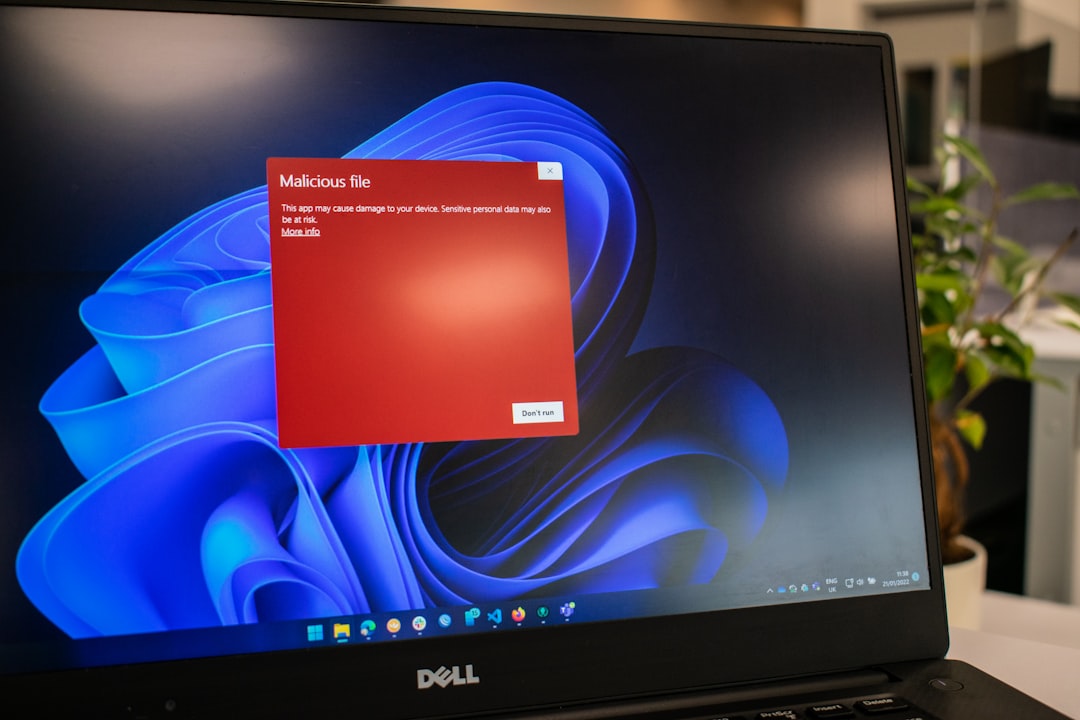
You’re trying to install or run a new app, and suddenly a pop-up appears: Microsoft Defender has blocked the program. It can be frustrating, especially when you know the app is safe. Microsoft Defender is an essential security feature in Windows that guards your system against malware and potentially harmful software. However, it can sometimes be overprotective. The good news? There are safe and controlled methods to bypass those blocks when necessary.
TL;DR
Microsoft Defender may block apps it perceives as threats, even if they are safe. You can bypass the block by using options like “More Info” > “Run Anyway,” temporarily disabling real-time protection, or managing exclusions for the file/folder. However, use caution when bypassing these blocks and always ensure the software you’re running comes from a trusted source.
Why Does Microsoft Defender Block Apps?
Microsoft Defender, formerly known as Windows Defender, is the built-in antivirus and antimalware solution for Windows. It monitors and scans your system in real-time, and it uses cloud-based behavioral and heuristic analysis to flag suspicious activity. Its goal is to prevent malware infections before they can do damage.
Here are a few common reasons why Microsoft Defender might block an app:
- Unknown publisher: The app lacks a valid digital signature.
- Low reputation: Few people have downloaded or run the app.
- Heuristic flags: The app behaves similarly to known malware.
- Outdated definitions: Defender’s virus definitions may falsely classify it as harmful.
Even legitimate software, especially lesser-known or newly released apps, can be marked as suspicious. So how do you open it anyway, without permanently turning off your computer’s defenses?
Method 1: Use “More Info” to Bypass SmartScreen
Often, when Defender blocks an app, it does so via Windows Defender SmartScreen, a feature that checks downloaded files for potential threats. When it detects something unusual, you might see a warning dialog that says:
“Windows protected your PC. Microsoft Defender SmartScreen prevented an unrecognized app from starting.”
Here’s how to continue launching the app safely:
- Click on More Info near the warning text.
- Now, a new button labeled Run Anyway should appear.
- Click Run Anyway to launch the app.
This is perfectly safe if you downloaded the file from a trusted source and you are sure it’s not malicious.
Method 2: Disable Real-Time Protection Temporarily
If “Run Anyway” isn’t available or the app still won’t run, you may need to momentarily turn off real-time protection. This method should only be used temporarily and sparingly.
Here’s how:
- Press Windows + I to open Settings.
- Go to Privacy & Security > Windows Security.
- Click Virus & threat protection.
- Under Virus & threat protection settings, click Manage settings.
- Toggle off Real-time protection.
After that, run or install the app. Once it launches successfully, turn Defender’s real-time protection back on immediately.
Important: Do not browse the internet or open suspicious files with Defender turned off.
Method 3: Add the App to Defender Exclusions
Want to use the app regularly? Add it to Defender’s exclusion list. This tells Defender to skip scanning the file or folder entirely—and prevents it from being blocked again in the future.
Here’s how to add an exclusion:
- Open the Start Menu, type Windows Security, and open it.
- Select Virus & threat protection.
- Click Manage settings under Virus & threat protection settings.
- Scroll down to Exclusions and click Add or remove exclusions.
- Click Add an exclusion, then choose File or Folder, depending on what you want to allow.
Select the executable file or the folder containing the app. Defender will no longer block or scan the selected item.
Method 4: Check Threat History and Allow a Quarantined App
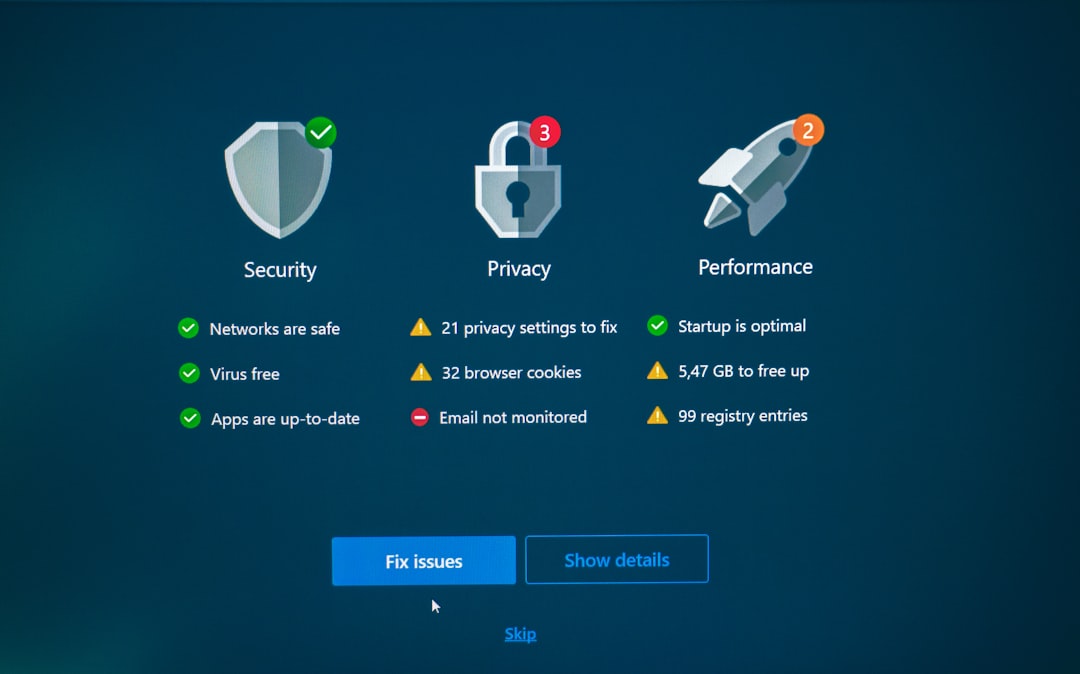
Sometimes, Defender acts preemptively by quarantining a file before you can run it. You may retrieve the file and allow it from within Windows Security:
- Open Windows Security.
- Click on Virus & threat protection.
- Select Protection History.
- Find the blocked or quarantined file on the list.
- Click on the alert > Actions > Allow on device.
This will restore the file and permit it to execute again. Be sure that you recognize the file and are confident that it’s safe.
Method 5: Use PowerShell or Command Prompt for Advanced Overrides
Advanced users can use PowerShell or the command line to adjust Defender settings. This may be helpful in situations where UI access is restricted or you’re deploying software in a script.
To disable real-time monitoring using PowerShell:
Set-MpPreference -DisableRealtimeMonitoring $trueAnd to re-enable it later:
Set-MpPreference -DisableRealtimeMonitoring $falseSimilarly, you can add exclusions using PowerShell:
Add-MpPreference -ExclusionPath "C:\Path\To\App"These commands require administrative privileges. Use with care!
General Rules for Staying Safe
Bypassing Microsoft Defender should never be your first instinct unless you’re sure about an application’s legitimacy. Here are some golden rules to follow:
- Always download software from reputable sources.
- Double-check the file’s hash or digital signature, if provided.
- Scan the file with a second opinion tool, like VirusTotal.
- Re-enable your antivirus protection immediately after bypassing a block.
When Should You NOT Bypass Defender?
Microsoft Defender is effective at catching threats for a reason. If you’re unsure about a file, don’t override the block. Bypassing a block on a truly infected file can give malware full access to your system. Consider this a warning:
If a file has triggered Microsoft Defender and you didn’t intentionally download it, or if it comes from an unknown origin, do not force it to run.
Wrap-Up
Microsoft Defender is your computer’s bodyguard, and sometimes it may block apps that you trust. While frustrating, it’s doing its job. Fortunately, Windows gives you several safe and user-friendly options to bypass such blocks once you verify the app is safe.
Whether you’re using “Run Anyway”, temporary disabling protection, or adding exclusions, you’re still in control—but always proceed with caution. Defender acts on the “better safe than sorry” principle—and now, so can you.