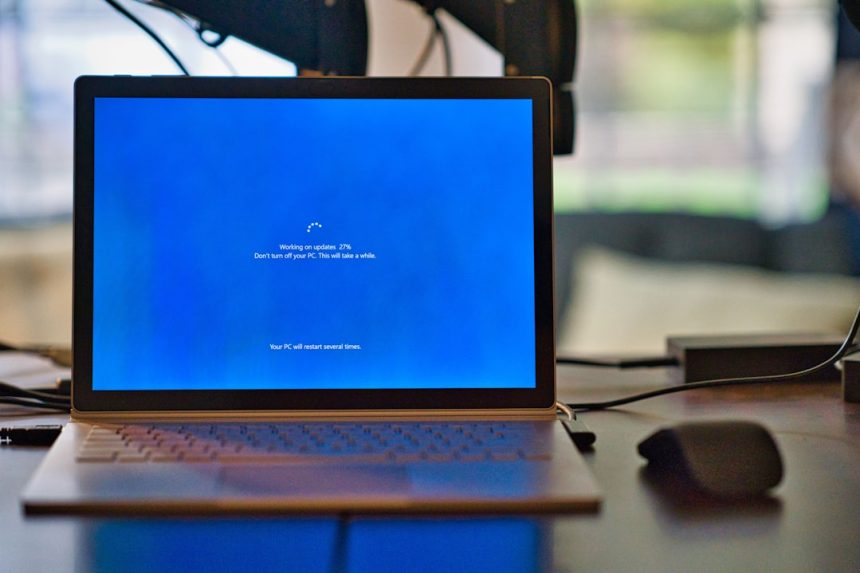
Fix Windows 11 setup errors by first removing the cause: disconnect the internet, use OOBE\BYPASSNRO only at the correct screen, and avoid mixing too many tricks at once. Microsoft requires internet and a Microsoft account for many Windows 11 Home and Pro personal setups, which is why these errors appear so often [source: Microsoft]. The workaround still helps in many installs, but one missed slash or one active Wi Fi connection can throw you back into setup loops.
TLDR: If OOBE\BYPASSNRO fails, press Shift + F10, run the command again exactly, then let the PC restart. If it still demands internet, unplug Ethernet and disable Wi Fi before setup reaches the network page. In a small repair shop scenario, fixing 10 Windows 11 laptops can mean saving about 5 to 8 minutes per device by using a local account path instead of waiting for Microsoft account screens, codes, and network checks.
Why OOBE\BYPASSNRO Breaks During Setup
OOBE means Out of Box Experience. It is the first setup flow you see after installing Windows. The OOBE\BYPASSNRO command tells Windows to skip the network requirement screen and show the “I don’t have internet” option.
The catch is that the command is picky. It must be typed in the Command Prompt during setup, not inside normal Windows. The most common mistake is typing it as OOBE/BYPASSNRO instead of OOBE\BYPASSNRO. That tiny slash difference wastes time. It drives me crazy that one wrong character can add another reboot to an already slow install.
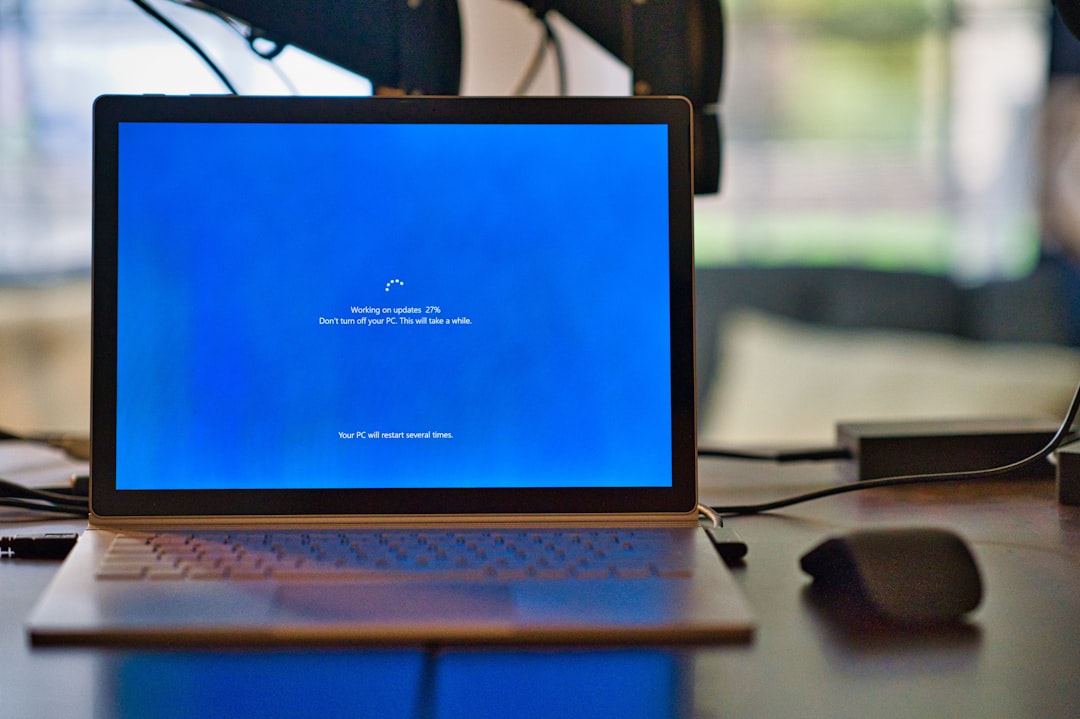
Correct Way to Use OOBE\BYPASSNRO
Use this method when setup stops at the network screen or asks you to connect before continuing.
- At the Windows 11 setup screen, press Shift + F10.
- If you are on some laptops, press Shift + Fn + F10 instead.
- In Command Prompt, type OOBE\BYPASSNRO.
- Press Enter.
- The PC should restart automatically.
- After reboot, return to the network page.
- Choose I don’t have internet, then Continue with limited setup.
If the system does not restart, type shutdown /r /t 0 and press Enter. That forces an instant reboot.
If Shift + F10 Does Nothing
This is common on compact keyboards and some laptops. Try these fixes:
- Use Fn: Press Shift + Fn + F10.
- Use an external keyboard: Some laptop function keys are locked by firmware.
- Check keyboard layout: If symbols look wrong, switch layout from the setup screen.
- Try the accessibility shortcut: On some systems, Win + U can open related tools, though this varies by build.
If none of that works, restart setup and try again from the first OOBE screen. Do not wait until too many account screens have loaded. Windows setup can get stubborn after it has already checked the network.
When “I Don’t Have Internet” Still Does Not Appear
If the option is missing after the command, the PC may still see a live connection. Remove it fully.
- Unplug the Ethernet cable.
- Turn off the router for a minute if the device reconnects too fast.
- Use the laptop Wi Fi switch if it has one.
- Disable Wi Fi in BIOS or UEFI if setup keeps reconnecting.
You can also use Command Prompt:
ipconfig /releaseThen reboot and try OOBE\BYPASSNRO again. This is not fancy, but it works more often than people expect.
Errors Caused by TPM, Secure Boot, or Unsupported CPUs
OOBE\BYPASSNRO only deals with the network requirement. It does not fix hardware checks. If setup says the PC cannot run Windows 11, you are dealing with TPM, Secure Boot, CPU, RAM, or storage rules.
Check these in BIOS or UEFI:
- TPM 2.0: Enable Intel PTT or AMD fTPM.
- Secure Boot: Turn it on if the device supports it.
- Boot mode: Use UEFI, not Legacy or CSM.
- Disk style: Windows 11 prefers GPT for UEFI installs.
If the drive is empty and you are comfortable wiping it, open Command Prompt during setup and run Diskpart. Be careful here. The clean command erases the selected disk.
diskpart
list disk
select disk 0
clean
convert gpt
exit
After that, restart setup and select the unallocated space.
Using Rufus and Other USB Workarounds
Rufus can create a Windows 11 USB installer with options to remove some setup checks and create a local account. This is useful for repeated installs. The tool is popular because it puts the choices up front instead of making you fight setup screens one by one [source: Rufus].
Still, do not stack every workaround at the same time. If you use Rufus settings, try a clean install first before also using registry edits, network tricks, and manual account commands. Too many changes make errors harder to trace.
Common Setup Errors and Quick Fixes
- “Something went wrong”: Restart, disconnect the network, and rerun OOBE\BYPASSNRO.
- Command not recognized: Check the backslash. Use \, not /.
- No local account option: Make sure Ethernet is unplugged before rebooting.
- Setup loops after restart: Remove the USB installer once the first reboot begins.
- Microsoft account screen returns: Type a fake blocked address like no@thankyou.com. If setup rejects it, it may offer local account creation after the failed sign in.

Best Safe Setup Plan
Start simple. Create the USB installer again if it is old or suspect. Boot in UEFI mode. Keep the PC offline. Run OOBE\BYPASSNRO only when you reach the network page. Then create a local account, finish setup, install drivers, and connect to the internet last.
Expect to waste time on driver screens, account prompts, and restarts. That is normal with Windows 11 installs. But if you keep the process clean, most OOBE errors are easy to fix. One step at a time beats five random tricks at once.