The best replacement for Intel Management Engine update utilities is a mixed diagnostic toolkit: OEM update software, Windows logs, firmware inventory tools, and a few deeper checks for BIOS, chipset, and driver health. Intel’s own tools are useful, but many are narrow, especially when a technician needs to know whether the fault is firmware, Windows, chipset drivers, or a bad BIOS release. Intel also publishes security and firmware tools for CSME checks, but they are not full repair suites [source: Intel].
TLDR: A good diagnostic setup starts with Dell Command Update, Lenovo Commercial Vantage, or HP Image Assistant, then adds Windows Event Viewer, Reliability Monitor, HWiNFO, and PowerShell. For example, a technician checking 25 business laptops may find that 60% of “Intel ME” complaints are really chipset driver mismatches, BIOS rollback issues, or failed Windows updates. Intel ME update utilities can still help with firmware version checks, but they should not be the only tool. The fastest path is to compare BIOS, ME firmware, chipset driver, and device errors in one workflow.
Why Intel ME Update Utilities Are Not Always Enough
Intel Management Engine tools often answer one question: Is the ME firmware present, current, or affected by a known issue? That is useful. It is also limited. A laptop can show a clean ME status and still crash during sleep, drop network devices, or throw PCI errors after a BIOS change.
Honestly, it feels like some update utilities were built for perfect lab machines. Real machines are messier. They have old OEM images, half-installed driver packs, stale BIOS settings, and security software blocking installers in the background.
Best Alternatives for Diagnosing Firmware and Driver Issues
1. OEM Update and Health Tools
OEM tools should be the first stop because Intel ME firmware is often customized by the device maker. A generic Intel package may not match the system board, BIOS branch, or enterprise image.
- Dell Command Update: Good for BIOS, chipset, Thunderbolt, storage, and ME-related packages on Dell systems.
- Lenovo Commercial Vantage: Better suited for Lenovo fleets than consumer update tools.
- HP Image Assistant: Strong choice for comparing installed drivers against HP’s approved SoftPaqs.
The catch is that these tools can be slow. A scan that should take 30 seconds sometimes drags past two minutes on older business laptops. Still, they usually provide cleaner matches than generic driver installers.
2. Windows Event Viewer and Reliability Monitor
Event Viewer is not pretty, but it catches clues that update utilities miss. Technicians should check System, Application, and Windows Update logs for driver load failures, firmware update errors, ACPI warnings, and WHEA hardware events.
Reliability Monitor is easier to read. It shows crashes, failed updates, and driver failures on a timeline. That makes it useful when a user says, “It started after the last update,” but cannot remember the date.
Microsoft’s pnputil can also list, add, and delete driver packages from Windows driver storage [source: Microsoft]. That helps when a bad chipset or serial IO driver keeps reinstalling.
3. HWiNFO, AIDA64, and Firmware Inventory Tools
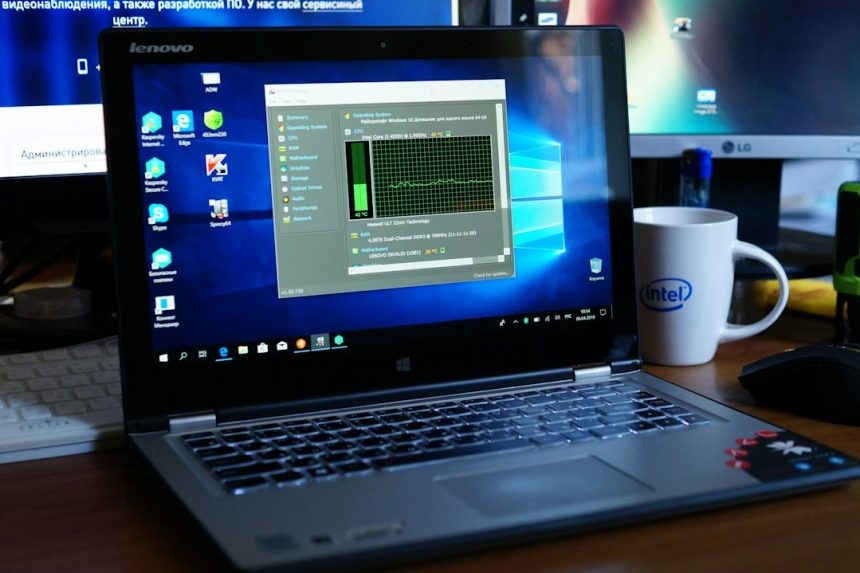
HWiNFO is one of the most practical alternatives for quick inspection. It can show BIOS version, motherboard details, chipset data, PCI devices, and sometimes ME firmware details. AIDA64 offers similar inventory features with stronger reporting.
These tools do not fix firmware by themselves. Their value is in confirmation. A technician can compare the reported BIOS version, ME firmware, chipset ID, and storage controller mode against the OEM support page.
4. PowerShell, WMI, and Built-In Windows Commands
Built-in commands are ideal when support teams need repeatable checks. They also work well over remote support sessions.
msinfo32shows BIOS version, secure boot state, and system model.Get-ComputerInfogives broad system and OS details.Get-PnpDevicelists problem devices and driver states.Get-CimInstance Win32_BIOSreports BIOS version and release date.pnputil /enum-driverslists installed driver packages.
This approach is boring, but boring is good when a help desk must compare 100 machines and prove which ones have mismatched firmware or drivers.
5. Linux fwupd and LVFS for Supported Hardware
For Linux systems, fwupd and the Linux Vendor Firmware Service can update and report firmware for many supported devices. It is not limited to Intel ME. It can cover docks, SSDs, UEFI firmware, and other components when vendors publish updates there [source: fwupd].
This is useful for mixed environments. It also helps when a device has no friendly vendor tool on Linux.
6. CHIPSEC for Advanced Firmware Checks
CHIPSEC is not for casual use. It is a firmware security and platform assessment framework. Security teams use it to inspect low-level platform settings, UEFI protections, and chipset configuration.
It can reveal issues that normal update tools never mention. The downside is clear: wrong use can confuse less experienced staff, and the output can be dense. It belongs in expert hands.
Recommended Diagnostic Workflow
- Identify the exact model with msinfo32 or the OEM tool.
- Check BIOS and ME firmware versions against the device maker’s support page.
- Run the OEM update tool for approved BIOS, chipset, and driver packages.
- Review Reliability Monitor for the first date of failure.
- Check Event Viewer for WHEA, ACPI, PCI, and driver errors.
- Use HWiNFO or AIDA64 to confirm hardware and firmware details.
- Only then update or roll back firmware, with AC power and a verified recovery plan.

FAQ
What is the best overall alternative to Intel ME update utilities?
The best first choice is the device maker’s business update tool. Dell Command Update, Lenovo Commercial Vantage, and HP Image Assistant usually match firmware and driver packages more safely than generic tools.
Can Windows tools diagnose Intel ME problems?
They can show related symptoms. Event Viewer, Reliability Monitor, Device Manager, and PowerShell can expose chipset errors, failed drivers, and update failures. They may not directly repair Intel ME firmware.
Is Intel Driver and Support Assistant a replacement?
It helps with Intel drivers, but it is not a full firmware diagnostic suite. OEM tools are still better for BIOS and customized ME firmware packages.
Should technicians use third-party driver updater apps?
Most should avoid them. They often install generic drivers that break OEM power, sleep, docking, or security features. Verified OEM packages are safer.
When is CHIPSEC the right tool?
CHIPSEC fits security audits and advanced firmware checks. It is not the right tool for routine help desk repairs or quick driver cleanup.