Potentially Unwanted Applications (PUA) like PUA:Win32/Packunwan are increasingly common on Windows systems. While not always classified as severe malware, this threat can introduce unwanted programs, slow down performance, display intrusive advertisements, and expose users to additional security risks. Understanding how to properly remove it and prevent reinfection is essential for maintaining a secure and stable computer.
TLDR: PUA:Win32/Packunwan is a potentially unwanted application that often bundles with free software and can expose your system to additional threats. Removing it involves running a trusted antivirus or anti-malware scan, uninstalling suspicious programs, and cleaning startup entries. Using reputable tools like Microsoft Defender, Malwarebytes, or other security suites improves removal success. Practicing safe downloading habits helps prevent future infections.
What Is PUA:Win32/Packunwan?
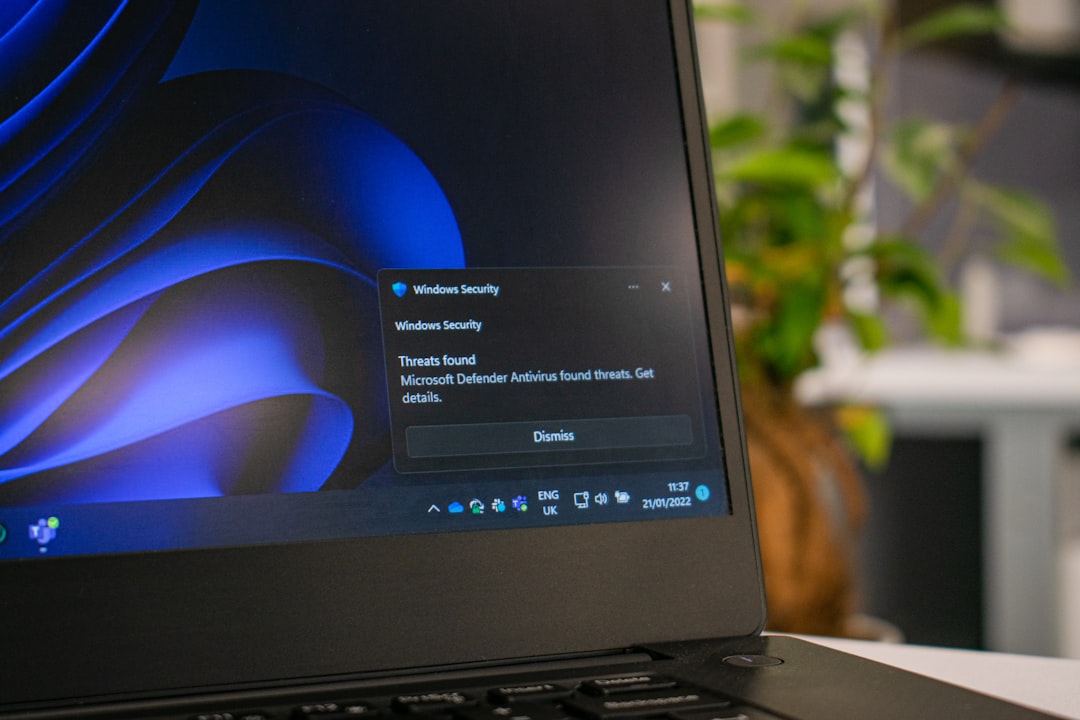
PUA:Win32/Packunwan is a detection name used by Microsoft Defender to identify software that may not be outright malicious but behaves in ways that negatively affect users. It is often bundled with freeware installers and may install without clear user consent.
Common characteristics include:
- Bundled installation with free downloads
- Unwanted browser extensions
- Pop-up advertisements and redirects
- Changes to browser settings
- Installation of additional unwanted programs
How Does PUA:Win32/Packunwan Get Installed?
Most users encounter this PUA through software bundling. When installing free applications, users may unknowingly agree to additional software included in the installer. Other common infection vectors include:
- Downloading cracked software or media
- Visiting questionable websites
- Clicking misleading “Update” prompts
- Installing fake browser extensions
Because it often mimics legitimate software, many users do not realize they’ve installed it.
Signs Your System Is Affected
If PUA:Win32/Packunwan is present, users may notice:
- Slower system performance
- Frequent pop-up ads
- Browser homepage changed unexpectedly
- New toolbars or extensions installed
- Unexpected programs appearing in Control Panel
While not always destructive, these changes reduce usability and may lead to more serious infections.
Step-by-Step Guide to Remove PUA:Win32/Packunwan
Step 1: Run a Full Antivirus Scan
The first step is scanning the system with a reliable security tool.
- Open Windows Security.
- Navigate to Virus & Threat Protection.
- Select Scan options.
- Choose Full scan.
- Click Scan now.
If the program detects PUA:Win32/Packunwan, follow the prompts to quarantine or remove it.
Step 2: Use a Dedicated Anti-Malware Tool
For additional assurance, consider using a specialized anti-malware program. These tools can detect bundled software that traditional antivirus may miss.
Comparison of Popular Removal Tools
| Tool | Real-Time Protection | PUA Detection | Ease of Use | Free Version |
|---|---|---|---|---|
| Microsoft Defender | Yes | Good | Very Easy | Yes (Built-in) |
| Malwarebytes | Yes (Premium) | Excellent | Very Easy | Limited |
| AdwCleaner | No | Excellent (Adware Focused) | Easy | Yes |
| Norton 360 | Yes | Very Good | Easy | No |
Recommendation: Running Microsoft Defender first and then scanning with Malwarebytes or AdwCleaner provides layered detection.
Step 3: Uninstall Suspicious Programs
Manual removal may be required if the program persists.
- Press Windows + R.
- Type appwiz.cpl and press Enter.
- Look for unfamiliar or recently installed programs.
- Right-click and select Uninstall.
Pay special attention to programs installed around the time issues began.
Step 4: Check Browser Extensions
Since PUAs often manipulate browsers, inspect installed extensions.
- Open your browser settings.
- Navigate to Extensions or Add-ons.
- Remove unfamiliar entries.
- Reset browser settings if needed.
Step 5: Disable Suspicious Startup Items
Some unwanted applications configure themselves to run at startup.
- Press Ctrl + Shift + Esc.
- Open the Startup tab.
- Disable suspicious entries.
This ensures the application does not reinstall components during boot.
Step 6: Delete Temporary Files
Cleaning temporary files helps remove residual components.
- Press Windows + R.
- Type %temp% and press Enter.
- Delete all temporary files.
Tools like Disk Cleanup or third-party cleaners may also help eliminate leftovers.
Advanced Removal (If Infection Persists)
If the PUA continues to reappear:
- Boot into Safe Mode and run scans
- Use Windows Defender Offline Scan
- Check Task Scheduler for suspicious tasks
- Review Registry entries (advanced users only)
Important: Editing the Windows Registry without experience can cause system instability.
How to Prevent PUA:Win32/Packunwan in the Future
Prevention is simpler than removal. Users can minimize risks by following these security practices:
- Download software only from official sources
- Choose Custom Installation instead of Express
- Uncheck bundled offers
- Keep Windows and software updated
- Use real-time antivirus protection
- Avoid pirated or cracked software
Being mindful during installations is one of the most effective defenses.
Is PUA:Win32/Packunwan Dangerous?
While it may not be classified as severe malware like ransomware or trojans, it still poses risks:
- May introduce additional malware
- Can expose personal data through adware tracking
- Degrades system performance
- Creates security vulnerabilities
Therefore, removal should not be delayed.
When to Seek Professional Help
If the infection keeps returning or system performance continues deteriorating, professional IT support may be necessary. Enterprise environments, in particular, should ensure centralized endpoint protection and monitoring are in place.
Frequently Asked Questions (FAQ)
1. Is PUA:Win32/Packunwan a virus?
No. It is classified as a Potentially Unwanted Application. While not strictly a virus, it can negatively impact performance and security.
2. Can Windows Defender remove PUA:Win32/Packunwan?
Yes. Windows Defender is capable of detecting and removing it, especially if PUA protection is enabled.
3. Why does it keep coming back?
It may reinstall through scheduled tasks, leftover files, or another bundled program still present on the system.
4. Is my data at risk?
While not directly destructive, PUAs can expose users to tracking, advertising networks, and secondary malware infections.
5. Should I reset my PC?
A reset is usually unnecessary unless the infection is persistent and widespread. Most cases can be resolved through scans and manual cleanup.
6. How do I enable PUA protection in Windows Defender?
In Windows Security, go to App & Browser Control and ensure Reputation-based protection settings are enabled.
7. Can a factory reset remove it?
Yes, a full factory reset will remove it, but this step should be a last resort after other methods fail.
Final Thoughts
Removing PUA:Win32/Packunwan requires a combination of antivirus scanning, manual inspection, and safe browsing practices. While it may not pose the same level of threat as more aggressive malware, it still compromises system integrity and user experience. By taking proactive security measures and maintaining awareness during software installations, users can keep their systems clean and protected in the long term.