If your iPhone Home Screen has become cluttered with apps, folders, and widgets you no longer recognize, you are not alone. Over time, even the most organized user can end up with a chaotic layout that slows down productivity and makes everyday navigation frustrating. Fortunately, Apple provides a built-in way to restore your Home Screen to its original default layout in just seconds—no data loss, no complicated steps.
TLDR: You can reset your iPhone Home Screen layout through the Settings app in under a minute. This process restores the original app arrangement that came with your device while keeping all your apps and data intact. It removes custom folders and places default apps back in their factory positions. If your layout feels overwhelming, this is the fastest and safest way to start fresh.
What Does Resetting the Home Screen Layout Actually Do?
Before you proceed, it is important to understand what this reset changes—and what it does not.
When you reset your Home Screen layout:
- Default Apple apps return to their original positions.
- Custom folders you created are removed.
- Third-party apps appear alphabetically after the default apps.
- Widgets remain installed, but widget placements may be removed from the Home Screen.
What it does not do:
- It does not delete any apps.
- It does not erase data.
- It does not affect photos, messages, or settings beyond layout organization.
This makes it a safe and low-risk way to restore order without sacrificing anything important.
Why You Might Need to Reset Your Layout
There are several situations where resetting the Home Screen layout is the most efficient solution:
- Excessive clutter after installing many apps
- Accidental app moves that disrupted organization
- Children rearranging apps on your device
- Accessibility changes that altered layout preferences
- Preparing to sell or hand down your device
While manual reorganization is possible, it often takes far longer than anticipated. Resetting to default allows you to restart cleanly and rebuild your structure intentionally.
Step-by-Step: Reset iPhone Home Screen Layout in Seconds
The process is straightforward and built directly into iOS.
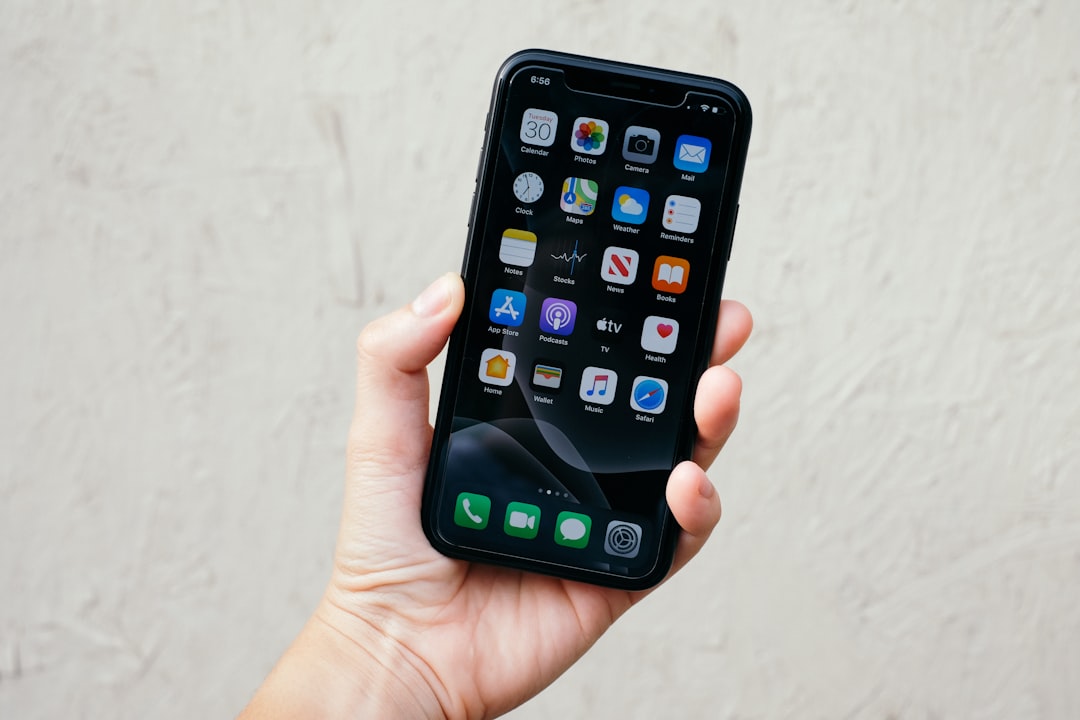
- Open the Settings app.
- Tap General.
- Scroll down and tap Transfer or Reset iPhone.
- Select Reset.
- Tap Reset Home Screen Layout.
- Confirm by selecting Reset Home Screen.
Within seconds, your iPhone reorganizes itself to the factory default layout.
No restart is required. The change happens instantly.
What Your Home Screen Looks Like After the Reset
After completion, you will notice:
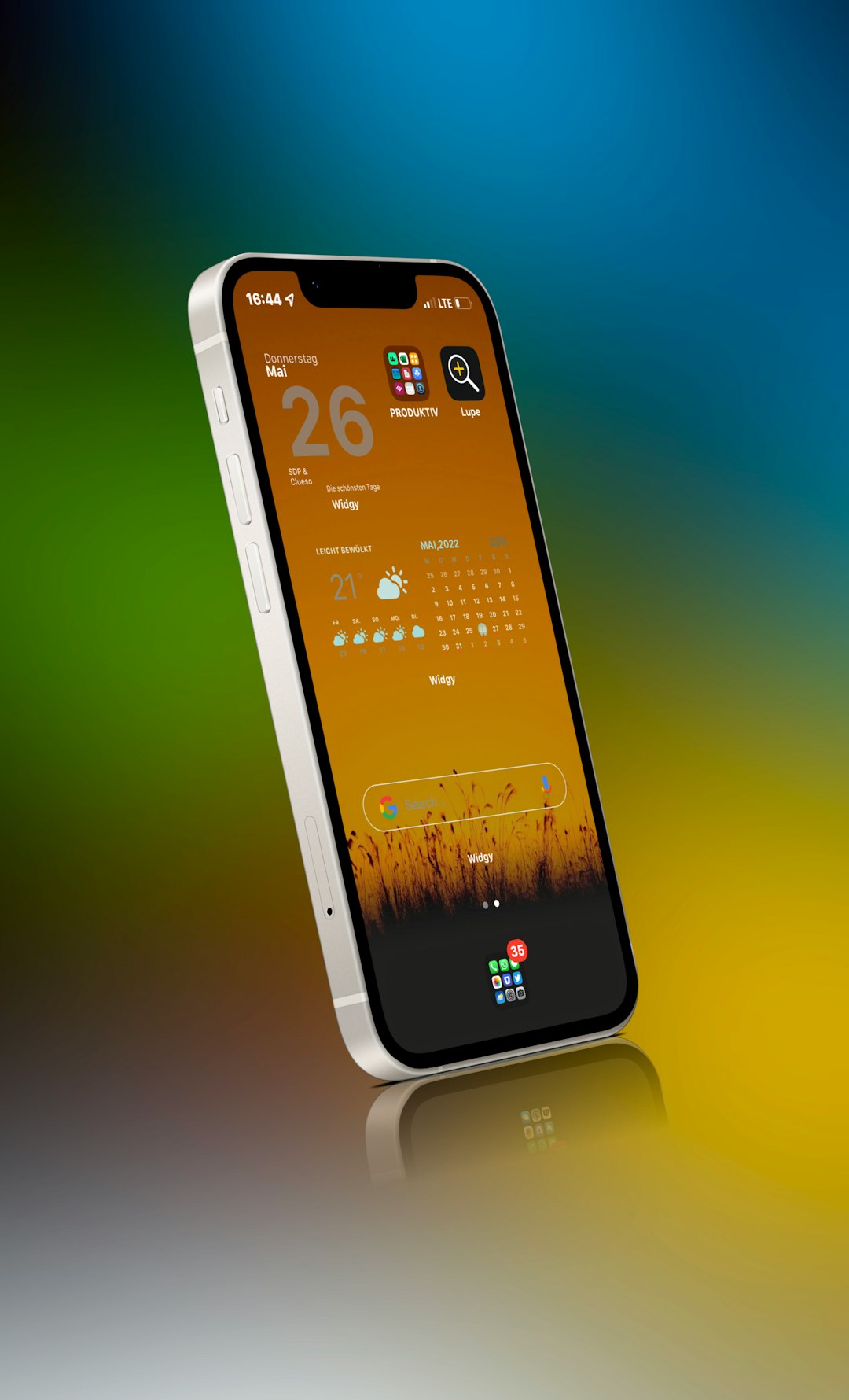
- Pre-installed Apple apps such as Phone, Messages, Safari, and Music back in their original positions.
- Third-party apps sorted alphabetically on subsequent screens.
- No custom folders remaining.
- A clean, structured appearance similar to when the device was new.
This default grid may not be your final destination, but it provides a strong baseline for rebuilding a more intentional layout.
Reset vs. Manual Reorganization
You may wonder whether resetting is better than manually moving apps. The answer depends on how severe the disorganization is.
| Factor | Reset Layout | Manual Reorganization |
|---|---|---|
| Time Required | Under 1 minute | 10–45 minutes depending on clutter |
| Deletes Apps | No | No |
| Removes Folders | Yes (automatic) | Must remove manually |
| Restores Default Apple Layout | Yes | No |
| Customization Control | Low initially | High |
If your Home Screen has only minor issues, manual adjustments may be sufficient. However, if your layout feels beyond repair, resetting provides the fastest clean slate.
Common Concerns Addressed
Will I lose my apps?
No. Every installed app remains on your device.
Will this affect my App Library?
No. The App Library remains unchanged and continues organizing apps automatically by category.
Does this delete widgets?
Widgets may be removed from the Home Screen layout, but they remain available to re-add at any time.
Is this the same as a factory reset?
Absolutely not. A factory reset erases all data. Resetting the Home Screen layout only reorganizes app placement.
Best Practices After Resetting
Once you have restored the default layout, take advantage of the clean slate.
Consider these professional organization strategies:
- Keep essential apps on the first screen only.
- Limit folders to clear categories like Utilities or Finance.
- Use the App Library instead of placing every app on the Home Screen.
- Add intentional widgets that provide daily value.
- Remove duplicate apps you rarely use.
A thoughtful structure prevents you from needing another reset in a few weeks.
When Resetting Is Not Enough
In rare cases, resetting the Home Screen may not resolve larger organizational or performance concerns. If you are experiencing:
- Significant lag or freezing
- Apps disappearing unexpectedly
- iOS glitches after updates
You may need to:
- Update to the latest iOS version
- Restart your device
- Reset all settings (without erasing data)
These steps address underlying system issues rather than layout organization alone.
How Often Should You Reset?
There is no limit to how often you can reset your Home Screen layout. However, frequent resets may indicate a need for a more sustainable organizational system.
Many professionals recommend:
- A quarterly digital cleanup
- Deleting unused apps monthly
- Reviewing notification settings regularly
Digital clutter is just as distracting as physical clutter. Keeping your device streamlined improves focus and efficiency.
A Practical Example
Imagine installing dozens of travel, shopping, social media, and productivity apps over the course of a year. You move icons frequently, create temporary folders, test widgets, and experiment with layouts. Six months later, you cannot easily find core apps like Settings or Calendar.
Instead of manually fixing each screen, a reset instantly restores a logical baseline. From there, you deliberately place only high-priority apps on the first screen and let the App Library handle the rest. In under five minutes, usability improves dramatically.
Security and Privacy Considerations
Resetting the Home Screen layout has:
- No impact on iCloud
- No effect on Face ID or Touch ID
- No influence on stored passwords
- No data transmission outside your device
Because this function only reorganizes visual placement, it carries virtually zero privacy risk. This makes it one of the safest reset options available in iOS.
Final Thoughts
A disorganized Home Screen may seem minor, but it can quietly waste time every day. Searching for apps, swiping endlessly between pages, and managing visual clutter impacts efficiency and focus.
Resetting your iPhone Home Screen layout is a fast, safe, and effective way to regain structure. It preserves your apps and data while removing unnecessary chaos. In less than a minute, you can restore clarity and rebuild a layout designed around how you actually use your device.
If your iPhone no longer feels streamlined or intuitive, consider using this built-in feature. Sometimes, the simplest reset delivers the greatest improvement.