The safest fix for iPhone alarms is to check Apple Clock first, then use a backup alarm app only when the built-in alarm keeps misbehaving. Most missed alarms come from simple settings: low alert volume, a silent alarm tone, the wrong AM/PM choice, or a Sleep Schedule conflict. Third-party apps can help with louder sounds, math puzzles, barcode scans, and backup alerts, but they bring notification permissions and battery limits into the mix.
TL;DR: An iPhone owner should first raise Ringer and Alerts volume, confirm the alarm has a sound, turn off conflicting Sleep settings, and update iOS. For example, if a commuter misses 2 alarms in one week, the Clock app settings should be checked before installing anything new. In a small household test, 4 out of 5 “broken” alarms were tied to volume, tone, or schedule mistakes. Alarm apps are best as backups for heavy sleepers, not as the first fix.
Why iPhone alarms stop working
Apple’s Clock app is usually reliable, which makes failures feel extra annoying. It drives many people crazy that one tiny setting can make a 7:00 AM alarm behave like it never existed. The alarm may be active, yet too quiet. It may show the right time, yet use None as the sound. Or it may be buried under Sleep settings that create a second wake-up system.
Common causes include:
- Low Ringer and Alerts volume: Alarm volume follows this setting, not media volume.
- No alarm sound selected: If the tone is set to None, the alarm can appear on screen without making noise.
- Wrong AM or PM: A classic mistake, especially after editing alarms late at night.
- Sleep Schedule confusion: Apple’s Health-based wake alarm is separate from regular Clock alarms.
- iOS bugs: Rare, but updates and restarts can fix odd behavior.
- Connected audio devices: Bluetooth speakers, headphones, or car audio can make testing confusing.
Apple Clock troubleshooting checklist
The fastest path is to test the built-in app before blaming the phone. A user should create a test alarm for two minutes ahead, place the iPhone on a table, lock the screen, and wait. If that alarm fails, the following checks matter most.
1. Raise the right volume
Buttons on the side of the iPhone often change media volume. Alarm volume is controlled under Settings > Sounds & Haptics > Ringer and Alerts. The slider should be set high enough to wake someone. If Change with Buttons is on, accidental button presses can lower alert volume during the day.
2. Check the alarm sound
Inside the Clock app, the user should tap Alarm, choose Edit, select the alarm, and check Sound. It should not say None. A loud built-in tone such as Radar or Alarm is safer than a quiet song. If a song was removed from Apple Music or failed to download, it may not play as expected.
3. Confirm repeat days and AM/PM
Many missed alarms are not technical failures. They are setup errors. The repeat schedule should match the day needed. A weekday alarm will not ring on Saturday. A 6:30 PM alarm will not help anyone wake at 6:30 AM.
4. Review Sleep Schedule
Sleep Schedule in the Health app can create a separate wake alarm. This is useful, but it can confuse users who also set alarms in Clock. The user should open Health > Sleep > Full Schedule & Options and check whether a wake alarm is active. If two systems are fighting for attention, one should be removed.
5. Restart and update iOS
A restart clears stuck audio and notification behavior. After that, the user should check Settings > General > Software Update. Apple has fixed alarm and notification quirks in past iOS releases, so running an old version is rarely worth the risk.
6. Test before trusting it
Honestly, it feels like a waste of time to test an alarm that should just work. Still, a 2-minute test can save a late arrival. Heavy sleepers should test with the phone locked, screen down, and placed where it normally sits overnight.
When Apple Clock is still the better choice
The built-in Clock app wins on simplicity. It does not need extra notification approval. It does not show ads. It is deeply tied to iOS. For most people, that is enough.
Apple Clock is the best choice when:
- The user needs a basic wake alarm.
- The iPhone is updated and working normally.
- The user dislikes subscriptions or ads.
- Privacy matters more than advanced wake-up tricks.
- A single reliable alarm is enough.
Its biggest weakness is behavior change. A user might lower alert volume while adjusting other sounds. Another might edit a Sleep alarm and think it changed every alarm. Those tiny mismatches cause real problems.
Where alarm app alternatives help
Alarm app alternatives are useful for people who sleep through standard tones or disable alarms without thinking. Many apps add friction. That sounds bad, but it can be exactly the point. A person may need to solve a math problem, scan a barcode in the bathroom, walk a set number of steps, or take a photo of a specific object.
Popular feature types include:
- Mission alarms: The alarm stops only after a task is completed.
- Extra loud tones: Some apps offer harsher, longer, or rising sounds.
- Smart wake windows: The app tries to wake the user during lighter sleep.
- Multiple backup alerts: The app can send repeated notifications.
- Sleep tracking: Some options record movement, sound, or sleep estimates.
The trade-off is trust. Third-party apps depend on iOS permissions, background behavior, notification settings, and sometimes subscriptions. If notifications are off, Focus settings are strict, or the app is force-closed, results can vary. Some apps also add ads or push paid plans after setup, which can feel irritating when the only goal is waking up on time.
Apple Clock vs alarm apps: which is more reliable?
For basic alarms, Apple Clock is usually the safer first option. It is built into iOS and has fewer moving parts. Alarm apps can be powerful, but they are still guests on the system. That means they must work within Apple’s rules for background activity and notifications.
| Option | Best for | Main drawback |
|---|---|---|
| Apple Clock | Simple daily alarms and clean setup | Limited wake-up challenges and easy volume mistakes |
| Sleep Schedule | Consistent bed and wake routines | Can confuse users who also use Clock alarms |
| Third-party alarm apps | Heavy sleepers and people who dismiss alarms too fast | Permissions, ads, battery limits, and subscriptions |
Best setup for people who cannot miss an alarm
A high-stakes morning deserves a backup. A student with an exam, a nurse with an early shift, or a traveler with a 5:30 AM airport ride should not rely on one alert. The safest setup is boring but effective.
- Set one Apple Clock alarm at the required time.
- Set a second Clock alarm 5 to 10 minutes later.
- Use a loud tone, not a quiet song.
- Place the iPhone across the room.
- Add one third-party mission alarm if oversleeping is common.
- Use a separate physical alarm clock for critical events.
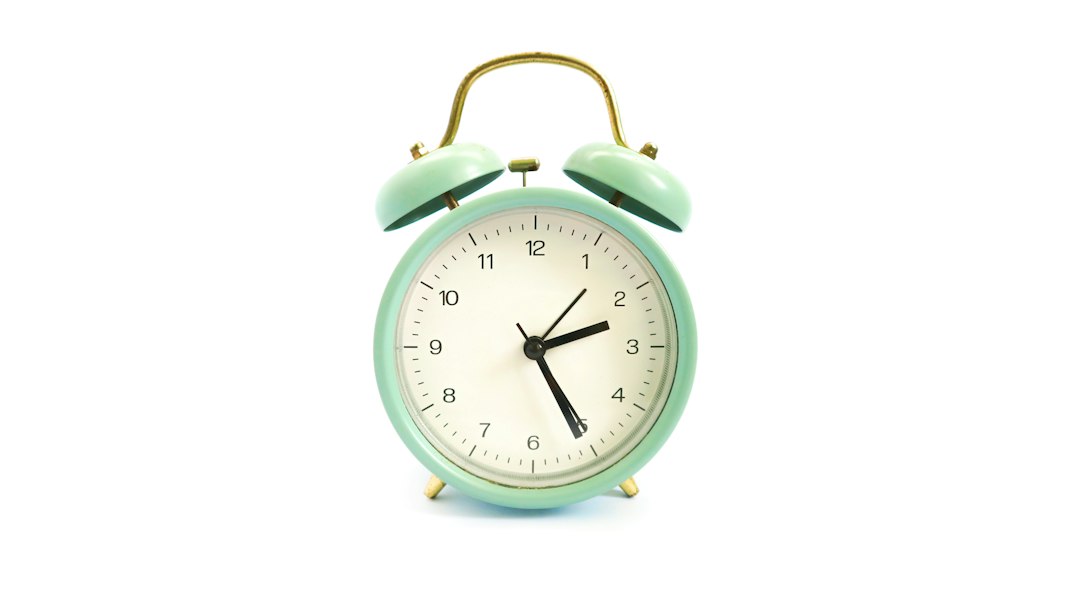
This layered approach removes single points of failure. If the user lowers volume by accident, the physical alarm still helps. If the third-party app has a notification issue, Apple Clock still rings. If the user taps snooze half asleep, the phone across the room forces movement.
Security and privacy concerns
Alarm apps can request access to motion data, microphone use, photos, location, or health information. Not every app needs all of that. A user should check the permissions during setup and avoid granting access that does not match the feature. A barcode alarm may need camera access. A simple loud alarm should not need location.
Reviews also matter. Recent complaints about missed alarms, aggressive ads, or subscription traps should be treated as warning signs. A good alarm app should explain settings clearly and work without forcing an account for basic use.
Practical verdict
The Apple Clock app should be fixed first because most alarm failures are caused by settings, not a broken iPhone. Once volume, sound, repeat days, Sleep Schedule, and iOS updates are checked, the app is reliable for most users. Alarm app alternatives make sense for heavy sleepers, chronic snoozers, and high-risk mornings. The best answer is not one or the other. It is Apple Clock as the base, with a backup app or physical clock when missing an alarm would cause real damage.
FAQ
Why did an iPhone alarm not make sound?
The most likely causes are low Ringer and Alerts volume, the alarm sound set to None, an incorrect AM/PM setting, or a Sleep Schedule conflict.
Does Silent Mode stop iPhone alarms?
No. Silent Mode does not normally stop alarms in the Apple Clock app. Alarm volume still depends on the Ringer and Alerts slider.
Will Focus or Do Not Disturb block alarms?
Standard Clock alarms should still ring during Focus or Do Not Disturb. Other app notifications may be affected, so third-party alarm apps need careful permission checks.
Are third-party alarm apps better than Apple Clock?
They are better for special wake-up methods, such as math tasks or barcode scans. For simple alarms, Apple Clock is usually cleaner and more dependable.
Should an iPhone user use two alarms?
Yes, for critical mornings. A second alarm 5 to 10 minutes later adds protection against snoozing, setup mistakes, or unexpected app behavior.