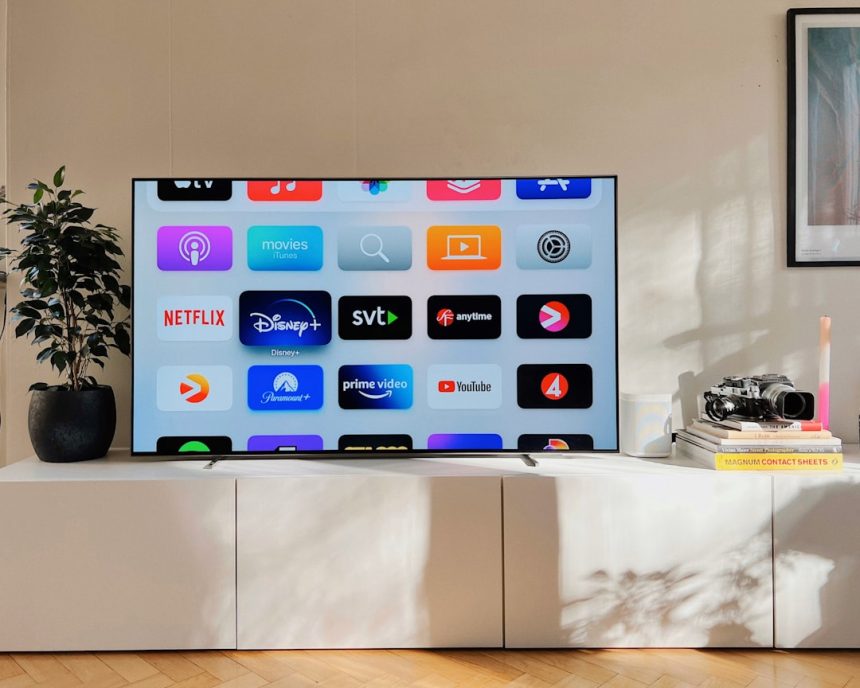
Samsung TVs are sleek, fast, and packed with streaming apps, but there is one important catch: Kodi is not available as a native app on Samsung Smart TVs. Most modern Samsung TVs run Tizen OS, while Kodi is built for platforms such as Android, Windows, Linux, macOS, iOS, and tvOS. The good news is that you can still enjoy Kodi on a Samsung TV by using an external device or by mirroring/casting from another screen.
TLDR: You cannot install Kodi directly on most Samsung Smart TVs because they use Tizen OS, which Kodi does not officially support. The easiest solution is to connect an Android TV box, Amazon Fire TV Stick, Chromecast with Google TV, Xbox, PC, or Raspberry Pi to your Samsung TV via HDMI. Once Kodi is installed on that device, your Samsung TV simply acts as the display. Screen mirroring is also possible, though it is usually less smooth than using a dedicated streaming device.
Why Kodi Is Not in the Samsung App Store
If you open the Samsung App Store and search for Kodi, you will likely come up empty. That is because Samsung’s Smart Hub ecosystem is built around Tizen, a Linux-based operating system that uses its own app framework. Kodi, meanwhile, does not offer a Tizen version.
This is different from Android TV, where Kodi can often be installed directly from the Google Play Store. With Samsung, the practical workaround is to run Kodi on a separate compatible device and connect it to the TV. It may sound like an extra step, but in many cases it actually gives you a better Kodi experience, especially if you choose a powerful streaming box.

Best Ways to Use Kodi on a Samsung TV
There are several reliable methods, and the best one depends on the devices you already own. Here are the most common options:
- Use an Android TV or Google TV device such as Chromecast with Google TV, NVIDIA Shield TV, or an Android TV box.
- Use an Amazon Fire TV Stick and sideload Kodi onto it.
- Use an Xbox console, since Kodi is available from the Microsoft Store in many regions.
- Connect a Windows, Mac, or Linux computer to the TV with an HDMI cable.
- Use a Raspberry Pi running a media center system such as LibreELEC.
- Mirror your phone or computer screen to the Samsung TV, though this is less ideal for everyday use.
Method 1: Install Kodi Using an Android TV or Google TV Device
This is usually the simplest and cleanest method. Devices like Chromecast with Google TV or NVIDIA Shield TV plug into your Samsung TV’s HDMI port and run their own operating system. Your TV does not need to support Kodi; it only needs to display the HDMI signal.
Follow these steps:
- Plug your Android TV or Google TV device into an available HDMI port on your Samsung TV.
- Connect the device to power and complete the setup process.
- Open the Google Play Store on the device.
- Search for Kodi.
- Select Install.
- Open Kodi and configure your media libraries, add-ons, and settings.
This option is ideal because updates are straightforward, the interface is remote-friendly, and playback performance is usually strong. If you want the smoothest experience, a higher-end device like NVIDIA Shield TV is especially popular among Kodi users.
Method 2: Install Kodi on an Amazon Fire TV Stick
The Fire TV Stick is another popular choice because it is affordable and easy to connect to a Samsung TV. Kodi is not always available directly through the Amazon Appstore, so you may need to sideload it.
Here is the general process:
- Connect the Fire TV Stick to your Samsung TV and complete the setup.
- Go to Settings on the Fire TV interface.
- Open My Fire TV, then choose Developer Options.
- Enable installation from unknown sources for a downloader app.
- Install the Downloader app from the Amazon Appstore.
- Use Downloader to visit the official Kodi website.
- Download the Android version of Kodi and install it.
Important: Always download Kodi from the official Kodi website. Avoid random APK sites, because unofficial downloads may contain outdated files, modified software, or security risks.
Image not found in postmetaMethod 3: Use Kodi on Xbox
If you already own an Xbox connected to your Samsung TV, you may have one of the easiest setups available. Kodi is offered through the Microsoft Store in many locations.
- Turn on your Xbox and open the Microsoft Store.
- Search for Kodi.
- Select the app and choose Get or Install.
- Launch Kodi from your apps section.
This is a convenient method because the Xbox has strong hardware and good HDMI output. However, some Kodi features or add-ons may behave differently on Xbox compared with Android or PC versions, so it is worth checking compatibility if you rely on advanced setups.
Method 4: Connect a Computer to Your Samsung TV
Another straightforward option is to install Kodi on a laptop or desktop computer and connect it to your Samsung TV using an HDMI cable. This works with Windows, macOS, and Linux.
To do it:
- Install Kodi from the official Kodi website on your computer.
- Connect the computer to your Samsung TV using an HDMI cable.
- Use your Samsung remote to select the correct HDMI input.
- Set your computer display mode to duplicate or extend the screen.
- Open Kodi and play your media on the TV.
This method is excellent if your media library is already stored on the computer. It also gives you access to a full keyboard and mouse for setup. The downside is that it is less elegant than a small streaming device, especially if you do not want a computer near your TV.
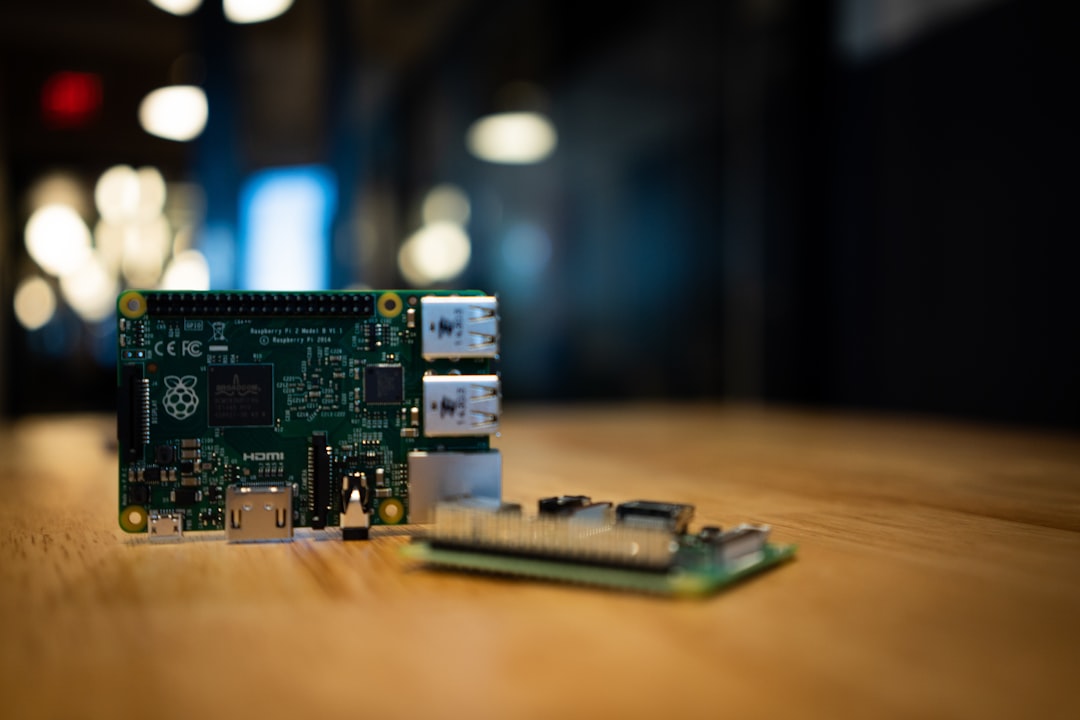
Method 5: Use a Raspberry Pi
For hobbyists, a Raspberry Pi can become a compact and inexpensive Kodi media center. Many users install LibreELEC, a lightweight operating system designed specifically to run Kodi.
The basic steps are:
- Download the LibreELEC installer on your computer.
- Flash LibreELEC onto a microSD card.
- Insert the microSD card into the Raspberry Pi.
- Connect the Raspberry Pi to your Samsung TV via HDMI.
- Power it on and complete the Kodi setup.
This is a fun and flexible option, but it requires more technical confidence than buying a ready-made streaming stick.
Can You Screen Mirror Kodi to a Samsung TV?
Yes, you can mirror Kodi from a phone, tablet, or computer to a Samsung TV using features such as Smart View, AirPlay on supported models, or casting tools. However, this is usually not the best long-term solution. Mirroring can introduce lag, reduce video quality, drain your device battery, or interrupt playback when notifications appear.
Use mirroring if you want a quick temporary setup. For regular Kodi viewing, an HDMI-connected device is much more reliable.
Tips for a Better Kodi Experience
- Use Ethernet if possible: A wired connection can reduce buffering, especially for large local files or high-bitrate streams.
- Keep Kodi updated: Updates improve stability, security, and compatibility.
- Organize your media: Clear file names help Kodi identify movies, shows, artwork, and metadata correctly.
- Be careful with add-ons: Use legitimate sources and avoid anything that offers copyrighted content without permission.
- Choose the right device: If you plan to use Kodi heavily, invest in a device with good processing power and storage.
Final Thoughts
Although you cannot install Kodi directly on a Samsung TV, you have several excellent alternatives. The most user-friendly path is to connect an Android TV, Google TV, Fire TV, Xbox, computer, or Raspberry Pi to your Samsung TV and install Kodi there. Your Samsung screen then becomes the home theater display for your Kodi setup.
For most people, a dedicated streaming device is the best balance of price, convenience, and performance. Once everything is connected, you can enjoy Kodi’s flexible media library, customizable interface, and powerful playback features on the big screen without needing native Samsung TV support.