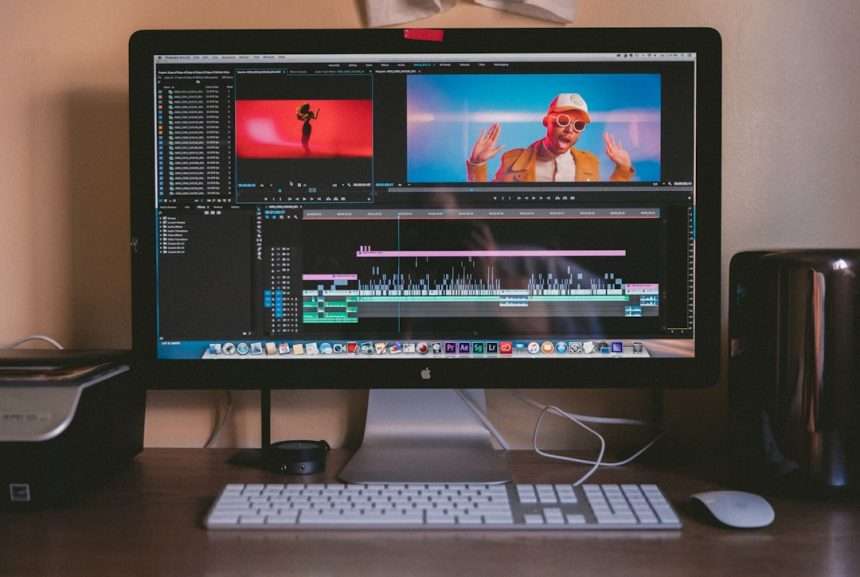
Video editing can sound scary. It has big menus. It has strange buttons. It has timelines that look like train tracks. But here is the happy truth. If you only need to split a clip or trim the boring parts, you do not need fancy paid software. You need a simple free tool that cuts cleanly and does not make you cry into your keyboard.
TLDR: The best free tools for splitting and trimming clips are simple, fast, and easy to learn. CapCut, Clipchamp, iMovie, DaVinci Resolve, Shotcut, OpenShot, and VLC are great choices. Pick CapCut or Clipchamp for quick social videos. Pick DaVinci Resolve or Shotcut if you want more control later.
Why Splitting and Trimming Matter
Every great video starts with one magic trick. You remove the boring bits.
That awkward pause? Gone.
The part where your cat walks across the keyboard? Maybe keep that. Cats are stars.
But the five seconds where nothing happens? Cut it.
Splitting means cutting one clip into smaller pieces. Trimming means shortening the start or end of a clip. Together, they help your video feel faster, cleaner, and more fun to watch.
You can use these skills for:
- Social media videos
- YouTube clips
- School projects
- Work presentations
- Family videos
- Gaming highlights
- Quick tutorials
The good news is that many free video editors do this very well. Some are super simple. Some are powerful. Some are a little weird, but in a useful way.

1. CapCut
Best for: TikTok, Reels, Shorts, and quick edits.
CapCut is one of the easiest free video editors around. It works on phones, tablets, and computers. It is made for fast editing. That makes it great for trimming and splitting clips.
The timeline is simple. You tap or click the clip. Move the playhead. Press Split. Done. You can drag the ends of clips to trim them. It feels smooth and quick.
CapCut also has lots of fun extras. You get captions, stickers, effects, filters, and music. So after you cut your clips, you can make the video pop.
What makes it great:
- Very easy to learn
- Great for vertical video
- Works on mobile and desktop
- Good auto captions
- Fast splitting and trimming
Watch out for: Some effects and features may need a paid plan. Also, the interface can feel busy if you only want basic cuts.
Fun tip: Use CapCut if your video needs to look cool fast. It is like the snack machine of video editing. Quick, bright, and full of choices.
2. Microsoft Clipchamp
Best for: Windows users and simple browser editing.
Clipchamp is a friendly editor from Microsoft. If you use Windows, you may already have it. You can also use it in a browser.
It is great for beginners. You drag your video into the timeline. Then you cut it, trim it, and move things around. The buttons are clear. The layout is not scary.
Splitting a clip is simple. Place the playhead where you want the cut. Click the scissors icon. Trim by dragging clip edges. Easy.
What makes it great:
- Simple and clean design
- Good for beginners
- Works in a browser
- Nice templates
- Good for basic work videos
Watch out for: Some stock media and premium features are locked behind paid plans. Also, internet speed can matter if you use the web version.
Fun tip: Clipchamp is like a neat desk. Everything has a place. Nothing jumps out and yells at you.
3. iMovie
Best for: Mac, iPhone, and iPad users.
iMovie is free for Apple users. It is clean, simple, and great for basic editing. If you own a Mac or iPhone, this is a very strong choice.
Trimming in iMovie is easy. You drag the edge of a clip. Splitting is also simple. Move the playhead. Use the split command. Then delete the parts you do not want.
iMovie is not loaded with wild pro tools. That is a good thing for many people. It keeps editing calm.
What makes it great:
- Free on Apple devices
- Very beginner friendly
- Smooth performance
- Clean timeline
- Good titles and music options
Watch out for: It is only for Apple devices. It also lacks some advanced tools that pro editors may want.
Fun tip: iMovie is like training wheels for video editing. But fancy training wheels. Shiny ones.
4. DaVinci Resolve
Best for: People who want free tools with pro power.
DaVinci Resolve is a monster. A friendly monster, but still a monster. It is used by serious editors. It has tools for cutting, color, sound, effects, and more.
The free version is very powerful. For basic splitting and trimming, it works great. You can use the Cut page for fast edits. You can also use the Edit page for more control.
At first, it may look intense. Do not panic. You only need a few tools to start. Import your video. Put it on the timeline. Use the blade tool to split. Drag the edges to trim.
What makes it great:
- Professional quality
- Excellent free version
- Great for long term learning
- Powerful trimming tools
- Amazing color tools
Watch out for: It has a learning curve. It also needs a decent computer. Older machines may huff and puff.
Fun tip: Choose DaVinci Resolve if you want to start small but dream big. Today you trim clips. Tomorrow you color grade a dragon movie. Probably.
5. Shotcut
Best for: Free open source editing on Windows, Mac, and Linux.
Shotcut is free and open source. That means it is made by a community and does not hide basic tools behind a paywall. It works on many systems, including Linux.
Shotcut is good for trimming and splitting. You can cut clips on the timeline with a split button. You can trim by dragging the clip ends. It supports many video formats too.
The interface may feel a little odd at first. It is not as shiny as CapCut or iMovie. But it is strong and reliable once you get used to it.
What makes it great:
- Completely free
- Open source
- Works on Windows, Mac, and Linux
- Supports many formats
- No watermark
Watch out for: It can feel less modern. New users may need a few minutes to find everything.
Fun tip: Shotcut is like a trusty toolbox. It may not sparkle. But it gets the job done.
6. OpenShot
Best for: Simple edits and beginner projects.
OpenShot is another free open source editor. It is designed to be simple. That makes it useful for quick cuts, trims, and basic projects.
To split clips, you can use the razor tool or slicing options. To trim, drag clip edges on the timeline. You can also add titles, transitions, and music.
OpenShot is easy to understand. The timeline is simple. The tools do not feel too hidden. It is a good pick for someone who wants basic editing without a big learning mountain.
What makes it great:
- Free and open source
- Easy for beginners
- Works on major operating systems
- Good for simple videos
- Supports drag and drop editing
Watch out for: It may be less stable with large projects. Save your work often. Your future self will thank you.
Fun tip: OpenShot is a nice first editor. It says, “Come in. Cut a clip. Have a cookie.”
7. VLC Media Player
Best for: Very simple trimming without a full editor.
Yes, VLC is mostly a media player. But it can also help you make quick clips. It is not a true full video editor. Still, it can record a section from a video.
This is useful if you only need to save one short part. For example, you may want a 20 second clip from a long video. VLC can do that with its record feature.
It is not the best tool for timeline editing. You will not get fancy trimming handles or many split points. But for super quick clipping, it can work.
What makes it great:
- Free
- Very lightweight
- Plays almost anything
- Good for grabbing short sections
- Works on many systems
Watch out for: It is not a full editor. It is less exact than timeline tools.
Fun tip: VLC is like using a spoon as a screwdriver. Not perfect. But sometimes it works.
8. LosslessCut
Best for: Super fast trimming without re encoding.
LosslessCut is a special tool. It is made for quick, clean cuts. It can trim and split clips without re encoding the whole video. That means it can be very fast. It also helps preserve original quality.
This is great if you have a huge video file and only need one part. You mark the start. You mark the end. Then export the segment. Zoom. Done.
It is not made for adding effects, titles, or music. It is made for cutting. And it is very good at that.
What makes it great:
- Very fast
- Keeps original quality
- Great for large files
- Simple cutting workflow
- Free and open source
Watch out for: It is not a creative editor. It is more like a video knife. A good knife, but still a knife.

How to Pick the Right Free Tool
There is no single best choice for everyone. The best tool depends on your device, your project, and your patience level.
Use this quick guide:
- Use CapCut if you make TikToks, Reels, or Shorts.
- Use Clipchamp if you want an easy Windows or browser editor.
- Use iMovie if you use Apple devices.
- Use DaVinci Resolve if you want pro tools for free.
- Use Shotcut if you want open source power.
- Use OpenShot if you want a simple first editor.
- Use VLC if you just need to grab one quick part.
- Use LosslessCut if speed and quality matter most.
Simple Tips for Better Trims
Cutting video is easy. Cutting it well takes a little practice. These tips help.
- Trim dead air. Remove pauses where nothing happens.
- Cut on action. Split when someone moves. It feels natural.
- Keep clips short. Short clips feel lively.
- Listen to audio. Bad cuts often sound strange before they look strange.
- Use zoom on the timeline. This helps you trim more exactly.
- Save often. Computers enjoy drama. Do not let them win.
Common Mistakes to Avoid
Beginners often make the same tiny mistakes. No shame. We all begin somewhere.
- Leaving long pauses. Viewers may leave too.
- Cutting too early. Give important moments room to breathe.
- Using too many transitions. Not every cut needs a spinning cube.
- Forgetting aspect ratio. Vertical videos need vertical formats.
- Exporting in low quality. Check your settings before saving.
A clean cut is often better than a flashy one. Simple wins a lot.
Final Thoughts
You do not need expensive software to make clean videos. You do not need to become a movie wizard either. Start with splitting and trimming. Those two skills can improve almost any clip.
If you want the easiest path, try CapCut, Clipchamp, or iMovie. If you want more power, try DaVinci Resolve or Shotcut. If you want quick and clean cuts, try LosslessCut.
The best editor is the one you will actually use. So pick one. Drop in a clip. Cut the boring parts. Keep the good stuff. Then share your tiny masterpiece with the world.
And remember: every great video is really just a pile of smart cuts wearing a nice outfit.